For Windows XP and 2000 Go
to Start > Run > type cmd.
A window similar to this will appear.
Type ping xxx.xxx.xxx.xxx,
where xxx is the IP address of the
wireless router or Access Point. A
good wireless connection will show
the reply from the wireless router or
access point.
For Windows Me and 98, Go to
Start > Run > type command. A
window similar to this will appear.
Type ping xxx.xxx.xxx.xxx,
where xxx is the IP address of the
Wireless Router or Access Point. A
good wireless connection will show
the reply from the wireless router or
access point.
Troubleshooting
Q1: I cannot connect to the access point or wireless router.
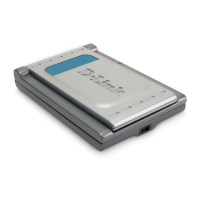
A: Make sure that the SSID on the DWL-650 Cardbus Adapter is exactly the same as
the SSID on the Access Point or wireless router.
Q2: The DWL-650 Power and Link lights are not on.
A: Check to see if the DWL-650 Cardbus Adapter is firmly inserted in the Cardbus slot
of your laptop computer.
Q3: I am unable to access the Internet using the DWL-650.
A1: Check that the LED indicators for the broadband modem are indicating normal
activity. If not, there may be a problem with the broadband connection.
A2: Check that the LED indicators on the wireless router are functioning properly. If not,
check that the AC power and Ethernet cables are firmly connected.
A3: Check that the IP address, subnet mask, gateway, and DNS settings are correctly
entered for the wireless adapter in that specific wireless network.
Q4: I forgot my Encryption key.
A: Reset the Access Point to its factory default settings and restore the DWL-650
Wireless Cardbus Adapter to the factory default settings.



 To Next Page
 Loading...