9
Wireless Basics
3. Building Materials can impede the wireless signal - a solid
metal door or aluminum studs may have a negative effect on
range. Try to position wireless devices and computers with
wireless adapters so that the signal passes through drywall or
open doorways and not other materials.
4. Keep your product away (at least 3-6 feet or 1-2 meters) from
electrical devices or appliances that generate RF noise.
4. Getting Started
There are basically two modes of networking:
Infrastructure – using an Access Point, such as the DWL-6000AP
Ad-Hoc – directly connecting to another computer, for peer-to-peer
communication, using wireless network adapters on each
computer, such as two or more DWL-650 cardbus adapters.
On the following pages we will show you an example of an Infrastructure
Network and an Ad-Hoc Network.
An Infrastructure network contains an Access Point. The Infrastructure
Network example shown on the following page contains the following D-Link
network devices:
A wireless Broadband Router - D-Link AirPlus DI-614+
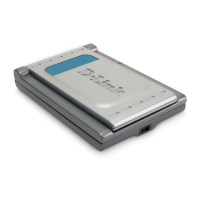
A laptop computer with a wireless network adapter - D-Link Air DWL-650
A desktop computer with an Ethernet adapter – (D-Link DFE-530TX+)
A Cable modem - D-Link DCM-200
DHCP stands for Dynamic Host Configuration Protocol. It is a protocol
for assigning IP addresses “automatically.” With a DHCP-capable
gatewa
/router, there is no need to manuall
assign an IP address.
Right out of the box, with its default settings, the DWL-650 will
automatically connect with other D-Link Air or AirPlus products.





 To Next Page


