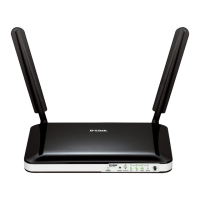
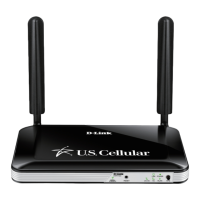
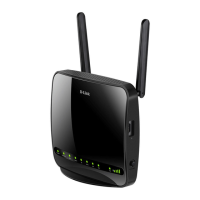
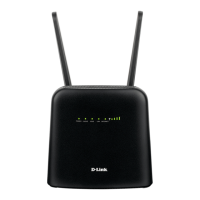
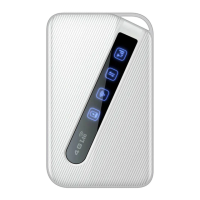
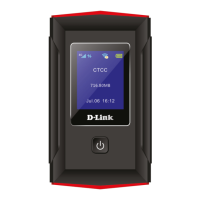
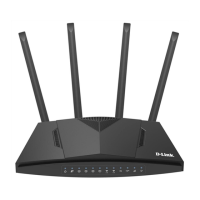
DWr-921e
3
ENG LISH
PrODuCT SETuP
Zero CoNFiGurATioN seTuP
Ensure that your DWR-921E Wireless N300 4G LTE Router is powered off before performing the
steps below.
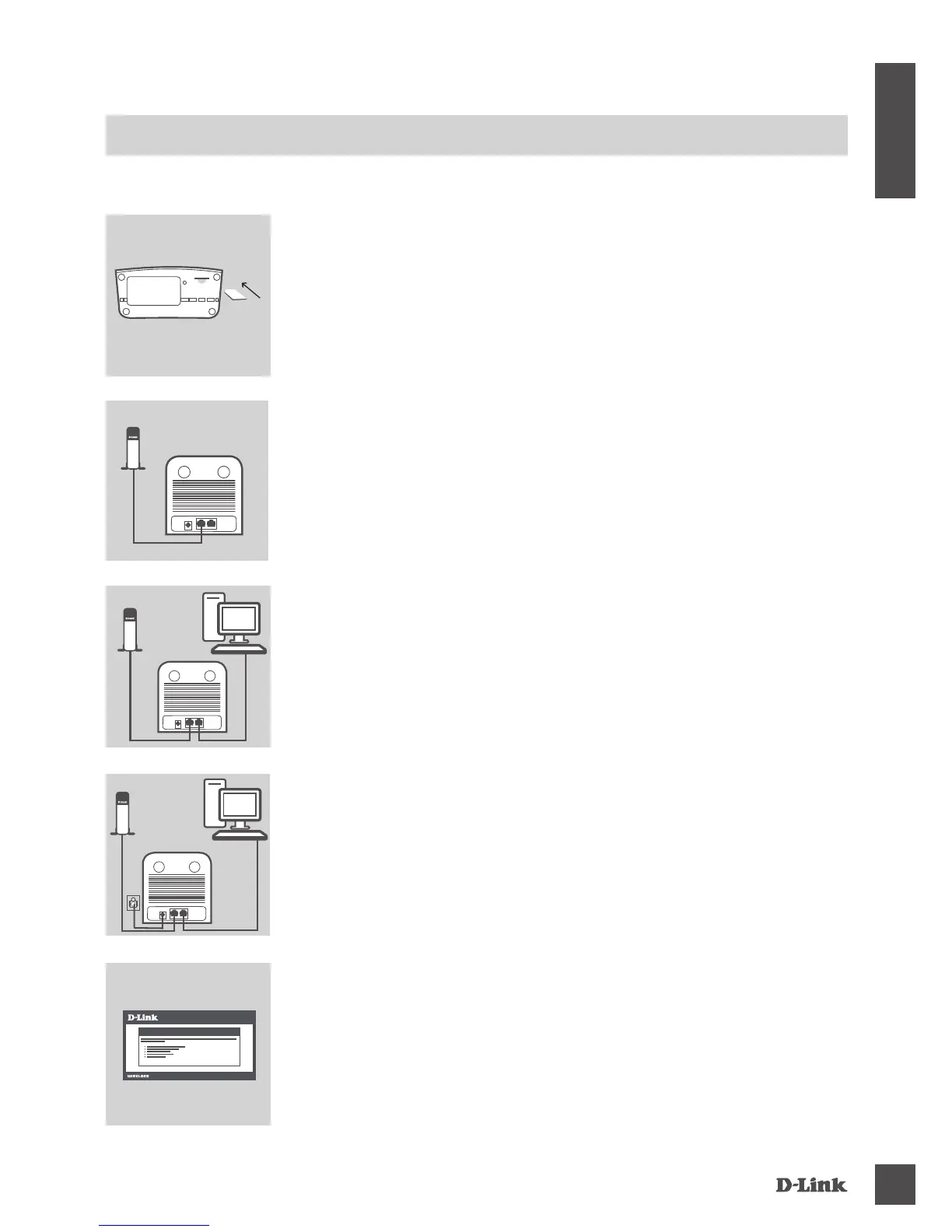
Step 1:
Insert a standard USIM card into the SIM card slot on the bottom of
the DWR-921E with the gold contacts facing toward the back of the
router.
Step 2:
Insert your Ethernet cable into the WAN port on the back of the
router.
Note: The 4G connection may be congured as a backup WAN
connection. Once a backup is congured, if Ethernet WAN Internet
connectivity is lost, the router will automatically fallback to using the
backup 4G connection.
Step 3:
Insert the Ethernet cable into a LAN port on the back of the
DWR-921E Wireless N300 4G LTE Router, and an available
Ethernet port on the computer you will use to congure the unit.
Router
Router
Router
PC
Step 4:
Connect the power adapter to the power input on the back panel of
your DWR-921E Wireless N300 4G LTE Router, and plug the other
end of the power adapter into a wall outlet or power strip.
The Power LED will light up to indicate that power has been supplied
to the router.
PC
Modem
Step 5:
To congure the DWR-921E Wireless N300 4G LTE Router:
Open a web browser window and enter 192.168.0.1 into the address
bar.
Enter admin for the username and the default password is blank.
The conguration home page will appear. For more information,
please see the user manual for details on how to set up the
DWR-921E.
WELCOME TO THE D-LINK SETUP WIZARD
SIM card
Router
Modem
Modem



 To Next Page