Technical Support Setup Procedure
4 Connect your device (computer, smartphone, etc.) to the router's Wi-Fi by locating the
default Network Name (SSID) printed on the router's label. Select this network from your
device’s available Wi-Fi options and enter the default password, also found on the label.
The router should automatically connect to your mobile network. Once connected, you’ll have
internet access.
Manual APN configuration (If auto-detection failed)
When you insert the SIM card, the router typically detects the connection automatically. If it
doesn't, you can manually set up the connection by entering the Access Point Name (APN)
provided by your SIM card’s carrier or can be found on the carrier’s website or support page.
1 On a device connected to the router, open any browser (e.g., Chrome, Firefox). Enter the
router’s IP address: Type 192.168.1.1 in the browser’s address bar and press Enter
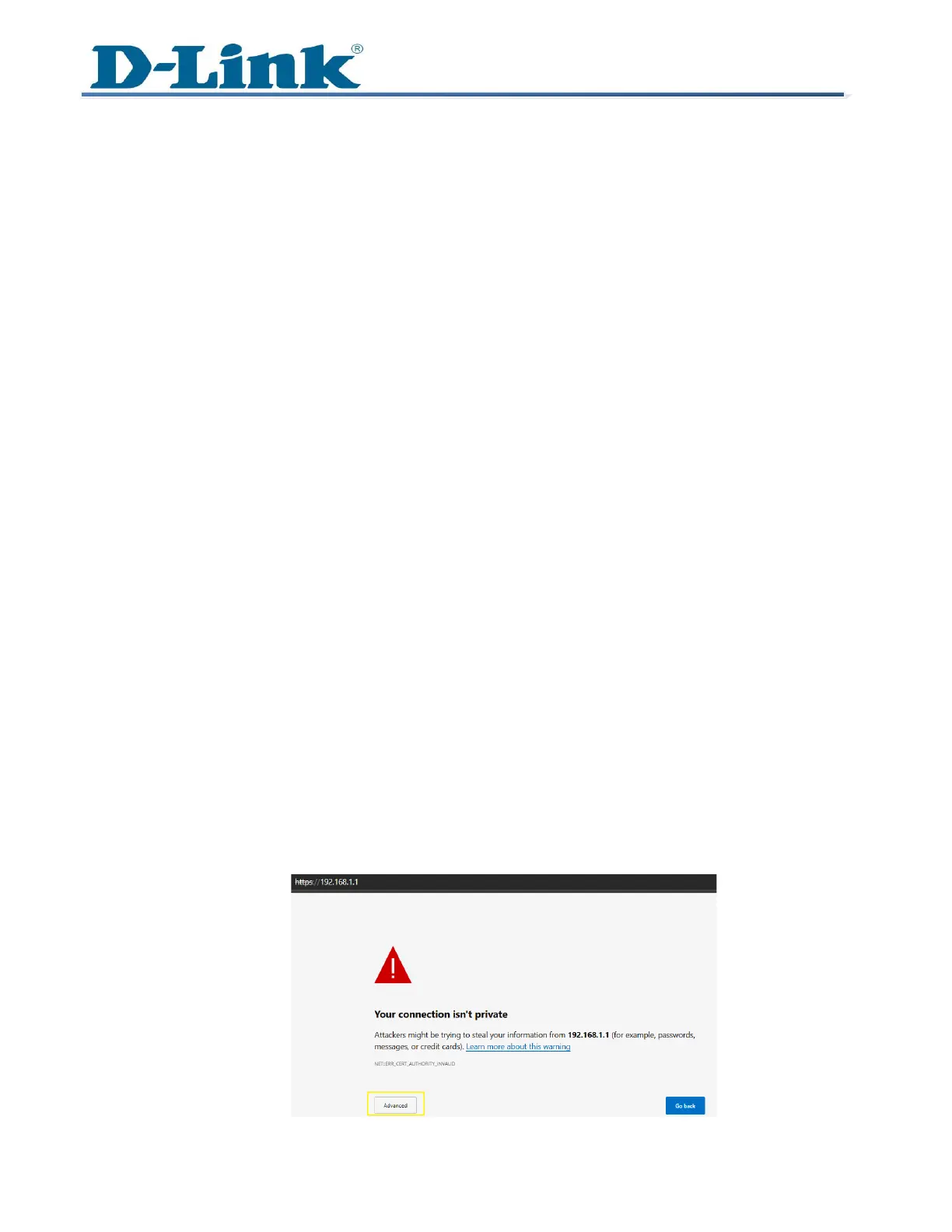
Note: You might see a "Privacy Error" or similar security warning for the first time. This
happens because the router uses a self-signed SSL certificate, which browsers may not
recognize as secure.
Here's how to proceed:
- Click on Advanced at the bottom of the warning page.
- Then, select Continue to 192.168.1.1 (unsafe) to access the router's login page.
- If you’re hesitant to proceed due to security concerns, you can review the certificate
details to verify its issuer and confirm that it is associated with D-Link by doing the
procedure below:
o Click the "Not Secure" icon or the padlock symbol (depending on your
browser).
o View the certificate details to confirm it was issued by the D-Link
manufacturer



 To Next Page