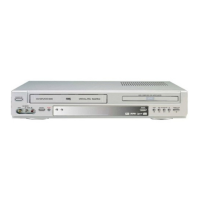
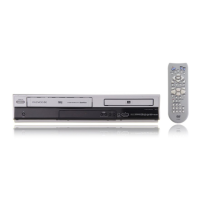
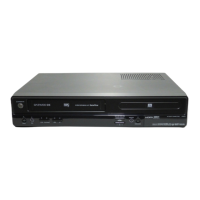
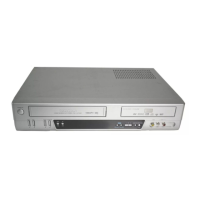
How to Copy (Edit) Tape with Other Video Equipment
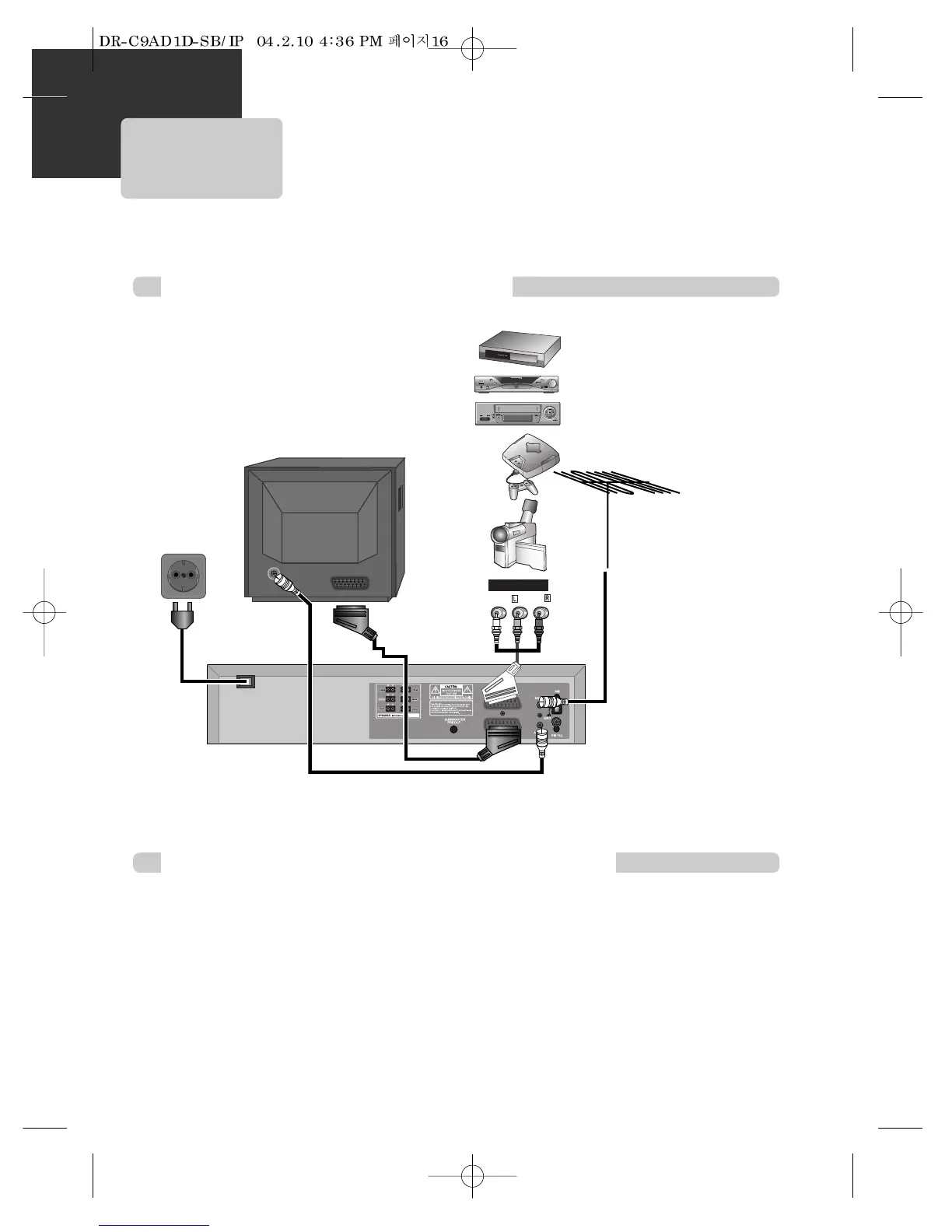
1 Connect Audio/Video Out
jack in other video
equipment to Audio/Video
In jack in rear panel (or
front panel) of DVD-Video
with connecting cable.
2 Connect “ANT. IN” jack in
TV to “RF.OUT” jack in
DVD-Video with RF cable.
3 To record contents of other
video equipment with
DVD-Video, insert
recording tape attached
recording tab in DVD-
Video.
1 Turn on the unit.
2 Insert a recordable tape to the machine to record.
3 Press [INPUT] button to select the video equipment’s input is copied.
4 Check the video signal in other video equipment. If video in the other video equipment is correctly displayed on TV
screen, Press [REC] button in your player.
5 Press [PLAY/PAUSE] button in DVD-Video when unnecessary or undesired scene is displayed in recording.
(Caution) Recording is released automatically after 5 minutes since pressing [PLAY/PAUSE] button. Press [REC]
button if you want to record again.
RF Cable
■ You can connect a wide variety of audio/video equipment to your DVD-Video, including : an additional VCR, Laser Disc
Player, DVD Player, Camcorder, Satellite Receiver, Video Game. Since all of these devices use essentially the same
connections, they will be described together.
200-240V~ AC
50/60Hz


 To Next Page