4. SETTING UP THE USB MODULES
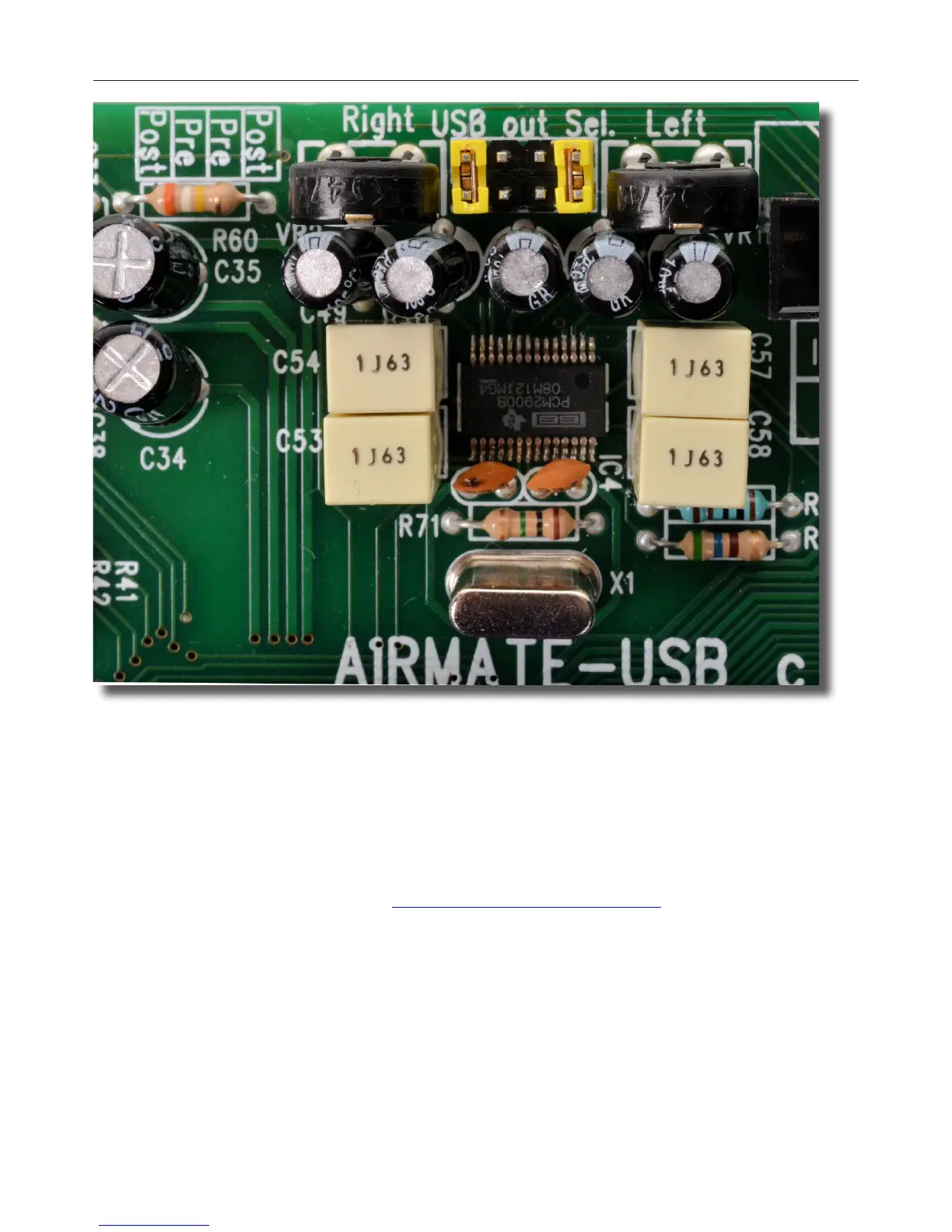
Above pictured you see a section of the USB pcb where you can decide which output signal is sent to the USB con-
nector.
The default setting is a post master stereo fader signal that is sent to the USB connector.
You can change this by moving both yellow jumpers to the mid positions, now you have a pre-fader signal going to
your PC. A mix is also possible of course. The level is set by the master faders of the mixer when post is selected.
But you also have left and right of the jumper settings two trimmers (VR1 and VR2) that adjust the level that is
sent to the USB chip in the Airmate and thus adjust the outgoing level to your PC for left and right signal pre or
post master faders.
This is especially important for Windows 7 that recognizes the Airmate-USB chips we use as mic level signals. A
lower output level coming from the Airmate-USB will greatly improve performance.
Also imbalances between left and right could be corrected by these trimmers.
An audio application needs to run on your PC to be able to see the levels. Or else trial and error is the only way.
A free downloadable tool is to be found here http://minorshill.co.uk/pc2/testgen.html
To be able to adjust this level you need to remove the bottom plate of the Airmate to access the trimmers.
The return signal coming from the PC is xed but can be adjusted with the Gain control of the Airmate-USB chan-
nel.


 To Next Page