Guide
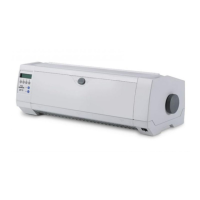
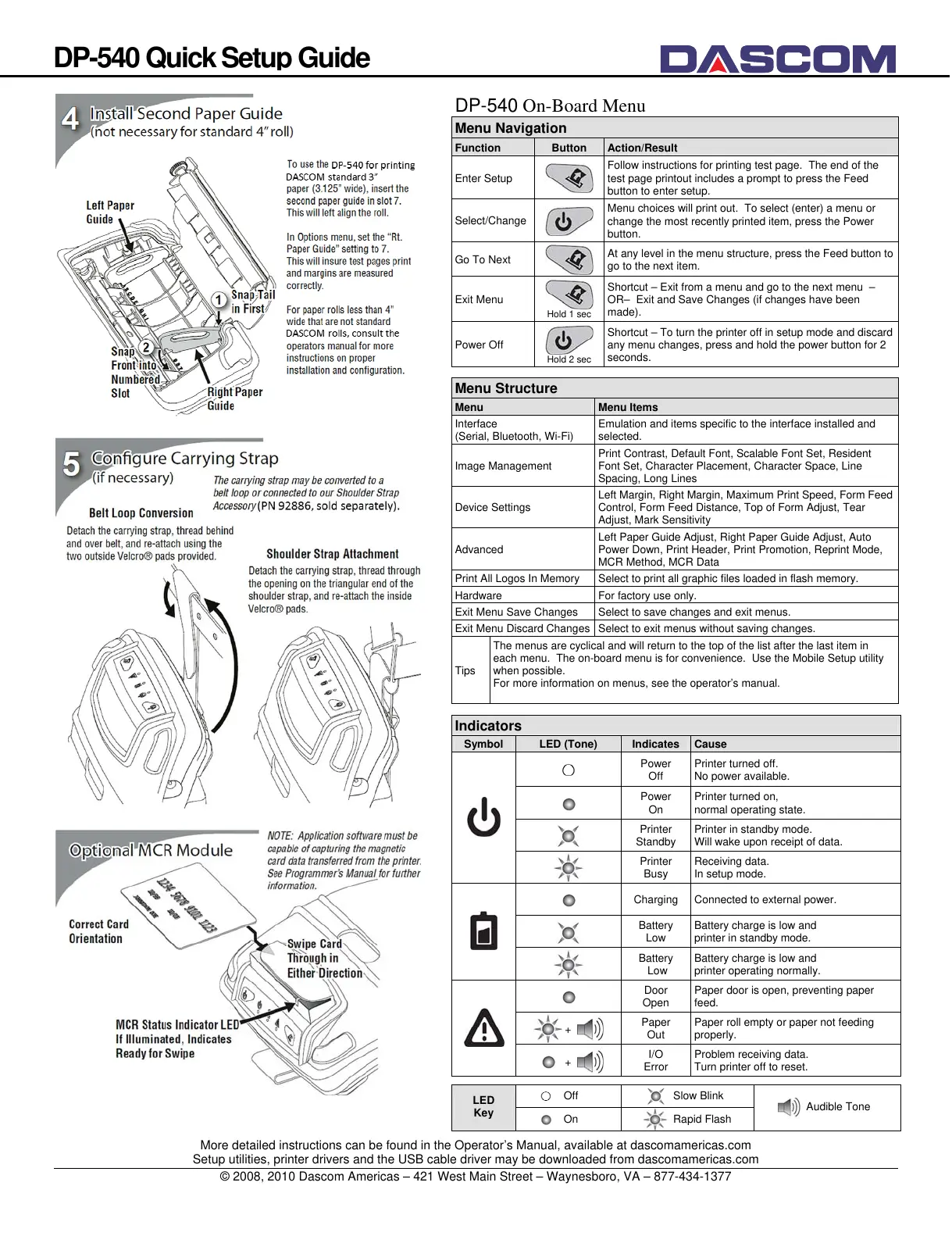
DP-540 On-Board Menu
Menu Navigation
Function Button Action/Result
Enter Setup
Follow instructions for printing test page. The end of the
test page printout includes a prompt to press the Feed
button to enter setup.
Select/Change
Menu choices will print out. To select (enter) a menu or
change the most recently printed item, press the Power
button.
Go To Next
At any level in the menu structure, press the Feed button to
go to the next item.
Exit Menu
Hold 1 sec
Shortcut – Exit from a menu and go to the next menu –
OR– Exit and Save Changes (if changes have been
made).
Power Off
Hold 2 sec
Shortcut – To turn the printer off in setup mode and discard
any menu changes, press and hold the power button for 2
seconds.
Menu Structure
Menu Menu Items
Interface
(Serial, Bluetooth, Wi-Fi)
Emulation and items specific to the interface installed and
selected.
Image Management
Print Contrast, Default Font, Scalable Font Set, Resident
Font Set, Character Placement, Character Space, Line
Spacing, Long Lines
Device Settings
Left Margin, Right Margin, Maximum Print Speed, Form Feed
Control, Form Feed Distance, Top of Form Adjust, Tear
Adjust, Mark Sensitivity
Advanced
Left Paper Guide Adjust, Right Paper Guide Adjust, Auto
Power Down, Print Header, Print Promotion, Reprint Mode,
MCR Method, MCR Data
Print All Logos In Memory Select to print all graphic files loaded in flash memory.
Hardware For factory use only.
Exit Menu Save Changes Select to save changes and exit menus.
Exit Menu Discard Changes Select to exit menus without saving changes.
Tips
The menus are cyclical and will return to the top of the list after the last item in
each menu. The on-board menu is for convenience. Use the Mobile Setup utility
when possible.
For more information on menus, see the operator’s manual.
Indicators
Symbol LED (Tone) Indicates Cause
Power
Off
Printer turned off.
No power available.
Power
On
Printer turned on,
normal operating state.
Printer
Standby
Printer in standby mode.
Will wake upon receipt of data.
Printer
Busy
Receiving data.
In setup mode.
Charging Connected to external power.
Battery
Low
Battery charge is low and
printer in standby mode.
Battery
Low
Battery charge is low and
printer operating normally.
Door
Open
Paper door is open, preventing paper
feed.
+
Paper
Out
Paper roll empty or paper not feeding
properly.
+
I/O
Error
Problem receiving data.
Turn printer off to reset.
Off Slow Blink
LED
Key
On Rapid Flash
Audible Tone
More detailed instructions can be found in the Operator’s Manual, available at dascomamericas.com
Setup utilities, printer drivers and the USB cable driver may be downloaded from dascomamericas.com
© 2008, 2010 Dascom Americas – 421 West Main Street – Waynesboro, VA – 877-434-1377


 To Previous Page
 Loading...