EasyManua.ls Logo

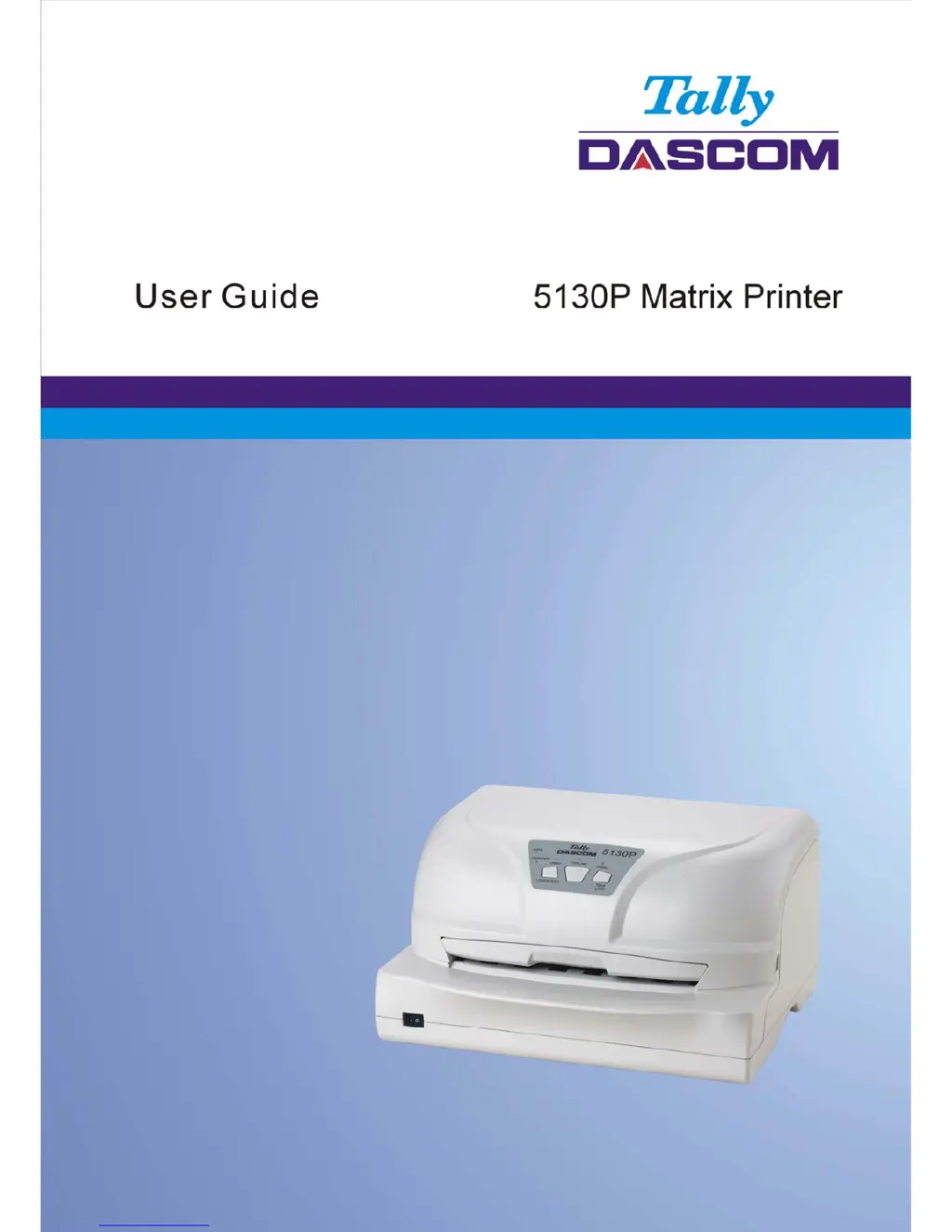
Dascom 5130P - User Manual

Dascom 5130P
120 pages
Print Icon
To Next Page IconTo Next Page
Loading...

Table of Contents

Questions and Answers

  • N
    Nicole FarleyAug 19, 2025
    How to fix Dascom Printer when printing is too light or too dark?
    • A
      Andrew SotoAug 19, 2025
      To resolve light or dark printing issues with your Dascom Printer: * Ensure the ribbon cartridge is correctly installed and the ribbon moves smoothly. * If the issue persists, replace the ribbon cartridge.
  • K
    Kevin McconnellAug 21, 2025
    What to do if my Dascom Printer is on but it will not print?
    • S
      Scott TaylorAug 21, 2025
      To resolve printing issues with your Dascom printer: * Ensure that the LED “OFFLINE” is off. * If you are using an interface cable, ensure it is securely connected to both the printer and the computer. * If you are using a serial interface, ensure the settings match the PC communication port settings. * Ensure paper is loaded, and the paper feed lever is set according to the used paper path (only valid with optional tractors). * Run the printer Status Page. If printing executes normally, the problem is caused by: the interface, the computer, incorrect printer settings, or incorrect software settings. * Ensure that the printer driver selected in your software is the same as the emulation selected on the printer.
  • P
    Paul HarveyAug 23, 2025
    What to do if Dascom 5130P Printer paper jams while printing?
    • R
      Roger RamirezAug 23, 2025
      To address paper jams while printing in your Dascom printer: * Turn off the printer and carefully remove the jammed paper, clearing any obstructions from the paper path. * If using continuous forms with optional tractors, ensure that the incoming and outgoing paper stacks are correctly placed, allowing the paper to feed straight.
  • O
    oturnerAug 26, 2025
    What to do if Dascom 5130P paper jams while loading?
    • J
      jean11Aug 26, 2025
      To resolve paper jams while loading in your Dascom printer: * Turn off the printer and gently remove the jammed paper, ensuring no obstructions remain in the paper path. * Verify that the paper is free from folds, creases, or tears. * If using continuous forms with optional tractors, ensure the left and right tractors are set to keep the forms stretched taut.
  • H
    harriscarrieAug 28, 2025
    Why does my Dascom Printer leave smears and stains on the page?
    • S
      Summer GarrettAug 28, 2025
      To resolve the issue of smears and stains on the page from your Dascom Printer: * Check the ribbon for wear and replace the ribbon cartridge if necessary. * Inspect the print head for dirt and clean it gently with a soft cloth if needed. * Consider that the print head may need replacement if the issue persists.
  • E
    Eric CampbellAug 30, 2025
    How to fix Dascom 5130P Printer printing erratic or wrong characters?
    • A
      Amanda PageAug 30, 2025
      To troubleshoot erratic printing or incorrect characters on your Dascom printer: * Ensure the interface cable is securely connected to both the printer and computer. * Verify that the printer driver selected in your software matches the emulation selected on the printer. * Check the length of the interface cable (Maximum Parallel & USB: 2 meters, Serial: 15 meters). * Try using another interface cable.
  • M
    Melody GrossSep 1, 2025
    How to correct vertically misaligned printing on Dascom 5130P?
    • D
      Darren JacksonSep 1, 2025
      To correct vertically misaligned (jagged) printing on your Dascom Printer, use the printer's vertical alignment function to check the vertical print alignment. If necessary, adjust the print alignment.
  • D
    Daryl PhamSep 4, 2025
    How to adjust the top margin on a Dascom 5130P?
    • J
      Jon TaylorSep 4, 2025
      To correct a wrong top margin on your Dascom Printer: * Check the application's top margin setting. * If necessary, adjust the Top Margin setting in the Page Setup menu.
  • A
    April CarterSep 6, 2025
    Why does my Dascom 5130P print lines double spaced instead of single spaced?
    • K
      Kenneth SmithSep 6, 2025
      To resolve double-spaced lines instead of single-spaced lines on your Dascom Printer, change the Auto LF setting in the System Setup menu to No.
  • M
    Martin HansonSep 8, 2025
    How to fix Dascom 5130P when the next print line starts where the previous line ended?
    • M
      Michele McleanSep 8, 2025
      To fix the issue where the next print line starts where the previous line ended on your Dascom Printer, change the Auto CR setting in the System Setup menu to Yes.

Summary

Important Safety Instructions

Printer Installation Guide

Unpacking the printer

Procedure for safely removing the printer from its packaging.

Placing the printer

Guidelines for selecting an optimal and safe location for the printer.

Installing and removing ribbon cartridge

Step-by-step instructions for installing and removing the ribbon cartridge.

Connecting the interface cable

Instructions for connecting serial, parallel, or USB interface cables to the printer.

Connecting the mains power

Procedure for connecting the printer to the electrical power supply.

Installing the printer driver

Guide for installing the necessary printer driver software on a computer.

Paper Installation Guide

Control Panel Operation

Setup Menu

Calibrations

Print Alignment

Adjusts printer alignment for optimal print quality.

Setting TOF

Configures the Top Of Form setting for accurate paper positioning.

Setting Left margin

Adjusts the left margin for precise text placement.

Troubleshooting and Maintenance

Troubleshooting

Solutions for common print quality and paper handling problems.

Care and Maintenance

Guidance on cleaning and maintaining the printer for longevity.

Specification

Dascom 5130P Specifications

General IconGeneral
BrandDascom
Model5130P
CategoryPrinter
LanguageEnglish

Related product manuals