Need help?
Do you have a question about the Dascom DP-540 and is the answer not in the manual?
Procedure for installing the battery into the printer.
Connecting the printer to an AC adapter or in-vehicle adapter.
Charging the battery until the LED indicator turns off.
How to load a paper roll into the printer.
Steps to start the printer test, including button presses and LED behavior.
Instructions for installing an additional paper guide for specific roll widths.
How to convert the carrying strap into a belt loop.
How to attach the carrying strap to a shoulder strap.
Explanation of buttons used for navigating the printer's on-board menu.
Description of the printer's menu categories and their related items.
Details on Power and Battery LEDs, including their states and causes.
Explanation of Door Open, Paper Out, I/O Error, and other indicator LEDs.
Reference for LED key definitions and audible tone signals.
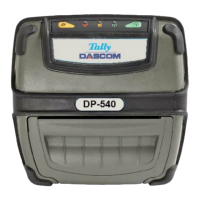
The DP-540 is a portable printer designed for various mobile printing applications. Its compact and robust design makes it suitable for use in diverse environments, offering both wired and wireless connectivity options.
The primary function of the DP-540 is to print on paper rolls, supporting different widths. It can be operated directly from an external power source or using a rechargeable battery, providing flexibility for on-the-go use. The printer features an intuitive on-board menu system, allowing users to configure settings, manage print jobs, and perform diagnostic tests without needing a connected computer. It supports various emulations and interface settings, making it compatible with a wide range of software applications. An optional Magnetic Card Reader (MCR) module extends its functionality to include magnetic stripe card data capture, which is particularly useful for payment processing or identification verification in mobile settings.
Paper Loading and Management: The DP-540 is designed for easy paper loading. Users simply drop in a paper roll and guide it through the mechanism. For standard 4-inch paper rolls, no additional setup is required. However, for narrower media, such as 3-inch paper, a second paper guide can be installed to ensure proper alignment and printing. This guide snaps into a numbered slot and helps to left-align the roll, preventing skewed prints and ensuring accurate margin measurements. The printer includes a paper door release lever for convenient access to the paper compartment. The device also features indicators for "Paper Out" or "Paper Not Feeding Properly," alerting the user to potential issues.
Battery and Power Management: The printer can be powered by an AC adapter, an in-vehicle adapter, or its internal rechargeable battery. The battery is installed by loosening the carrying strap if necessary. Charging the battery is straightforward: simply connect the power source, and an LED indicator will illuminate. The LED will turn off once the battery is fully charged, which typically takes 2-3 hours. The DP-540 can operate directly from an external power source even without a battery installed. For optimal battery performance, it is recommended to complete three full charge and discharge cycles before deploying the printer for regular use. Battery status indicators, including "Battery Low" (both in standby and operating modes), provide clear feedback on the remaining charge.
On-Board Menu Navigation: The DP-540 features a comprehensive on-board menu accessible via the printer's control buttons.
Printer Test and Configuration: To perform a printer test, the user starts with the printer off, then holds the "Feed" button while pressing the "Power" button. An LED should illuminate, indicating the printer is ready. Continuing to hold the "Feed" button until the printer beeps twice will initiate a test page printout, and an LED will flash. After the test page prints, the printer will prompt the user to press a button to enter the setup menu, providing an opportunity for further configuration.
Carrying and Portability: The DP-540 includes a carrying strap for easy portability. This strap can be converted into a belt loop by detaching it, threading it behind and over a belt, and re-attaching it using the provided Velcro® pads. Alternatively, it can be attached to an optional shoulder strap accessory for hands-free carrying.
MCR Module Usage (Optional): For models equipped with the MCR module, the printer can read magnetic stripe card data. An MCR Status Indicator LED illuminates when the module is ready for a swipe. Users swipe the card through the designated slot in either direction. It's important to note that application software is required to capture and process the magnetic card data transferred from the printer.
Battery Charging and Care: The DP-540's battery charging process is indicated by an LED. Once fully charged, the LED turns off. Regular charging and occasional full discharge/recharge cycles are recommended to maintain battery health and maximize its lifespan. The "Battery Low" indicator helps users anticipate when a recharge is needed.
Error Indicators: The printer provides various LED indicators to help diagnose and troubleshoot issues:
Access to Documentation and Support: More detailed instructions, setup utilities, printer drivers, and USB cable drivers are available online, ensuring users have access to comprehensive support for installation, configuration, and troubleshooting. This accessibility to resources simplifies maintenance and ensures optimal printer performance.
 General
| Print Technology | Dot Matrix |
|---|---|
| Print Resolution | 360 x 360 dpi |
| Print Speed | 540 characters per second |
| Number of Pins | 24 pins |
| Connectivity | USB, Parallel |
| Paper Handling | Tractor feed |

 To Next Page