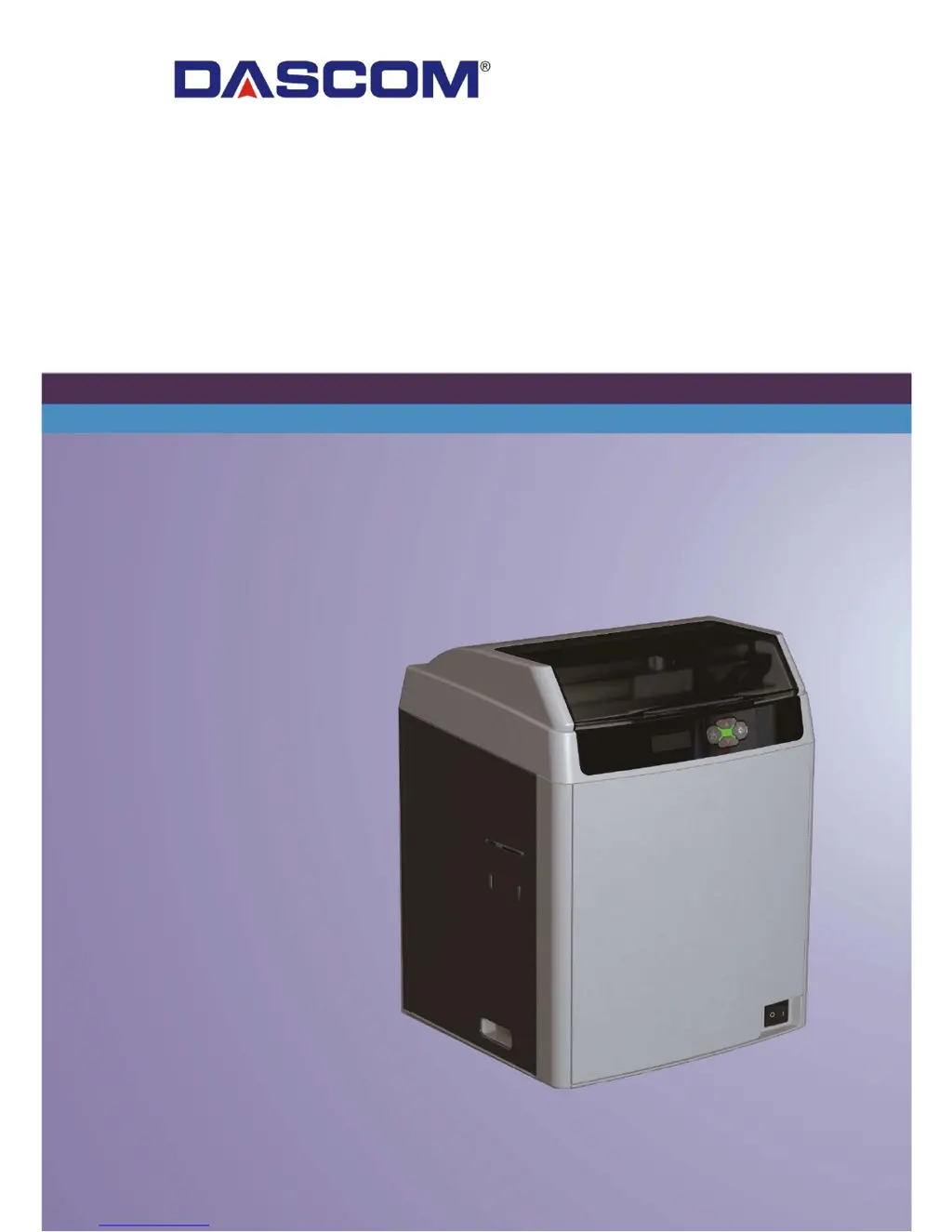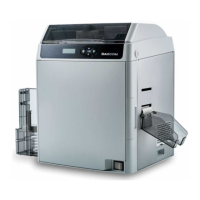
Why is the printing quality dissatisfactory on my Dascom DC-7600?
- AAlexandra GarzaSep 10, 2025
If the printing quality of your Dascom printer is dissatisfactory, make sure the card surfaces are clean and dust-free. Use new, clean cards.
Why is the printing quality dissatisfactory on my Dascom DC-7600?
If the printing quality of your Dascom printer is dissatisfactory, make sure the card surfaces are clean and dust-free. Use new, clean cards.
How to fix a Ribbon Jam on a Dascom Printer?
If your Dascom Printer is experiencing a ribbon jam, which may be due to a ribbon winding problem, do not turn off the power. Reload the ribbon, referring to Section 2.2. Press the SET Key to clear the warning, and the printer will resume printing after initialization.
How to fix a Film Jam on a Dascom Printer?
If your Dascom Printer has a film jam, possibly due to a retransfer film winding problem, do not turn off the power. Reload the retransfer film, referring to Section 2.3. Press the SET Key to clear the warning, and the printer will resume printing after initialization.
What to do if my Dascom DC-7600 displays 'Invalid Ribbon'?
If your Dascom Printer shows 'Invalid Ribbon', which may be due to an unrecognized ribbon, do not turn off the power. Reload the ribbon, referring to Section 2.2, if it's skewed. Also, verify that the ribbon type is YMCK/YMCKK. Press the SET Key to clear the warning, and the printer will resume printing after initialization.
What to do if my Dascom DC-7600 Printer displays 'Invalid Film'?
If your Dascom Printer displays 'Invalid Film', open the front cover and check for any issues with the retransfer film. Correct any faults, then close the top cover. Press the SET Key to clear the warning, and the printer will resume printing after initialization.
What to do if my Dascom DC-7600 displays 'Film End'?
If your Dascom Printer displays 'Film End', do not turn off the power. Replace the retransfer film, referring to Section 2.3. Press the SET Key to clear this warning, and the printer will resume previous printing after initialization.
Why is my Dascom Printer bending cards?
If your Dascom Printer is bending cards, see Chapter 3 to change from Normal Mode to User Mode.
What does 'RFID_AUTH_ERROR' mean on my Dascom DC-7600 Printer and how to fix it?
The 'RFID_AUTH_ERROR' on your Dascom Printer means you should check if a genuine ribbon is being used and if the ribbon has an RFID ring. Press SET as shown on the LCD to initialize the printer.
How do I resolve a 'Flip Card Jam' on my Dascom DC-7600 Printer?
If your Dascom Printer displays a 'Flip Card Jam', pressing SET as shown on the LCD display may eject the jammed card after initialization.
How to resolve 'Feeder Card Jam' on Dascom Printer?
When the LCD display shows a 'Feeder Card Jam' on your Dascom Printer, pressing the SET key may eject the jammed card after initialization. If the fault persists after initialization, manually turn the rollers to clear the jammed card.
Essential safety precautions for operating the DC-7600 printer, covering installation and power.
Detailed identification and function of the printer's external and internal parts.
Explanation of buttons, status LEDs, buzzer, and LCD display for printer control.
Step-by-step instructions for connecting the DC-7600 printer to its power source.
How to connect the DC-7600 printer to a computer using USB or Ethernet.
Comprehensive guide for installing the DC-7600 driver on Windows systems.
Step-by-step instructions for installing the Windows driver via a USB connection.
Procedure for installing the Windows driver for network connection via Ethernet.
Procedures for loading various types of cards into the Dascom DC-7600 printer.
Step-by-step guide for changing the ribbon cartridge in the DC-7600 printer.
Instructions for replacing the retransfer film when a 'FILM END' warning appears.
Procedure for replacing the cleaning roller, recommended with ribbon changes.
Instructions for downloading and installing firmware updates for the DC-7600 printer.
List of common printer warning messages and their corresponding corrective actions.
Systematic steps to diagnose and resolve common printing faults.
Troubleshooting common issues like no print output or blank cards.
Procedures for safely removing jammed cards and preventing future occurrences.
| Type | Dot Matrix Printer |
|---|---|
| Resolution | Up to 360 x 360 dpi |
| Print Resolution | 360 x 360 dpi |
| Paper Handling | Tractor feed |
| Connectivity | Parallel, USB |
| Emulation | Epson ESC/P |
| Number of Pins | 24 |
| Paper Thickness | 0.065 mm to 0.46 mm |
| Interface | USB 2.0, IEEE-1284 Parallel |
| Print Technology | Serial Impact Dot Matrix |
| Print Method | Serial Impact Dot Matrix |