Dascom DC-7600 User Guide V1.0
3.2 User Mode
User Mode allows changing the parameters and checking the status.
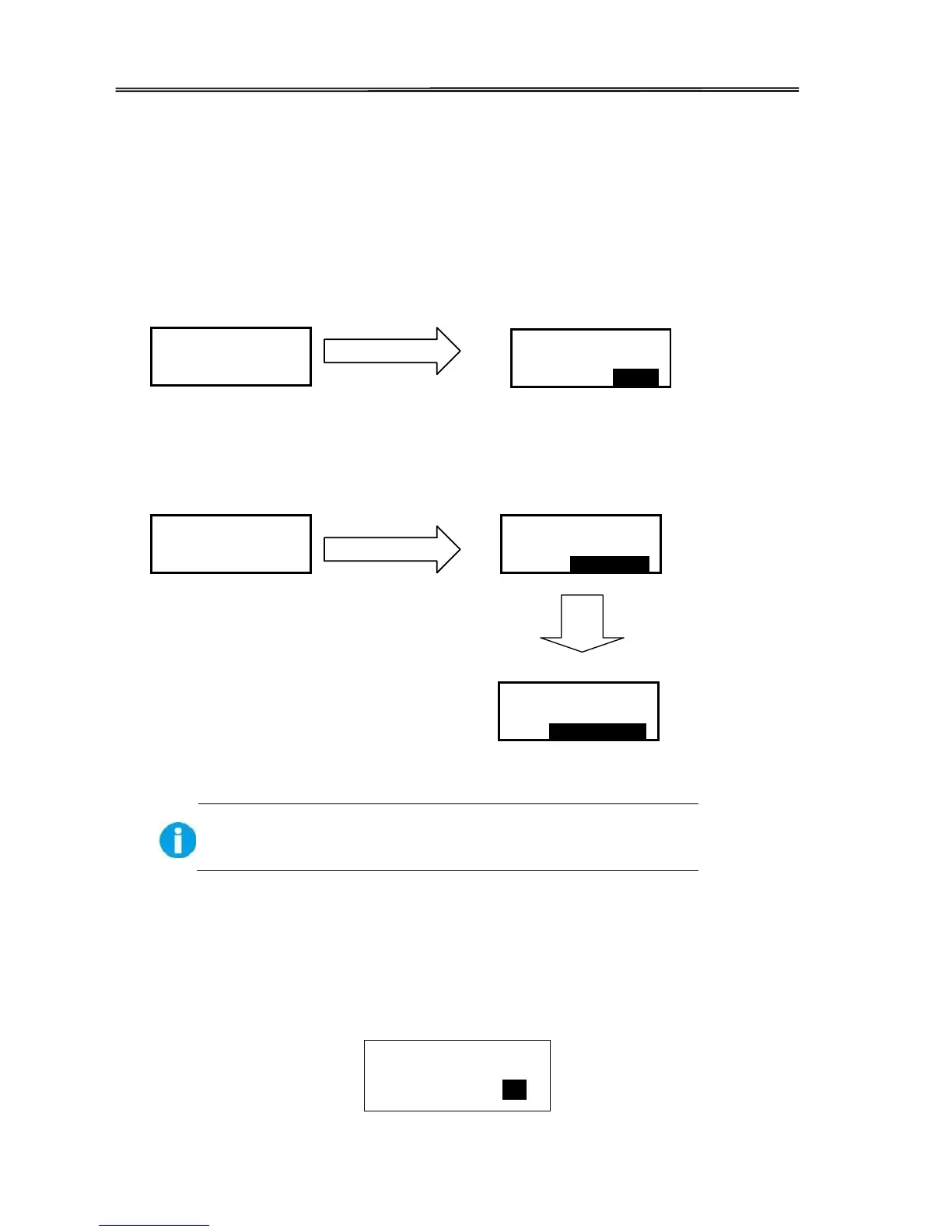
Steps to change from Normal Mode to User Mode:
1) After LCD displays [READY], press Menu/Exit Key for 1 second then release it. The LCD changes
its display to [Printer Info.], which is the entry menu in User Mode:
2) Press【 Menu /Exit】 Key for 3 second then release it. The LCD shows [Choose mode]. Press ▲
or ▼ Keys to select User Mode or Service Mode:
Even when the printer is in an error state, you can change modes.
Step to return to Normal Mode from User Mode:
1) Continually press Menu/Exit Key until the LCD shows [Quit the Menu]. Then press SET Key to
return to Normal Mode:
Quit the Menu?


 To Next Page