7
Paperlike Pro
8
Paperlike Pro
Paperlike Pro use and settings
Paperlike Pro
Connect Paperlike Pro to your computer (It will auto-boot. No need to press any button)
and launch the Paperlike Pro software. You can use the buttons on the monitor and
software for various controls of Paperlike Pro.
■
Button
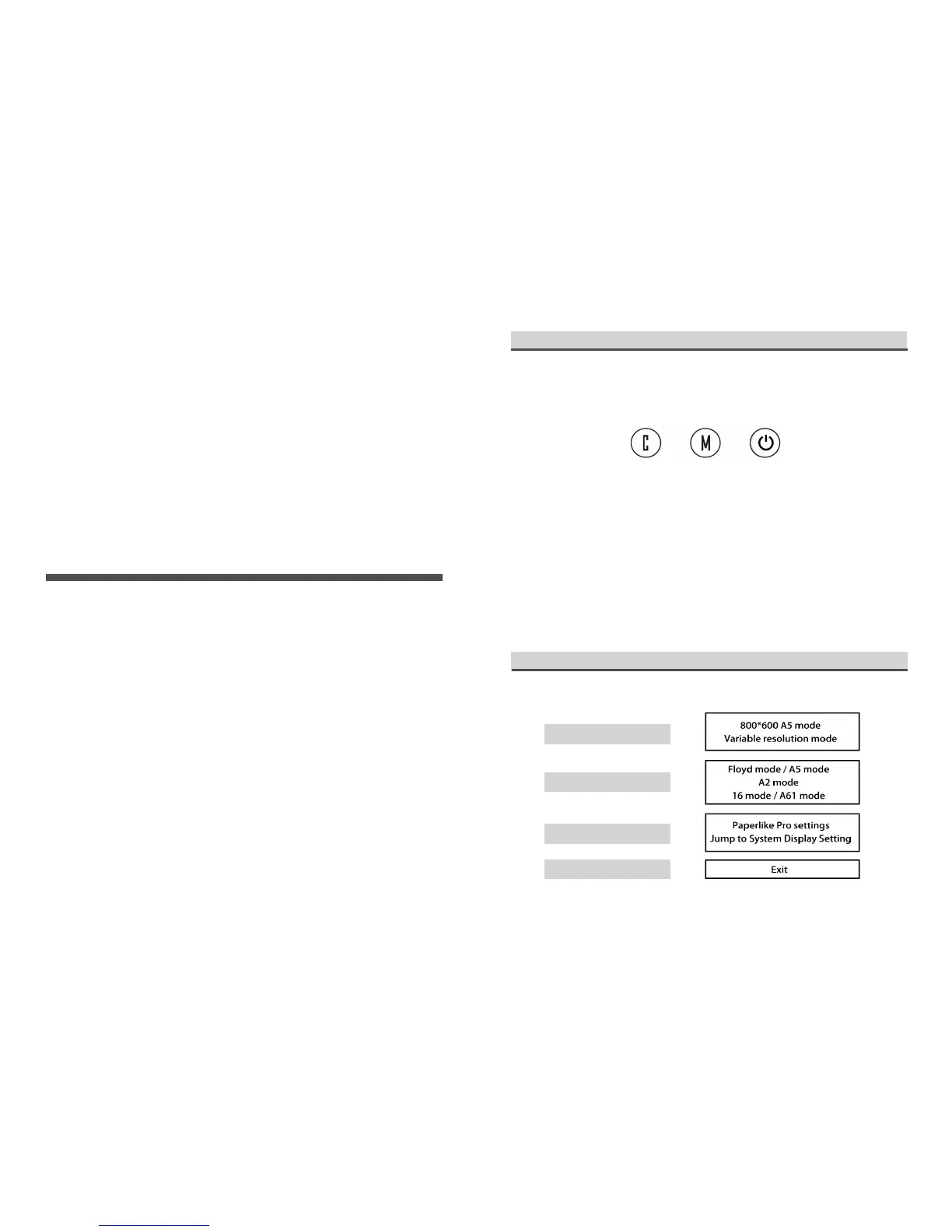
C: Completely clear the ghost on the screen, the same as the software Hot key refresh (not
blink refresh).
M: Switch the image mode. At 800*600 resolution, the image mode will be switched
between A5-A2-A61. At variable resolution, the image mode will be switched between
Floyd-A2-16.
Power: Turn the monitor on/off. (There is no need to press it when just power on the
Paperlike Pro)
C + M: Restart the monitor. (Restart the monitor when it is abnormal.)
Setting
PartI:Resolutionselection
PartII:Modeselection
PartIII:Setting
PartIV:Exit
There are four parts of software interface:



 To Next Page