11
Paperlike Pro
12
Paperlike Pro
Recommendation
■
In 1600*1200 resolution, if you feel the words are too small, you can change the zoom
of system(DPI) to 125%-175%. In duplicated mode, the DPI will aect both the LCD and
Paperlike Pro.
■
As Paperlike Pro is 4:3 (not 16:9 as usual), in some resolutions, there may be black stick
at the edge of the screen.
■
Paperlike Pro is the fastest Eink product which response nearly as quickly as the LCD.
However, the refresh rate is still lower than the LCD. You may feel the cursor is not fast
enough. We recommend you change the cursor’s size and the moving speed.
■
Use together with the LCD. Use more keyboard rather than mouse. (such as “PgUp/
PgDn”)
■
Plug in the USB before HDMI.
■
Plug out the cable before the PC is power o/ restart.
■
Exit
For Windows, click "Exit" to exit the software. If you click "X", the software will automatically
shrink to the tray and continue to run.
For Mac, click "Exit" to exit the software.
【
Indicated light
】
Paperlike Pro's indicated light has 3 states:
【
Light o
】
There is no power. Please connect/re-connect the USB to the power.
【
Blue/White
】
Paperlike Pro is booting.
【
Green
】
Paperlike Pro is ready.
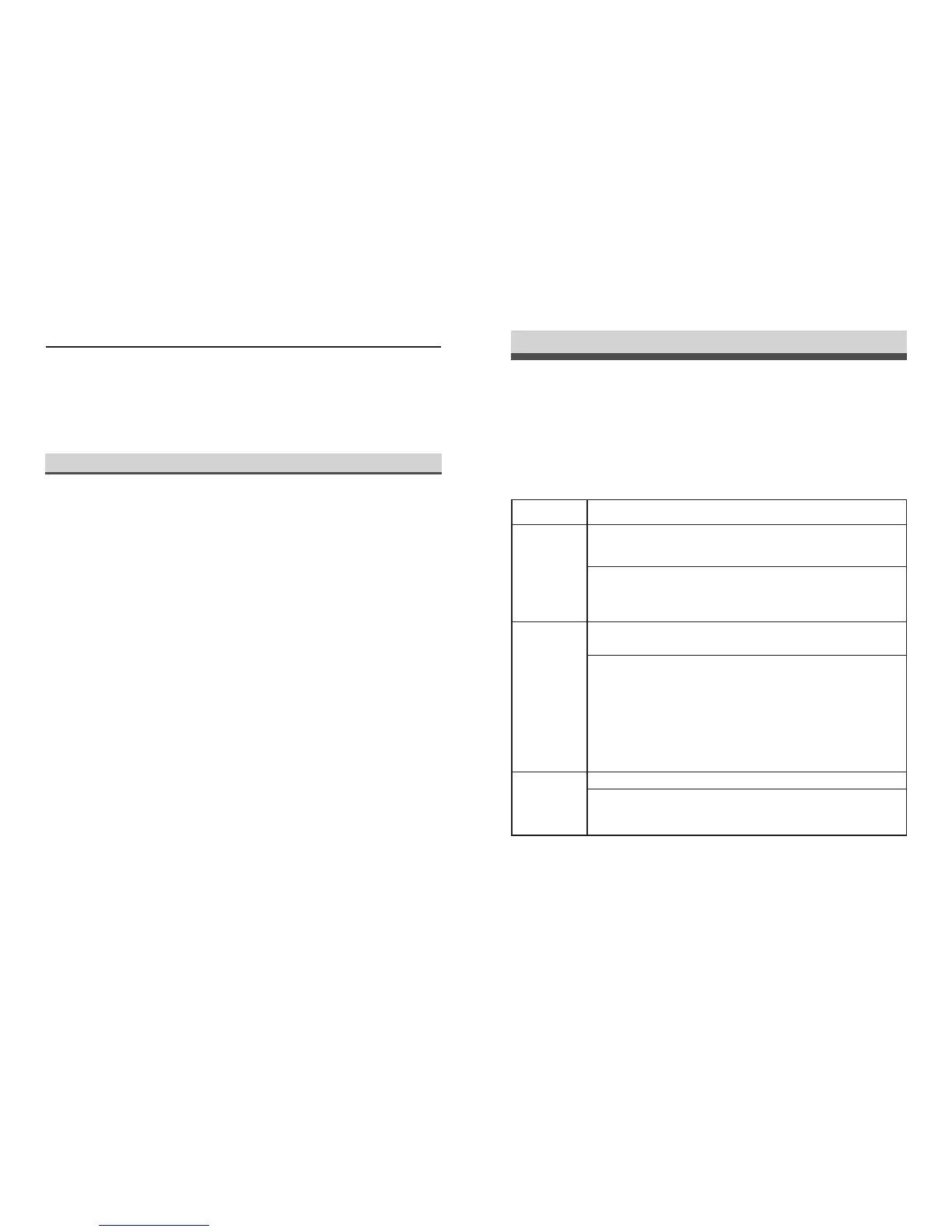
If Paperlike Pro has no response, please exit the software, disconnect all the cable. And do
the following steps:
Usage ow and fault diagnosis
Power O
Exit the software. Disconnect all the cable.
Turn-on
Power-1
Only connect the USB to the power. The light will turn from white to blue,
then the screen will refresh black/white and stay white. The light will stay
green.
Problem: 1, The light stayed white/blue. 2, The screen did not change.
Solve: The power is not stable. Please re-connect the USB or press
button “C” + “M”.
Turn-on
Power-2
Connect the HDMI to the PC. PC’s screen may be black for a second.
Than you can see the image on Paperlike Pro.
Problem: There is no image on the Paperlike Pro, and no more monitors
can be seen in OS’ Display Setting.
Solve: HDMI is not stable, reconnect it; click “Detect” in OS’ Display
Setting
Problem: The image on the Paperlike Pro looks strange.
Slove: Press “C” button; Change the contrast in software; Reconnect the
HDMI cable
Working Stage
It displays well.
Problem: The image did not move.
Solve: Move the mouse or press “C” button to exit the screen saver;
Restart the Paperlike Pro software; “C”+”M” to restart the Paperlike Pro
If the diagnosis above does not help, please do not hesitate to contact us at support@dasung.com



 To Next Page