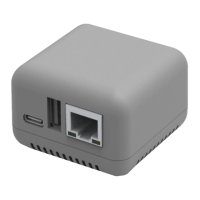
The NP33x series, including models like NP330 and NP332, are network print servers manufactured by Shenzhen Datong Youlian Technology Co., Ltd. These devices are designed to enable USB printers to be shared across a network, supporting both wired (Ethernet) and wireless (Wi-Fi) connections.
Function Description
The primary function of the NP33x print server is to provide network printing support for USB printers. It allows multiple computers and mobile devices on an intranet to connect to the print server and utilize the attached USB printer(s). For models with Wi-Fi functionality, the print server can connect to a wireless Wi-Fi network hotspot.
The device also offers scan support for multifunction printers (MFPs) by utilizing a virtual USB port tool called VirtualHere. This tool addresses the common issue where many printer scanning software applications do not support network scanning.
Important Technical Specifications
Connectivity:
- USB Ports: The NP330 supports one USB interface (USB0), while the NP332 supports up to three USB interfaces (USB1, USB2, USB3). These USB ports are used to connect printers.
- Network Ports: Features an Ethernet (eth0) interface for wired network connection. Models with Wi-Fi functionality also include a WLAN interface.
- Power/Configuration Port: A dedicated USB port serves as both a power input and a configuration interface for initial setup via a computer.
Network Configuration:
- IP Addressing: Supports DHCP for automatic IP address assignment and manual static IP address configuration. It is recommended to set a fixed IP address for stability.
- Port Numbers: USB ports are mapped to SOCKET ports for network printing. The default port for USB0 is 9100 (modifiable), and for NP332, USB1, USB2, USB3 correspond to ports 9100, 9101, 9102 respectively (modifiable within the range of 9100-65535).
- MAC Address: Network port MAC addresses can be modified to avoid conflicts when multiple print servers are on the same network.
System and Software:
- Operating System: The print server runs on an embedded operating system, requiring approximately 20 seconds to start up.
- Configuration Tool: A WINDOWS-based, installation-free configuration tool (
PTS.exe) is provided for managing print server parameters. MAC systems can only connect via a browser for configuration.
- Firmware: Supports firmware updates, with new firmware packages obtainable from customer service.
- Virtual USB Tool (VirtualHere): A separate tool (
vhui32.exe for 32-bit, vhui64.exe for 64-bit systems) is used for virtualizing USB connections, primarily for scanner support. It may require the Apple Bonjour plug-in for network discovery.
Usage Features
Print Server Configuration:
- USB Connection: For initial setup or troubleshooting, the print server can be connected directly to a WINDOWS computer via USB. This method allows full function settings and is recommended for first-time connections.
- Network Cable Connection: The print server can connect to a router via an Ethernet cable. It can obtain an IP address via DHCP or be assigned a static IP. Configuration can then be done through the WINDOWS configuration tool or a web browser (for MAC systems).
- Device Name Modification: Users can change the device name to easily identify multiple print servers on the network.
- Print Transfer Mode: The system defaults to direct output to the printer. An alternative mode allows the print server to receive all data before sending it to the printer, which can be useful for printers with higher data transmission requirements.
- WIFI Configuration: For models with Wi-Fi, users can scan for nearby Wi-Fi hotspots, select one, and enter the password to connect the print server to the wireless network. Static IP assignment is also recommended for Wi-Fi connections.
- Reboot Function: The print server can be restarted remotely using the configuration tool.
Printer Driver Installation (WINDOWS):
- Two Installation Methods:
- Windows Printer Installation Wizard: Users can manually add a printer by selecting "Add a local printer or network printer with manual settings," creating a new "Standard TCP/IP Port," entering the print server's IP address, and then selecting or installing the appropriate printer driver.
- Dedicated Printer Installer (
InstallWizard.exe): A provided wizard program automatically discovers print servers and connected printer models on the network, simplifying the process of adding the printer's network port and driver. This method is recommended.
- Driver Compatibility: The manual notes that some printer models, like HP1020, may require specific driver settings (e.g., changing the default data type from IMF to RAW) for optimal performance.
- Bidirectional Support: It is often necessary to uncheck "Enable bidirectional support" in the printer properties for network printing.
Scan Support (VirtualHere):
- Virtual USB Port: For multifunction printers whose scanning software does not support network scanning, the VirtualHere tool creates a virtual USB connection, making the network-connected MFP appear as if it's directly connected to the computer via USB.
- Automatic Driver Installation: For older computer models, connecting a scanner via VirtualHere may automatically install the necessary drivers. For newer models, manual driver installation might be required.
- Language Settings: VirtualHere software language can be configured through its advanced settings.
Maintenance Features
- Firmware Updates: The device supports firmware updates to improve functionality and address issues. Users can obtain the latest firmware package from customer service and apply it using the configuration tool. A restart is required after the update.
- Troubleshooting:
- Network Connectivity: Users can verify network connectivity using the PING command in WINDOWS to check if the print server's IP address is reachable.
- Printer Properties Check: Important checks include ensuring "Enable bidirectional support" is unchecked, the default print data format is RAW (if applicable), and the printer is not offline.
- VirtualHere Dependencies: If VirtualHere fails to open due to missing files, users may need to download and install the corresponding VC++ runtime library.
- Technical Support: Shenzhen Datong Youlian Technology Co., Ltd. provides online remote support via a service hotline and corporate QQ, as well as an official website for product developments and technical documentation.

 Need help?
 General

 To Next Page