dCS Rossini Clock User Manual Software Issue 1.0x
February 2016
Rossini Clock Manual v1_0x
Page 10 English version
Power Link
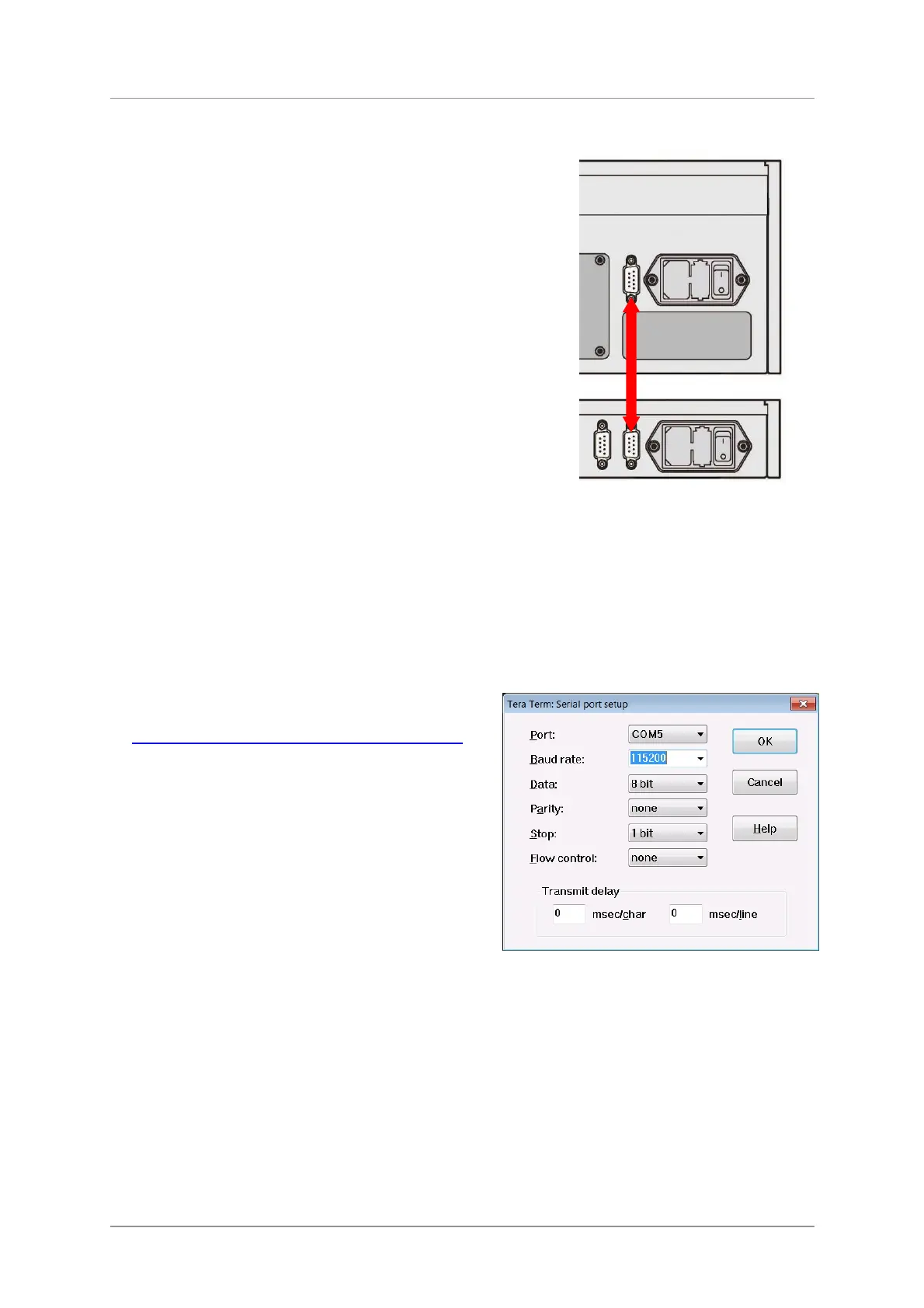
Connecting the Player or DAC’s RS232 port to the Rossini
Clock’s RS232 Loop port allows both units to be set to sleep /
wake / off by pressing the Player or DAC’s Power button, or
by one remote control command.
Both units must be in the same RS232 mode (Binary or Text).
As the Clock boots up in Binary mode, set the Player or DAC’s
Unit Settings > RS232 menu page to Binary.
A screened cable fitted with two 9-way female D-type
connectors wired pin-to-pin is required.
RS232 Control
The Clock’s settings can be changed using a control system or a computer running a terminal
emulator program. The procedure using a Windows PC with TeraTerm is described here, but other
programs such as PuTTY or ZTerm can be used. If you have difficulty with this, please ask your
Dealer for help.
• Hold down the Clock’s Dither 1 button and power up the Clock. This sets the Clock to RS232 Text
mode.
• Power up a Windows PC.
• If necessary, download Tera Term from
http://en.sourceforge.jp/projects/ttssh2/releases/
and install it on your PC. (If the link is broken,
please search for Tera Term online.)
• Use a USB-to-RS232 adapter cable to connect the
Clock’s RS232 IN port to one of the PC’s USB
ports.
• Run ttermpro.exe.
• Click the Serial button – Tera Term will
automatically select the port connected to the
Clock. Click OK.
• Click Setup > Serial Port, set the panel as shown
with the Baud rate set to 115200 and click OK.
• Commands are in UPPERCASE only, type HELP to list the available commands.



 To Next Page