6
Operation (continued)
2
Connecting the doorbell to the
Hubspace™ app
You must have a 2.4GHz network to connect
the doorbell to Wi-Fi.
Ƒ Have the network password available.
Ƒ Create a Hubspace™ account and sign in or
login if you already have an account.
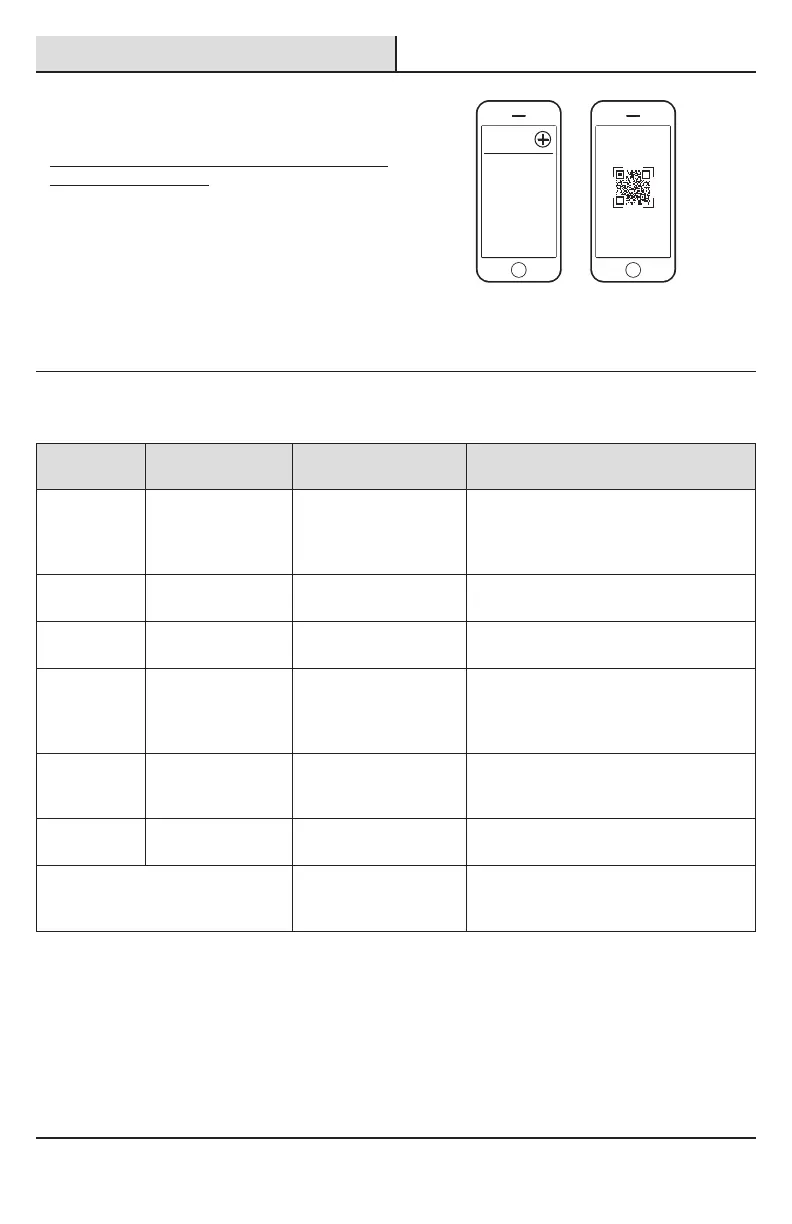
Ƒ Tap the “+” icon in the upper right corner on
the app screen.
Ƒ Scan the QR code from the packaging
provided.
Ƒ Follow the on-screen instructions.
My Home
3
Understanding the LED
indicator lights
BLUE LED RED LED DEVICE STATE WHEN ARE THESE LIGHTS
DISPLAYED
BLUE – Off RED – Solid
(NO ashing)
Booting up or Wi-Fi error. Until connected to Wi-Fi or until connected
to the cloud. This state may not be visible
because unit will immediately transition to
“Not Connected”.
BLUE – Off RED – Slow ashing Not connected Until connecting to the cloud is completed
or times out.
BLUE – Off RED – Rapid ashing “Setup Mode” –
Connecting to the cloud.
Until connecting to the cloud is completed
or times out.
BLUE – Rapid
ashing
RED – Off Connecting to the cloud–
Previously connected to
the cloud but currently
NOT connected to Wi-Fi.
Until connected to the cloud through Wi-Fi.
BLUE – Solid
(NO ashing)
RED – Off Connected to the cloud
and currently connected
to Wi-Fi.
While connected to the cloud and connected
to Wi-Fi.
BLUE – Off RED – Off Not connected Doorbell is not connected to the Wi-Fi or
cloud after 20 minutes.
PURPLE – Solid (NO ashing)
Push button activation The LEDs will light for 10 seconds after a
push button is pressed. This will happen
whether the doorbell is muted or not.


 To Next Page