Table of Contents
PaymentCloud LLC. • 800-988-2215 • support@paymentcloudinc.com
Additional Information
Spec Sheet
Shop Dejavoo P3
V.102024 6
Dejavoo P3
User Manual & Setup Guide
Accept Payments Cont.
Credit Card Return
Debit Card Return
Cash Return
How to Process a Refund
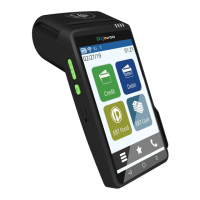
1. Tap the CREDIT icon on your terminal home screen.
2. Tap RETURN.
3. Enter the RETURN AMOUNT and press OK.
4. If prompted, conrm the return amount by tapping OK or NO.
5. If prompted, enter MANAGER PASSWORD (1234).
6. Tap or insert chip card.
7. The transaction is processed. Return receipts will be printed
with details.
1. Press DEBIT. A new screen will display the following options:
SALE, RETURN, and BALANCE.
2. Press RETURN.
3. Enter the RETURN amount.
4. If the amount shown is correct, press OK to conrm. If it
is incorrect, press CANCEL and re-enter the amount. If
prompted, enter the manager password (1234).
5. Customer will be prompted to tap, insert, or swipe their card.
Select the appropriate option.
6. If prompted, select your preferred application.
7. Enter the date of the original transaction and press OK.
8. Enter the time of the original transaction and press OK.
9. Customer will be prompted to enter their PIN on the
encrypted terminal PIN Pad or encrypted external PIN Pad.
The customer should then press OK.
10. The return will be processed, and the transaction declined or
approved.
11. The terminal will ash the host response and print the sales
receipt. Once nished, it will return to the idle prompt.
1. Press CASH. A new screen will display the following options:
SALE and RETURN.
2. Press RETURN.
3. Enter the RETURN amount using your number keypad. If the
amount shown is correct, press OK to conrm.
4. If prompted, enter the manager password (1234).
5. Press YES to conrm the return amount.
6. The transaction is processed. Sales receipts will be printed
with details.
Setup
3
Rights Reserved
10
Settings
8
Troubleshooting
& Tips
9
Overview
2
Accept Payments
5


 To Next Page