Table of Contents
PaymentCloud LLC. • 800-988-2215 • support@paymentcloudinc.com
Additional Information
Spec Sheet
Shop Dejavoo P3
V.102024 8
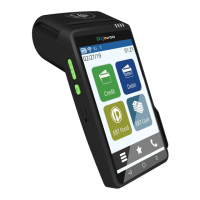
Dejavoo P3
User Manual & Setup Guide
Settings
How to Change the Date and Time
1. From the idle prompt, press the OK key to access the Core Menu.
2. Tap UTILITY.
3. Tap SETTINGS.
4. Tap DATE AND TIME.
5. If the date displayed is correct, press OK. If the date displayed is
incorrect, press the Yellow backspace key to clear it, then enter
the correct date using the following format: MM/DD/YY.
6. If the time displayed is correct, press OK. If the time displayed is
incorrect, press the Yellow backspace key to clear it, then enter
the correct time using the 24-hour clock (military) format.
7. The terminal will return to the settings main menu.
Accept Payments
5
Setup
3
Rights Reserved
10
Settings
8
Troubleshooting
& Tips
9
Overview
2



 To Next Page