Dejavoo Systems Instruction Manual V525.15 6
DEJAVOO FAVORITES MENU
WHAT IS THE DEJAVOO “FAVORITES” MENU?
You can designate any menu item from your Dejavoo terminal to be listed in your very own
customized terminal menu so you can quickly and easily access the features that matter to you
most or as we like to call them – your “Favorites” Who better to decide what should be at
your fingertips than you?
S
AVING MENU OPTIONS TO “FAVORITES”
You decide what goes in your “Favorite” Menu. You can select up to 20 menu items that you
utilize most often or want quick and easy access to. Creating your customized
menu is easy.
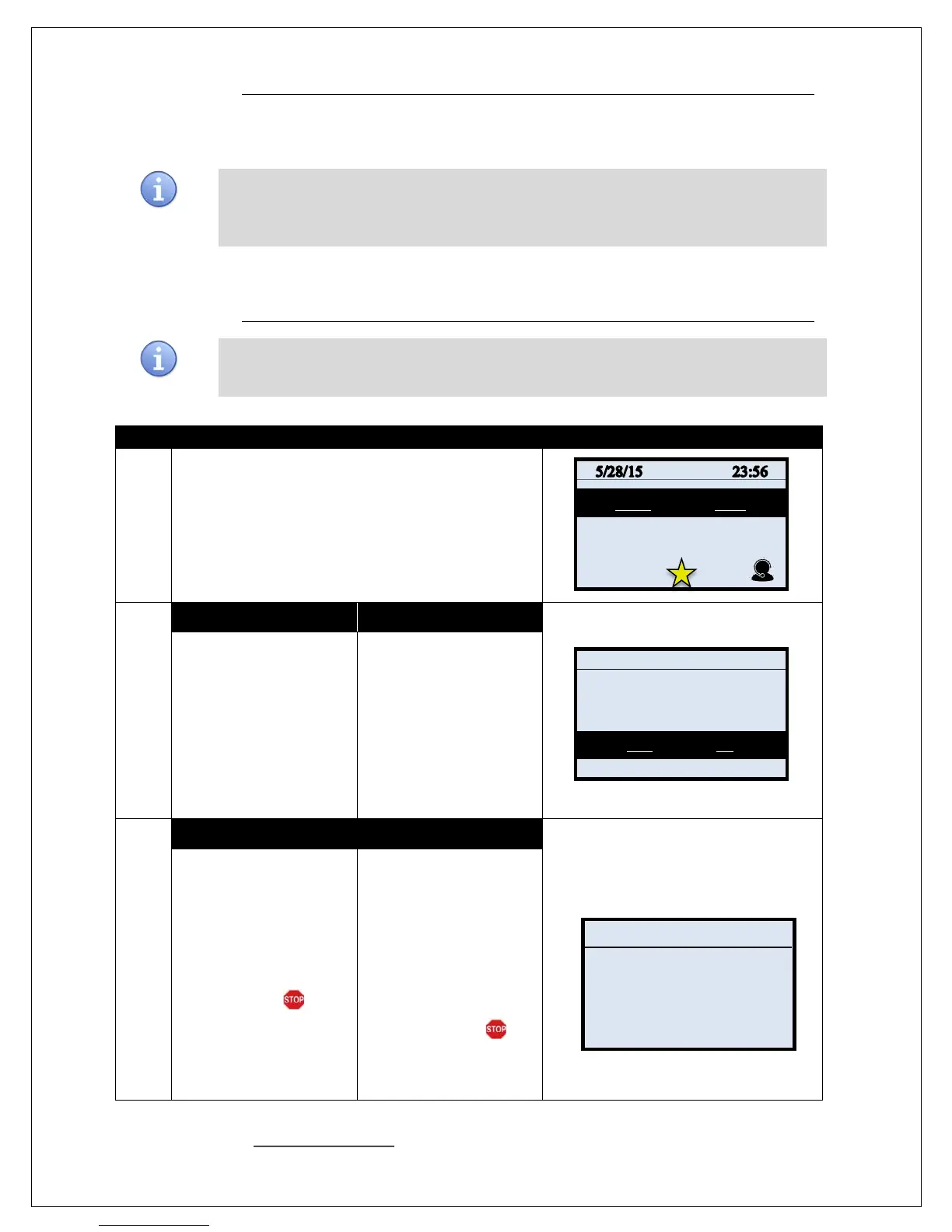
Use the steps below to create a menu all your own.
1.
From the idle prompt access the menu options by
pressing the Green OK.
2.
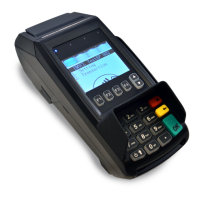
For Non Touch Screen For Touch Screen
Use the up and
down arrow keys to locate
and highlight the menu
option you wish to save
as a “Favorite” item. Once
highlighted
arrow key on the
terminals keypad.
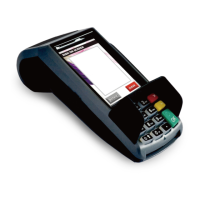
Using the touch of your
finger highlight t the menu
option you wish to save
as a “Favorite” item.
Once highlighted press
the arrow key on the
terminals keypad.
3.
For Non Touch Screen For Touch Screen
•
Press F2 to select YES
Use the up and
down arrow keys to place
favorite in desired order
in favorites menu and
press OK.
*FREE Indicates no
favorite in that slot yet
Using the touch of your
finger press and select
the word YES on the
display
Using the touch of your
finger press and select
where you would like your
favorite set in the existing
favorites menu.
*FREE Indicates no
favorite in that slot yet
0: Core Settle Daily Batch
1: Core Daily Report
2: Core Summary Report
3: Void CR/DB Trans
4: Reprint CR/DB Rcpt
Do you want to add a
favorite to this item?



 To Next Page