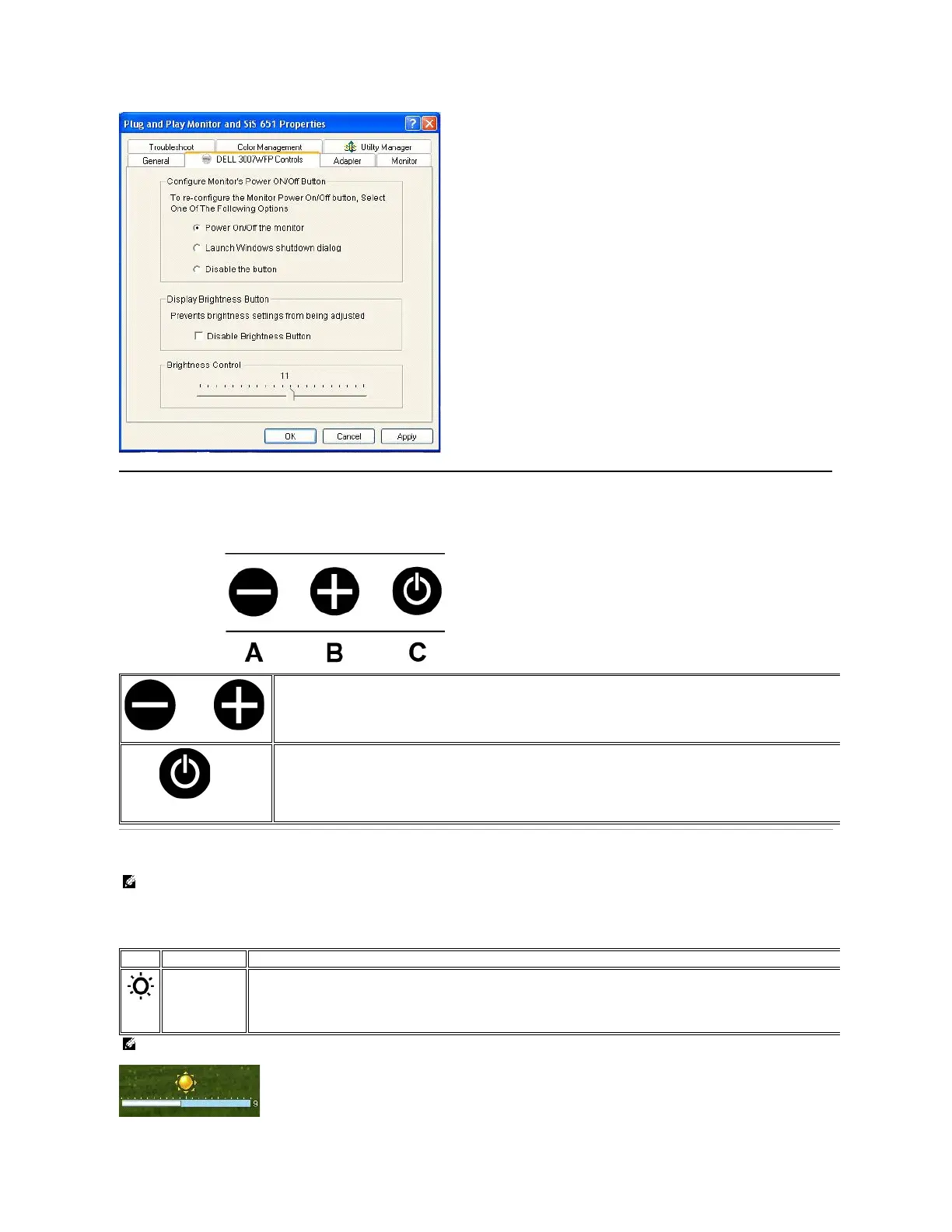
Using the Front Panel Buttons
Usethebuttonsonthefrontofthemonitortoadjusttheimagesettings.
Using the OSD
Touch - or + to activate the on-screen display (OSD).
Use these buttons to decrease/increase the brightness ranges.
Power Button and
Indicator
Usethepowerbuttontoturnthemonitoronandoff.
Thebluelightindicatesthemonitorisonandfullyfunctional.Anamberlightindicatespowersavemode.
NOTE:Ifyoumakeanadjustment,themonitorautomaticallysavesanyadjustmentsyouhavemade.
Touch - or + to activate the on-screen display (OSD).
Touch - and+buttontoselectthedesiredparameter.
Brightnessadjuststheluminanceofthemonitor.
Pressthe+buttontoincreaseluminanceandpressthe- button to decrease luminance (min 0 ~ max 20).
NOTE:OSDgeneratefromPCapplicationF/WthroughtheupstreamportofUSBtomakesuretheUSBcableconnectwell.





 To Next Page