35
Operation
|
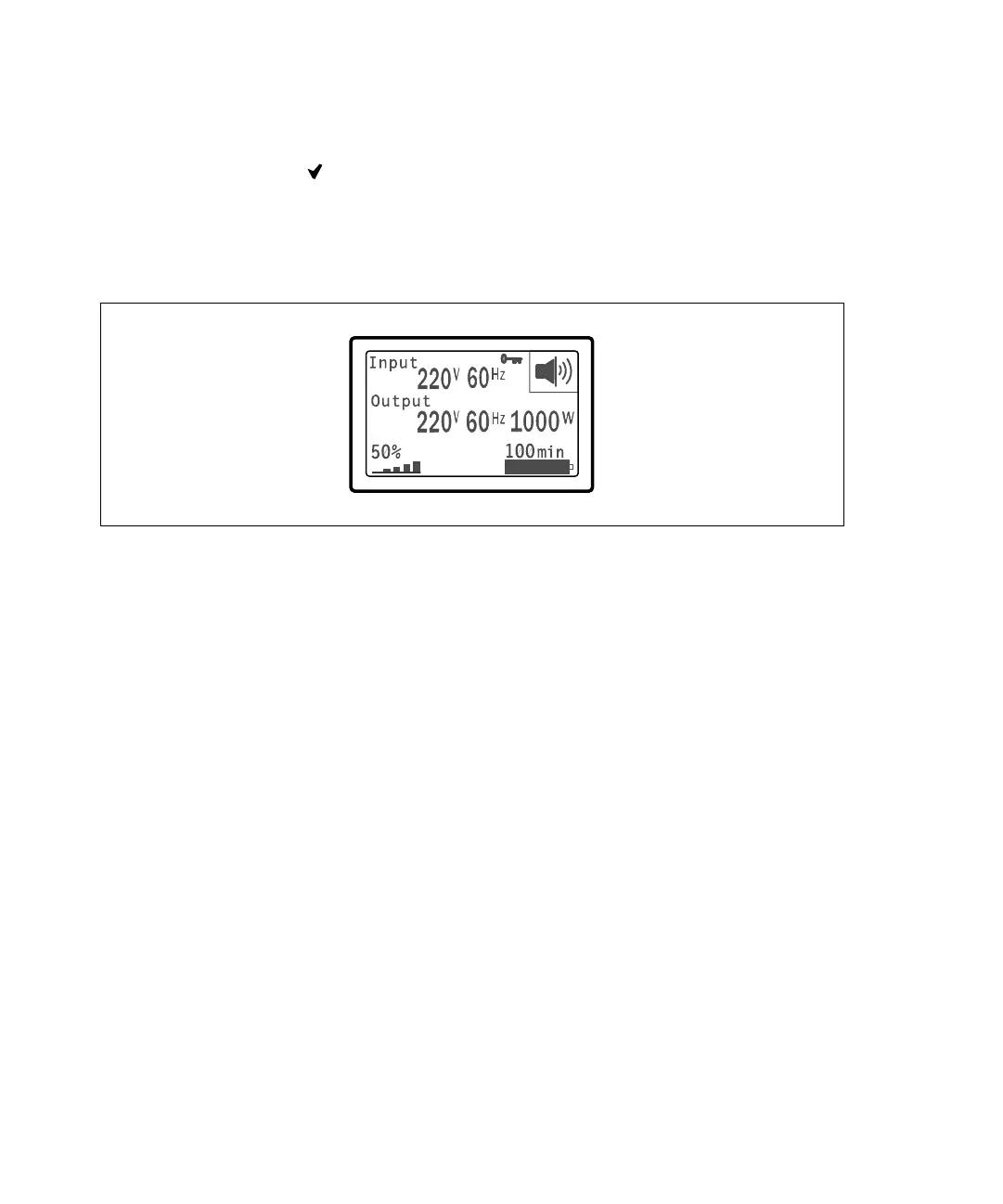
Screen Locked
To lock a screen, press the button. The current view stays locked and does not automatically return
to the default screen after time-out. When the screen is locked, the image of a key appears on the UPS
status summary screen just to the left of the status icon. See Figure 23.
Pushing any button returns the normal button function, unlocks the screen, and removes the lock
symbol.
Figure 23. A Locked Screen
Only screens that have dynamic, real-time data updates can be locked. Applicable screens include the
status summary screen, measurement screens, active alarms, and the battery status screen.
UPS Status
The UPS status provides separate screens for the following information:
S Status summary, including mode and load
S Notice or alarm status, if any are present
S Battery status, including state and charge level
See Table 3 for examples of the UPS status summary screens. The status icon in the upper right corner
of each status summary screen conveys the UPS status or mode.
Basic operating modes include:
S Normal mode
S High-efficiency mode
S Battery mode
S Bypass mode
S Standby mode


 To Next Page