20 Using the Printer
www.dell.com | support.dell.com
Loading Paper
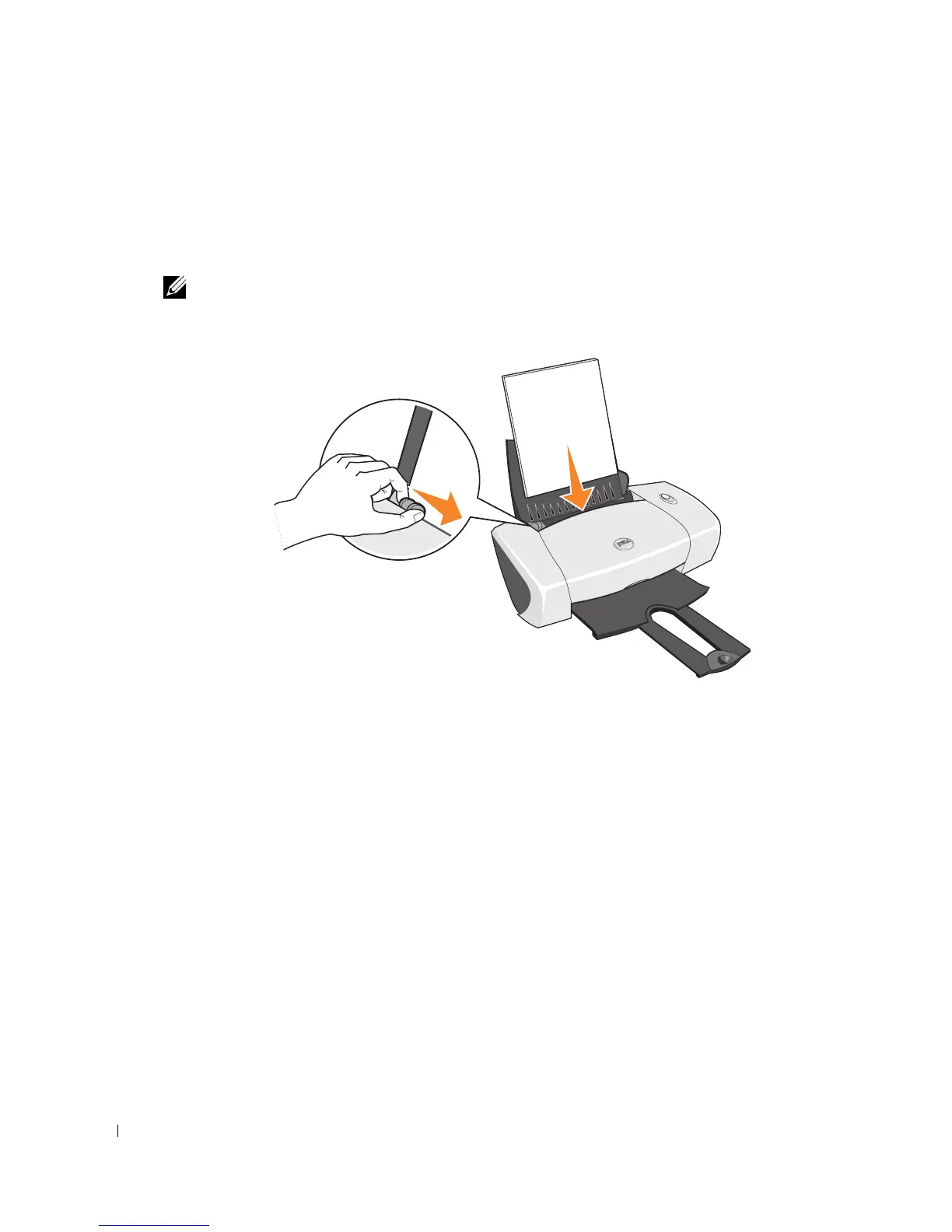
1 Place the paper against the guide on the right side of the paper support.
2 Squeeze and slide the left paper guide to the left edge of the paper.
NOTE: Do not force paper into the printer. The paper should be flat against the paper support
surface and the right edge should be flush against the right paper guide.
Printing
Printing a Document
1 Turn on your computer and printer, and make sure they are connected.
2 Load the paper with the print side facing up. For more information, see "Loading Paper" on
page 20.
3 With your document open, click File→ Print.
4 Customize your print settings:
a Click Preferences, Properties, Options, or Setup (depending on the program or
operating system).
The Printing Preferences dialog box appears.
b On the Quality/Copies tab, select Quality/Speed, the paper type, the number of
copies, and black and white or color printing.







 To Next Page