Troubleshooting 53
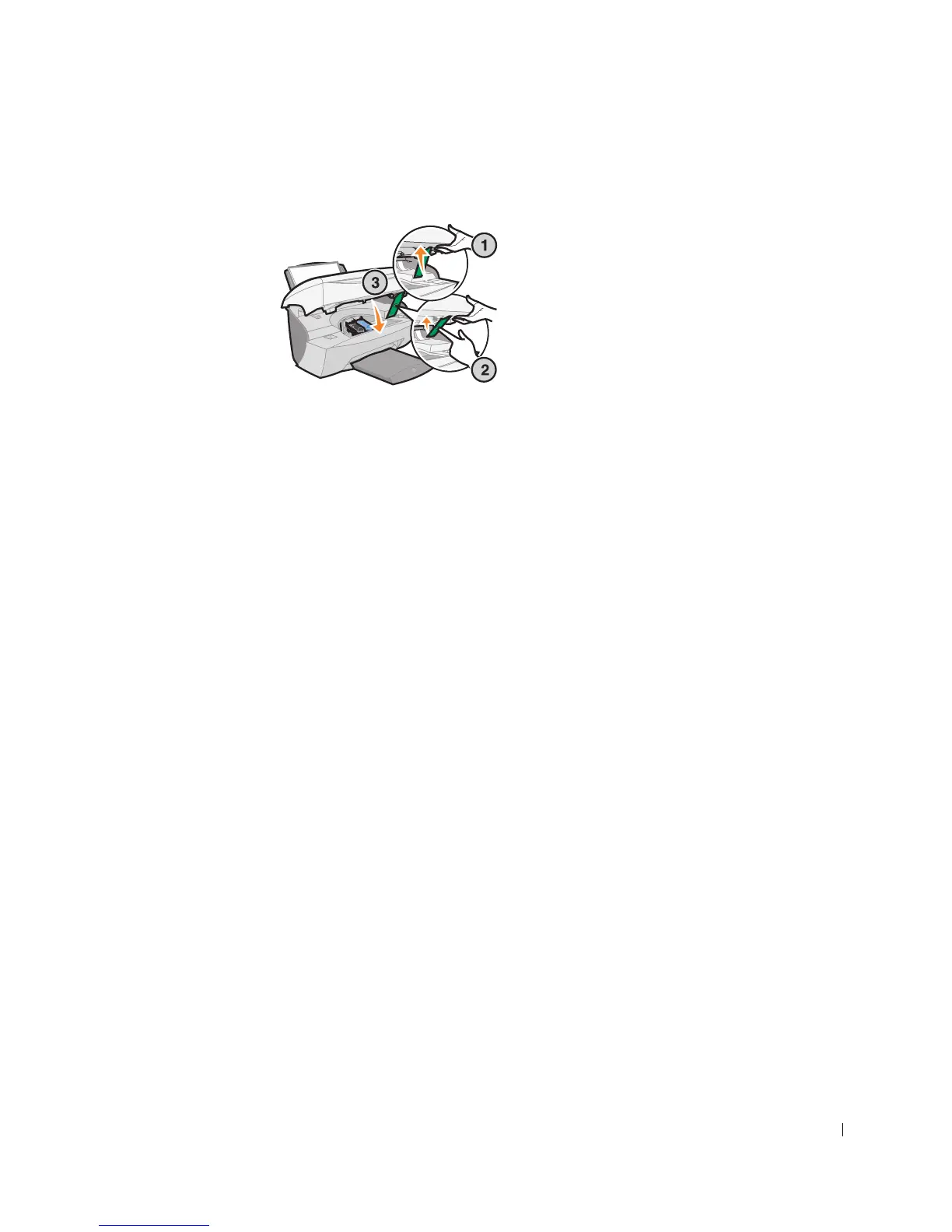
5 Lower the printer (scanner unit) until it is completely closed.
If the error message displays again, replace the black cartridge with a new
black cartridge.
If the error message does not display, repeat steps 1–3 and then go to step
6.
6 Reinstall the color cartridge and remove the black ink cartridge.
7 Lower the printer (scanner unit) until it is completely closed.
If the error message displays again, replace the color cartridge with a new
color cartridge.
If there is no error message (indicated by flashing lights), repeat steps 1–3
and then reinstall both ink cartridges.
8 Lower the printer (scanner unit) until it is completely closed.
If you get the error message again, while both cartridges are installed,
replace both of the cartridges.
Other error messages
1 Turn the printer off.
2 Wait a few seconds, and then turn the printer back on.
3 Send your document to print.



 To Next Page