Basic printing
34
2. Learning the Basic Usage
9
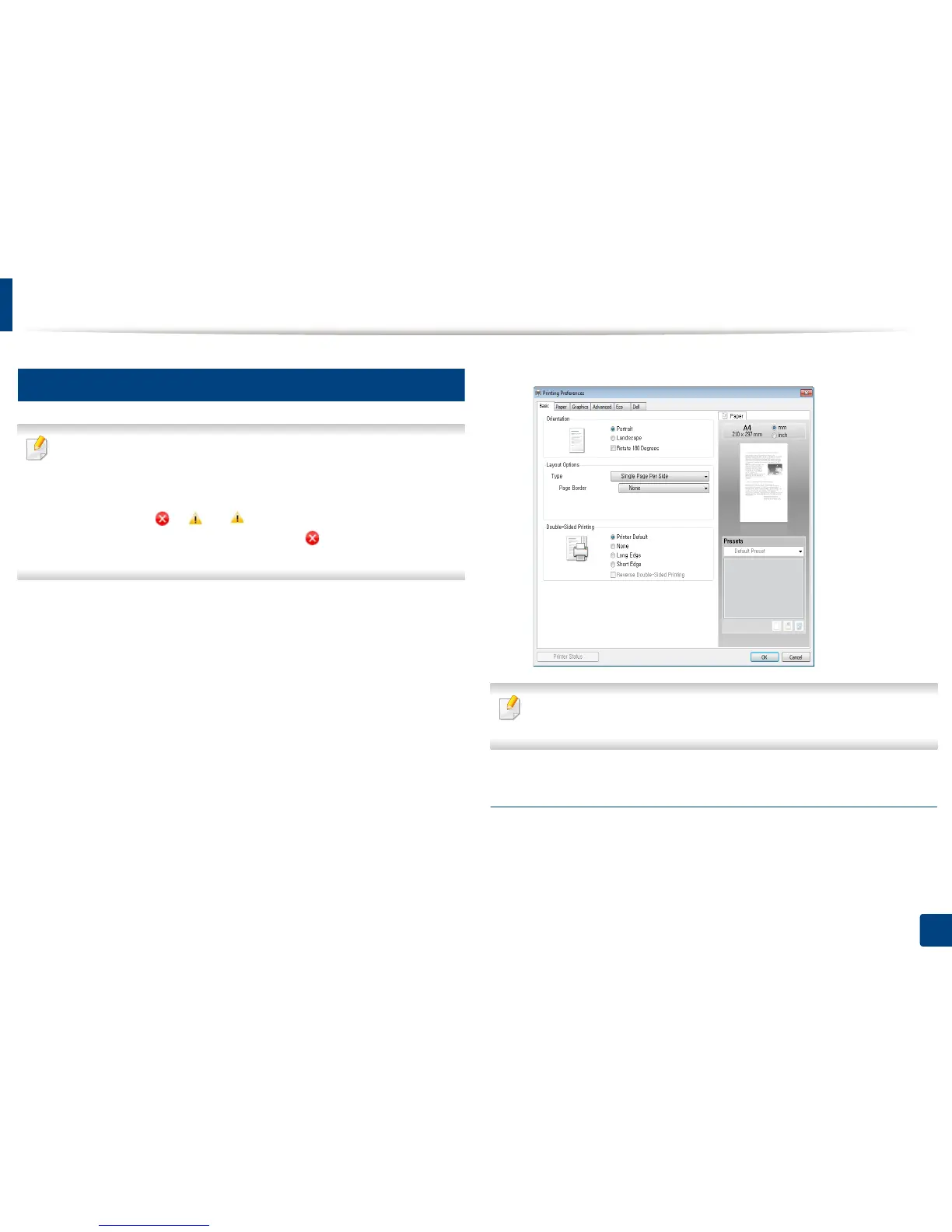
Opening printing preferences
• The Printing Preferences window that appears in this user’s guide may
differ depending on the machine in use. However, the composition of
the Printing Preferences window is similar.
• When you select an option in Printing Preferences, you may see a
warning mark or . An mark means you can select that certain
option but it is not recommended, and an mark means you cannot
select that option due to the machine’s setting or environment.
1
Open the document you want to print.
2
Select Print from the file menu.
3
Select your machine from the Select Printer.
4
Click Properties or Preferences.
You can check the machine's current status using the Printer Status button
(see "Using Dell Printer Status" on page 99).
Using a favorite setting
The Favorites option, which is visible on each preferences tab except for the
Dell tab, allows you to save the current preferences for future use.
To save a Favorites item, follow these steps:









 To Next Page