93
3. Useful management tools
Using Firmware Update Utility
Firmware Update Utility allows you to maintain your machine by upgrading
firmware.
Availabe for Windows OS users only.
1
From the Start menu, select Programs or All Programs > Dell > Dell
Printers > your printer driver name > Firmware Update Utility.
2
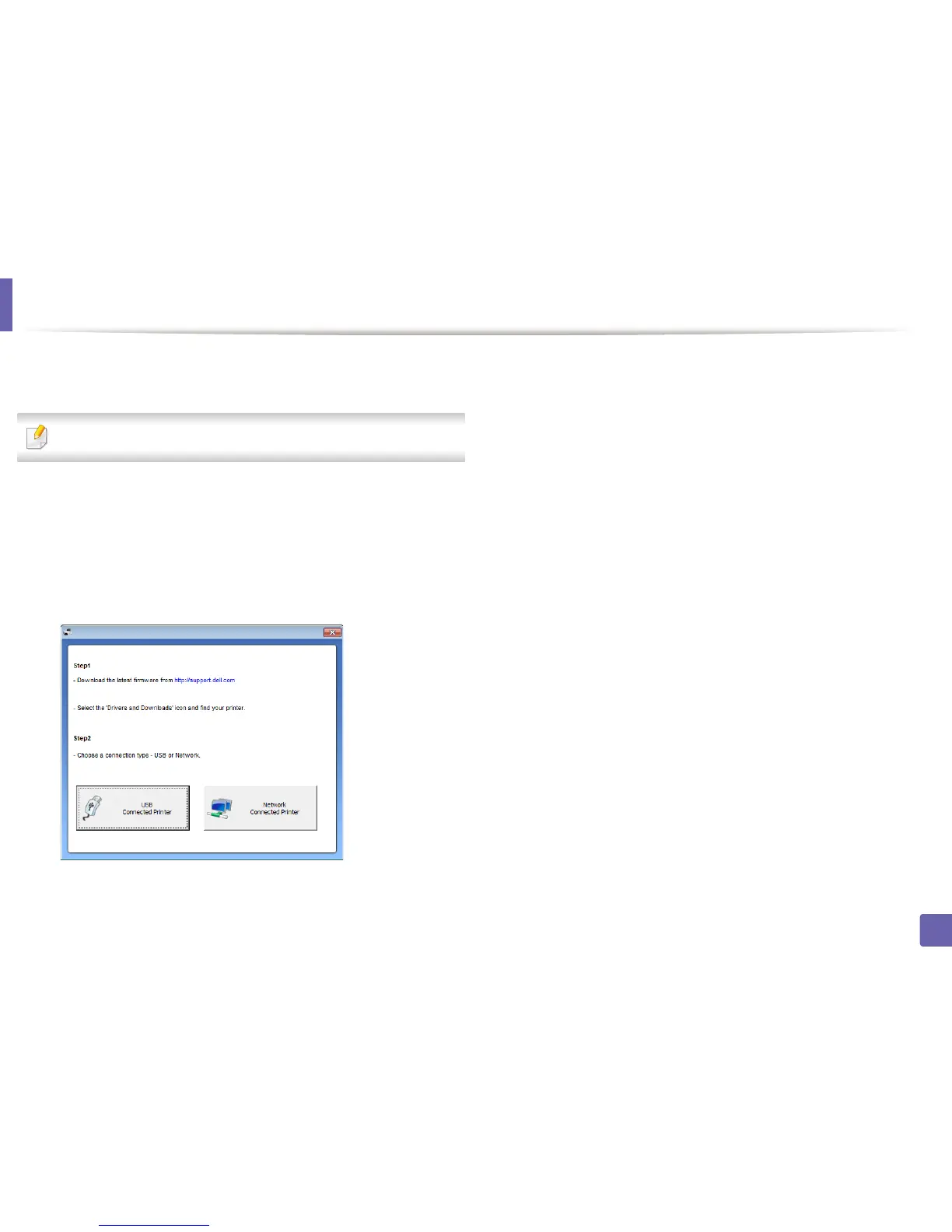
Download the latest firmware. Click http://www.support.dell.com.
3
If your printer is connected with an USB cable, click USB Connected
Printer or Network Connected Printer.
4
Click Browse and select the downloaded firmware file.
5
Click Update Firmware.









 To Next Page