EasyManua.ls Logo

Dell D11S004 - User Manual

Dell D11S004
121 pages
Print Icon
To Next Page IconTo Next Page
Loading...
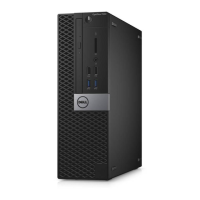
Dell Precision 3430 Small Form Factor
Service Manual
Regulatory Model: D11S
Regulatory Type: D11S004

Table of Contents

Questions and Answers

  • T
    Tiffany CookeSep 7, 2025
    How to fix 'Memory Address Line Failure' on Dell D11S004?
    • A
      Anthony HillSep 7, 2025
      If you encounter a 'Memory Address Line Failure' on your Dell Desktop, a memory module may be faulty or improperly seated. Reinstall the memory module, or replace it if necessary.
  • B
    Brittney LeeAug 22, 2025
    What to do if my Dell D11S004 says 'Not Enough Memory or Resources'?
    • I
      Ian BrownAug 22, 2025
      If your Dell Desktop displays the error message 'Not Enough Memory or Resources', it means you have too many programs running simultaneously. To resolve this, close all open windows and then reopen only the program you need to use.
  • B
    Bradley BennettSep 5, 2025
    How to fix 'Keyboard Clock Line Failure' on Dell Desktop?
    • C
      Christopher HillSep 5, 2025
      If you encounter a keyboard clock line failure on your Dell Desktop, and you are using an external keyboard, check the cable connection. Additionally, run the Keyboard Controller test in Dell Diagnostics.
  • M
    Matthew CollinsSep 3, 2025
    How to fix 'Keyboard Controller Failure' on Dell Desktop?
    • W
      William MartinSep 3, 2025
      To fix a keyboard controller failure on your Dell Desktop, check the cable connection if you're using an external keyboard. Restart the computer, and avoid touching the keyboard or the mouse during the boot routine. Run the Keyboard Controller test in Dell Diagnostics.
  • J
    Jeffrey MolinaSep 2, 2025
    What to do if my Dell D11S004 Desktop says 'Time-of-Day Clock Stopped'?
    • M
      Mary JeffersonSep 2, 2025
      If your Dell Desktop displays the error 'Time-of-Day Clock Stopped', connect your computer to an electrical outlet to charge the battery. If the problem persists, contact Dell.
  • A
    Amber SmithAug 31, 2025
    What to do if my Dell Desktop says 'Time-of-Day Clock Lost Power'?
    • J
      Jason RiveraAug 31, 2025
      If your Dell Desktop displays the error 'Time-of-Day Clock Lost Power', connect your computer to an electrical outlet to charge the battery. If the problem continues, try to restore the data by entering the System Setup program, then immediately exit the program. If the message reappears, contact Dell.
  • J
    Justin GrossAug 30, 2025
    How to fix 'Decreasing Available Memory' on Dell D11S004 Desktop?
    • J
      justinbrownAug 30, 2025
      If your Dell Desktop shows decreasing available memory, it could be due to faulty or improperly seated memory modules. Try reinstalling the memory modules, and if necessary, replace them.
  • P
    petersmichaelAug 29, 2025
    What to do if my Dell D11S004 says 'Hard-Disk Drive Controller Failure 0'?
    • J
      Jesse AyalaAug 29, 2025
      If your Dell Desktop displays 'Hard-Disk Drive Controller Failure 0': Shut down the computer, remove the hard drive, and boot the computer from an optical drive. Then, shut down the computer, reinstall the hard drive, and restart the computer. If the problem persists, try another drive. Run the Hard Disk Drive tests in Dell Diagnostics.
  • M
    Mr. David SimsAug 27, 2025
    How to fix 'Hard-Disk Drive Configuration Error' on Dell D11S004?
    • R
      Ronald SalinasAug 27, 2025
      To resolve a hard-disk drive configuration error on your Dell Desktop: Shut down the computer, remove the hard drive, and boot the computer from an optical drive. Then, shut down the computer, reinstall the hard drive, and restart the computer. Run the Hard Disk Drive tests in Dell Diagnostics.
  • T
    Theresa CookAug 27, 2025
    How to fix 'Hard-Disk Drive Failure' on Dell Desktop?
    • G
      Gene ThompsonAug 27, 2025
      To fix a hard-disk drive failure on your Dell Desktop: Shut down the computer, remove the hard drive, and boot the computer from an optical drive. Then, shut down the computer again, reinstall the hard drive, and restart the computer. If the problem continues, try using another drive. Also, run the Hard Disk Drive tests in Dell Diagnostics.

Dell D11S004 Specifications

General IconGeneral
BrandDell
ModelD11S004
CategoryDesktop
LanguageEnglish

Related product manuals