Great user manuals database on UserManuals.info
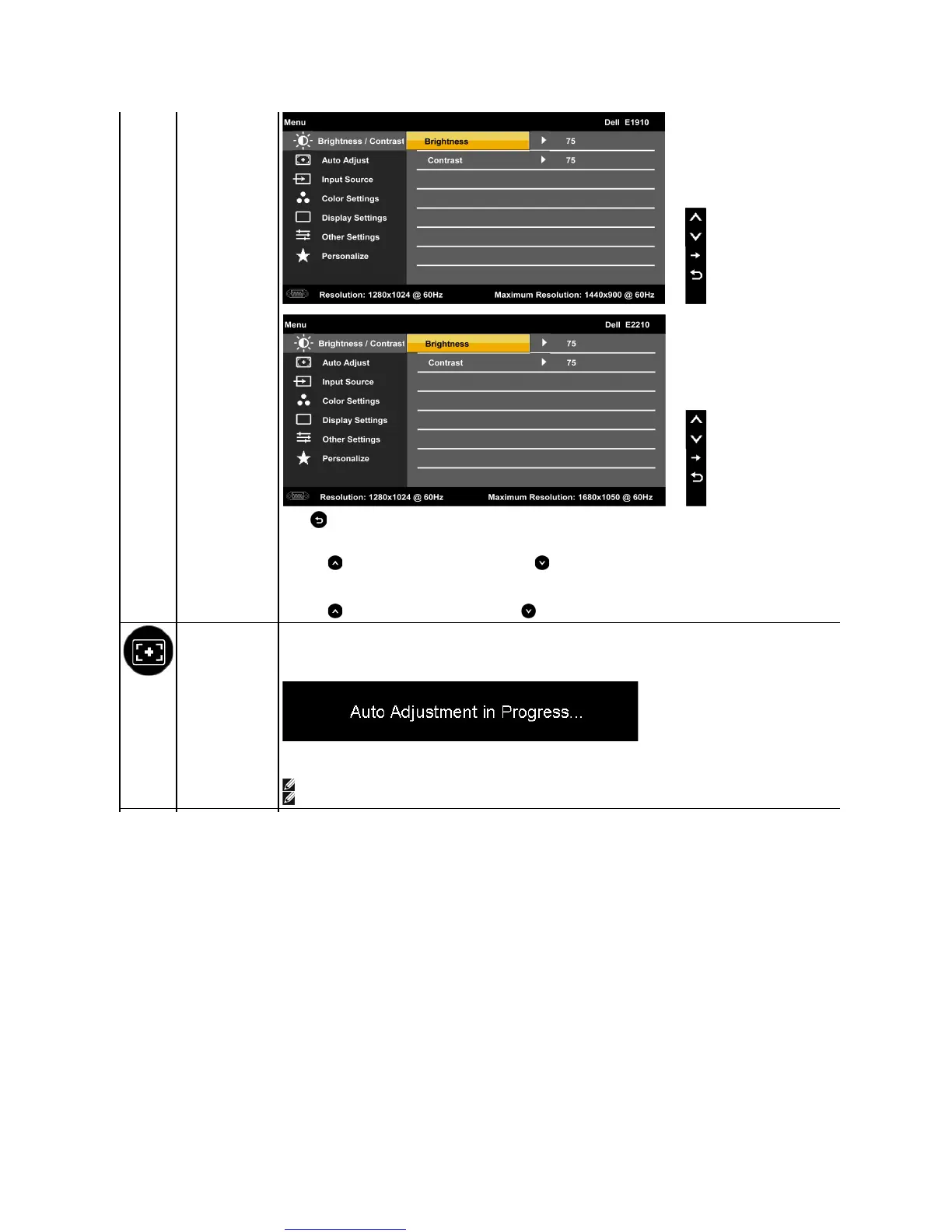
Press to go back to the main menu.
Allows you to adjust the brightness or luminance of the backlight.
Press the keytoincreasebrightnessandpressthe key to decrease brightness (min 0 ~ max 100).
Allows you to adjust the contrast or the degree of difference between darkness and lightness on the monitor screen. Adjust brightness first, and adjust
contrast only if you need further adjustment.
Press the key to increase contrast and press the key to decrease contrast (min 0 ~ max 100).
Use this key to activate automatic setup and adjust menu. The following dialog appears on a black screen as the monitor self
Auto Adjustment allows the monitor to self-
adjust to the incoming video signal. After using Auto Adjustment, you can further tune your monitor by using the
Pixel Clock (Coarse) and Phase (Fine) controls under Display Settings.
NOTE: In most cases, Auto Adjust produces the best image for your configuration.
NOTE: AUTO ADJUST option is only available when you are using the analog (VGA) connector.


 To Next Page