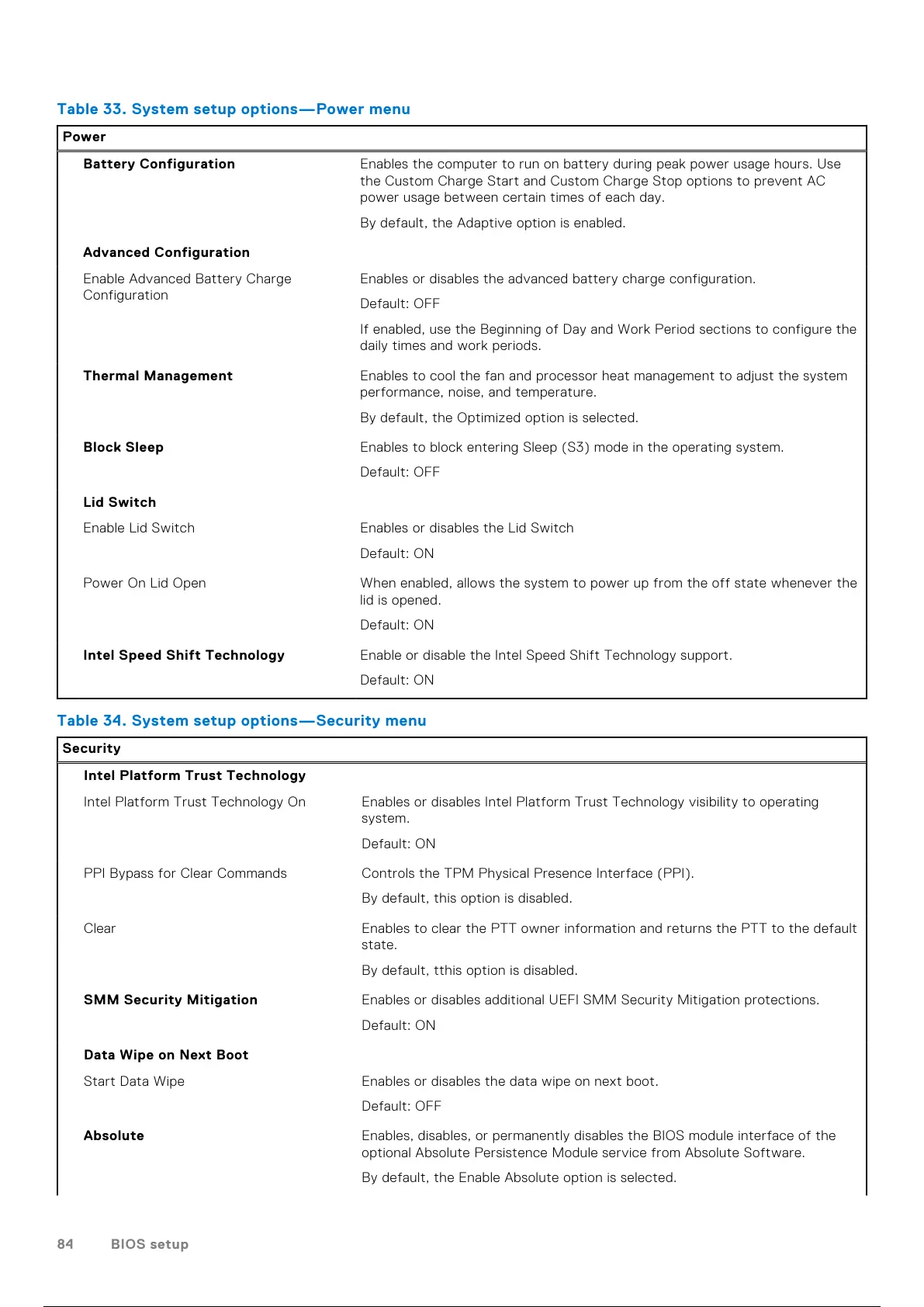
Table 33. System setup options—Power menu
Power
Battery Configuration Enables the computer to run on battery during peak power usage hours. Use
the Custom Charge Start and Custom Charge Stop options to prevent AC
power usage between certain times of each day.
By default, the Adaptive option is enabled.
Advanced Configuration
Enable Advanced Battery Charge
Configuration
Enables or disables the advanced battery charge configuration.
Default: OFF
If enabled, use the Beginning of Day and Work Period sections to configure the
daily times and work periods.
Thermal Management Enables to cool the fan and processor heat management to adjust the system
performance, noise, and temperature.
By default, the Optimized option is selected.
Block Sleep Enables to block entering Sleep (S3) mode in the operating system.
Default: OFF
Lid Switch
Enable Lid Switch Enables or disables the Lid Switch
Default: ON
Power On Lid Open When enabled, allows the system to power up from the off state whenever the
lid is opened.
Default: ON
Intel Speed Shift Technology Enable or disable the Intel Speed Shift Technology support.
Default: ON
Table 34. System setup options—Security menu
Security
Intel Platform Trust Technology
Intel Platform Trust Technology On Enables or disables Intel Platform Trust Technology visibility to operating
system.
Default: ON
PPI Bypass for Clear Commands Controls the TPM Physical Presence Interface (PPI).
By default, this option is disabled.
Clear Enables to clear the PTT owner information and returns the PTT to the default
state.
By default, tthis option is disabled.
SMM Security Mitigation Enables or disables additional UEFI SMM Security Mitigation protections.
Default: ON
Data Wipe on Next Boot
Start Data Wipe Enables or disables the data wipe on next boot.
Default: OFF
Absolute Enables, disables, or permanently disables the BIOS module interface of the
optional Absolute Persistence Module service from Absolute Software.
By default, the Enable Absolute option is selected.
84 BIOS setup
85 / 101 84 / 99 85 / 101



 To Next Page