21 | Registering and Licensing the Appliance on MySonicWALL
Licensing Security Services and Software
The Service Management - Associated Products page in
MySonicWALL lists security services, support options, and
software such as Analyzer that you can purchase or try with a
free trial. For details, click the Info button. Your current licenses
are indicated in the Status column with either a license key or
an expiration date. You can purchase additional services now or
at a later time.
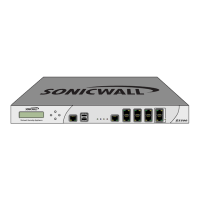
The following products and services are available for the Dell
SonicWALL NSA E5500:
• Service Bundles:
• Client/Server Anti-Virus Suite
• Comprehensive Gateway Security Suite
• Gateway Services:
• Gateway AV, Anti-Spyware, Application Firewall,
Intrusion Prevention Service
• Content Filtering: Premium Edition
• Stateful High Availability (HA) Upgrade
• Desktop and Server Software:
• Enforced Client Anti-Virus and Anti-Spyware
• Global VPN Client
• Global VPN Client Enterprise
• VPN Policy Upgrade (for site-to-site VPN)
• Analyzer
• Global Management System
• Support Services:
• Dynamic Support 24x7
• Software and Firmware Updates
• Consulting Services:
• Implementation Service
• GMS Preventive Maintenance Service
To manage your licenses, perform the following tasks:
1. In the MySonicWALL Service Management - Associated
Products page, check the Applicable Services table for
services that your SonicWALL appliance is already
licensed for. Your initial purchase may have included
security services or other software bundled with the
appliance. These licenses are enabled on MySonicWALL
when the appliance is delivered to you.
2. If you purchased a service subscription or upgrade from a
sales representative separately, you will have an
Activation Key for the product. This key is emailed to you
after online purchases, or is on the front of the certificate
that was included with your purchase. Locate the product
on the Services Management page and click Enter Key in
that row.
3. In the Activate Service page, type or paste your key into
the Activation Key field and then click Submit. Depending
on the product, you will see an Expire date or a license key
string in the Status column when you return to the Service
Management page.


 To Next Page