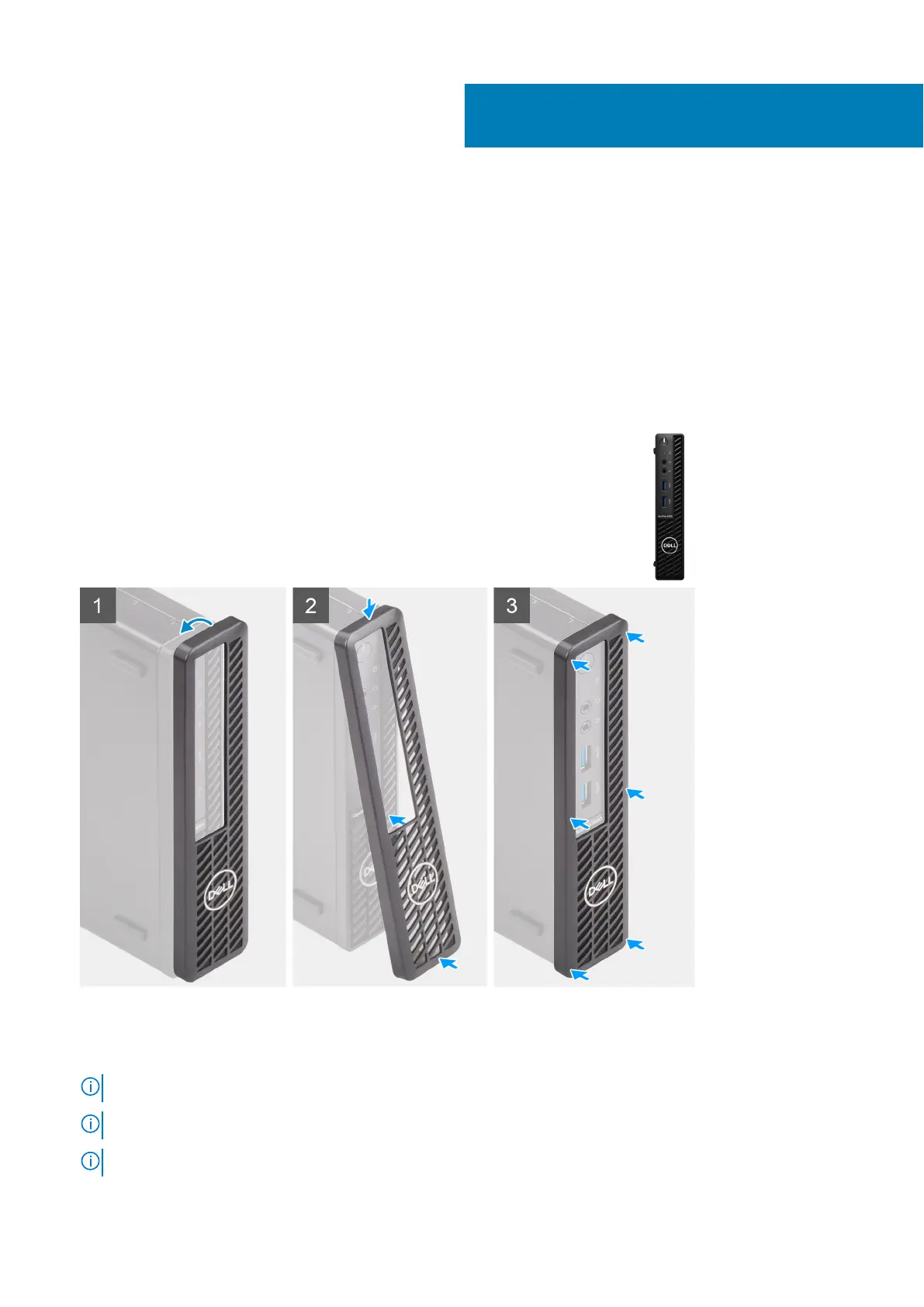
Dust Filter for OptiPlex Micro
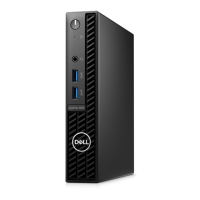
The dust filter for the OptiPlex 3080 Micro helps protect the system from fine dust particles. After installation, you can set a
pre-boot reminder in the BIOS to clean or replace the dust filter at customized time interval using the interval setting in the
BIOS.
Steps
1. Follow the instructions in before you begin.
2. Align the top edge of the dust filter with the top edge of the system.
3. Press the lower edge of the dust filter to close over the system.
4. Gently press down to ensure that the filter fits snugly onto the system.
5. Follow the instructions in after installing the accessory.
6. Restart the system and press F2 at the Dell splash screen to enter the BIOS Setup menu.
7. In the BIOS Setup menu, go to System Configuration > Dust Filter Maintenance and select from any of the following
intervals: 15, 30, 60, 90, 120, 150, or 180 days.
NOTE: Default setting: Disabled.
NOTE: Alerts are generated only during a system reboot and not during normal operating system operation.
NOTE: To clean the dust filter, brush or gently vacuum and then wipe down the external surfaces with a moist cloth.
2
Dust Filter for OptiPlex Micro 5



 To Next Page