EasyManua.ls Logo

Dell OptiPlex 7070 - User Manual

Dell OptiPlex 7070
75 pages
Print Icon
To Next Page IconTo Next Page
Loading...
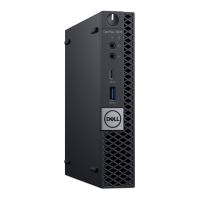
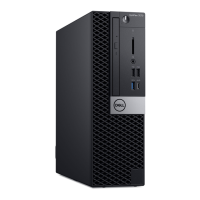
Dell OptiPlex 7070 Small Form Factor
Service Manual
1
Regulatory Model: D11S
Regulatory Type: D11S004
March 2021
Rev. A01

Table of Contents

Other manuals for Dell OptiPlex 7070

Questions and Answers

  • C
    Christine DavisSep 7, 2025
    How to fix 'Memory Address Line Failure' on Dell OptiPlex 7070?
    • T
      Tiffany VangSep 7, 2025
      If you encounter a 'Memory Address Line Failure' on your Dell Desktop, a memory module may be faulty or improperly seated. Reinstall the memory module, or replace it if necessary.
  • S
    Sarah ThomasAug 22, 2025
    What to do if my Dell Desktop says 'Not Enough Memory or Resources'?
    • D
      David GreenAug 22, 2025
      If your Dell Desktop displays the error message 'Not Enough Memory or Resources', it means you have too many programs running simultaneously. To resolve this, close all open windows and then reopen only the program you need to use.
  • S
    Stephanie WilsonSep 4, 2025
    How to fix 'Keyboard Clock Line Failure' on Dell OptiPlex 7070?
    • Y
      ytoddSep 4, 2025
      If you encounter a keyboard clock line failure on your Dell Desktop, and you are using an external keyboard, check the cable connection. Additionally, run the Keyboard Controller test in Dell Diagnostics.
  • K
    Kristen ReyesSep 3, 2025
    How to fix 'Keyboard Controller Failure' on Dell OptiPlex 7070 Desktop?
    • A
      Alexis JonesSep 3, 2025
      To fix a keyboard controller failure on your Dell Desktop, check the cable connection if you're using an external keyboard. Restart the computer, and avoid touching the keyboard or the mouse during the boot routine. Run the Keyboard Controller test in Dell Diagnostics.
  • B
    brownrichardSep 2, 2025
    What to do if my Dell OptiPlex 7070 Desktop says 'Time-of-Day Clock Stopped'?
    • D
      David SimmonsSep 2, 2025
      If your Dell Desktop displays the error 'Time-of-Day Clock Stopped', connect your computer to an electrical outlet to charge the battery. If the problem persists, contact Dell.
  • K
    Karen PhelpsAug 31, 2025
    What to do if my Dell OptiPlex 7070 Desktop says 'Time-of-Day Clock Lost Power'?
    • J
      Jacob EatonAug 31, 2025
      If your Dell Desktop displays the error 'Time-of-Day Clock Lost Power', connect your computer to an electrical outlet to charge the battery. If the problem continues, try to restore the data by entering the System Setup program, then immediately exit the program. If the message reappears, contact Dell.
  • A
    Ariel SilvaAug 30, 2025
    How to fix 'Decreasing Available Memory' on Dell Desktop?
    • M
      Mr. Adam DeckerAug 30, 2025
      If your Dell Desktop shows decreasing available memory, it could be due to faulty or improperly seated memory modules. Try reinstalling the memory modules, and if necessary, replace them.
  • J
    James WilsonAug 29, 2025
    What to do if my Dell Desktop says 'Hard-Disk Drive Controller Failure 0'?
    • M
      mitchellshaneAug 29, 2025
      If your Dell Desktop displays 'Hard-Disk Drive Controller Failure 0': Shut down the computer, remove the hard drive, and boot the computer from an optical drive. Then, shut down the computer, reinstall the hard drive, and restart the computer. If the problem persists, try another drive. Run the Hard Disk Drive tests in Dell Diagnostics.
  • R
    robinsonsharonAug 27, 2025
    How to fix 'Hard-Disk Drive Configuration Error' on Dell OptiPlex 7070?
    • E
      Elizabeth AlvaradoAug 27, 2025
      To resolve a hard-disk drive configuration error on your Dell Desktop: Shut down the computer, remove the hard drive, and boot the computer from an optical drive. Then, shut down the computer, reinstall the hard drive, and restart the computer. Run the Hard Disk Drive tests in Dell Diagnostics.
  • A
    Anthony HendersonAug 27, 2025
    How to fix 'Hard-Disk Drive Failure' on Dell Desktop?
    • S
      sparrishAug 27, 2025
      To fix a hard-disk drive failure on your Dell Desktop: Shut down the computer, remove the hard drive, and boot the computer from an optical drive. Then, shut down the computer again, reinstall the hard drive, and restart the computer. If the problem continues, try using another drive. Also, run the Hard Disk Drive tests in Dell Diagnostics.

Summary

Working on Your Computer

Safety Instructions

Safety guidelines for working with the computer to prevent damage and ensure personal safety.

Before Working Inside Your Computer

Steps to take before performing internal computer operations, including saving work and disconnecting power.

Safety Precautions

General safety measures for handling computer components during disassembly or reassembly.

Electrostatic Discharge (ESD) Protection

Methods and precautions to prevent damage to sensitive electronic components from static electricity.

ESD Field Service Kit

Description of the components and proper use of an ESD field service kit for protection.

Transporting Sensitive Components

Proper methods for safely transporting static-sensitive components, such as using anti-static bags.

After Working Inside Your Computer

Steps to take after completing internal maintenance, including replacing parts and connecting devices.

Technology and Components

DDR4 Memory Technology

Details on DDR4 memory technology, its specifications, and differences from previous generations.

USB Features and Evolution

Overview of Universal Serial Bus capabilities, speed modes, applications, and historical evolution.

USB Type-C and Related Technologies

Covers the USB Type-C connector, Alternate Mode, Power Delivery, and compatibility with USB 3.1.

HDMI 2.0 Interface

Features and advantages of the HDMI 2.0 digital audio/video interface.

Intel Optane Memory

Information on Intel Optane memory, its function as a storage accelerator, requirements, and configuration.

Removing and Installing Components

Side Cover

Procedure for removing and installing the computer's side cover.

Expansion Card

Steps to remove and install an expansion card from its slot.

Coin Cell Battery

Instructions for removing and installing the coin cell battery from the system board.

Hard Drive Assembly

Procedure for removing and installing the hard drive assembly.

Hard Drive

Steps to remove and install the computer's hard drive from its bracket.

Bezel

Instructions for removing and installing the front bezel.

Hard Drive and Optical Drive Module

Procedure for removing and installing the combined hard drive and optical drive module.

Optical Drive

Steps to remove and install the optical drive.

Memory Module

Instructions for removing and installing memory modules from the system board.

Heatsink Fan

Procedure for removing and installing the heatsink fan.

Heatsink Assembly

Steps to remove and install the heatsink assembly.

Intrusion Switch

Instructions for removing and installing the system intrusion switch.

Power Switch

Procedure for removing and installing the power switch.

Processor

Steps to remove and install the computer's processor.

M.2 PCIe SSD

Instructions for removing and installing an M.2 PCIe SSD.

Power Supply Unit (PSU)

Procedure for removing and installing the power supply unit.

Speaker

Steps to remove and install the system speaker.

System Board

Instructions for removing and installing the system board.

Troubleshooting

Enhanced Pre-Boot System Assessment (ePSA) Diagnostics

Overview of the ePSA diagnostic tool for comprehensive hardware checks.

Running ePSA Diagnostics

Step-by-step instructions to initiate and perform ePSA diagnostics.

System Diagnostics and POST

Explanation of Power-On Self Test (POST) and system diagnostics.

Diagnostic Error Messages

List and descriptions of specific error codes encountered during diagnostics.

System Error Messages

List and descriptions of system-level error messages and their meanings.

Getting Help

Contacting Dell

Information on how to contact Dell support for sales, technical, or customer service issues.

Dell OptiPlex 7070 Specifications

General IconGeneral
Bus typeOPI
Tjunction100 °C
Processor cache6 MB
Processor cores4
Processor modeli5-8265U
System bus rate4 GT/s
Processor familyIntel® Core™ i5
Processor socketBGA 1528
Processor threads8
Processor codenameWhiskey Lake
Configurable TDP-up25 W
Processor frequency1.6 GHz
Processor cache typeSmart Cache
Configurable TDP-down10 W
Processor lithography14 nm
Processor manufacturerIntel
PCI Express slots version3.0
Processor boost frequency3.9 GHz
Processor operating modes64-bit
PCI Express configurations1x4, 2x2
Thermal Design Power (TDP)15 W
Configurable TDP-up frequency1.8 GHz
Number of processors installed1
Configurable TDP-down frequency0.8 GHz
Maximum number of PCI Express lanes16
Memory types supported by processorDDR4-SDRAM, LPDDR3-SDRAM
Memory clock speeds supported by processor2133 MHz
Memory bandwidth supported by processor (max)37.5 GB/s
Maximum internal memory supported by processor32 GB
Discrete graphics cardNo
On-board graphics cardYes
On-board graphics card ID0x3EA0
Discrete graphics card modelNot available
On-board graphics card modelIntel® UHD Graphics
On-board graphics card OpenGL version4.5
On-board graphics card base frequency300 MHz
On-board graphics card DirectX version12.0
On-board graphics card dynamic frequency (max)1100 MHz
Number of displays supported (on-board graphics)3
SSD capacityThe Solid State Drive's storage capacity in Gigabytes.
SSD interfaceNVMe, PCI Express
Storage mediaSSD
SSD form factorM.2
Total storage capacity256 GB
Memory slots2x SO-DIMM
Internal memory8 GB
Memory channelsDual-channel
Memory clock speed2666 MHz
Internal memory typeDDR4-SDRAM
Maximum internal memory64 GB
Memory layout (slots x size)1 x 8 GB
Cabling technology10/100/1000Base-T(X)
Top Wi-Fi standardWi-Fi 6 (802.11ax)
WLAN controller modelIntel Wi-Fi 6 AX200
Ethernet LAN data rates10, 100, 1000 Mbit/s
USB 2.0 ports quantity0
USB 3.2 Gen 2 (3.1 Gen 2) Type-A ports quantity2
Chassis typeUFF
Product colorBlack
Cable lock slot typeKensington
Audio chipRealtek ALC3204-CG
Product typeMini PC
Trial softwareMicrosoft Office 30 day
Operating system languageENG, ESP, FRE
Compatible operating systemsLinux
Power supply65 W
Power supply input voltage100 - 240 V
Power supply input frequency50 - 60 Hz
Operating shock110 G
Operating altitude-15.2 - 3048 m
Non-operating shock160 G
Operating vibration0.66 G
Non-operating altitude-15.2 - 10668 m
Non-operating vibration1.3 G
Storage temperature (T-T)-40 - 65 °C
Operating temperature (T-T)0 - 35 °C
Storage relative humidity (H-H)0 - 95 %
Operating relative humidity (H-H)10 - 90 %
Keyboard language-
Processor ARK ID149088
Processor package size46x24 mm
Supported instruction setsAVX 2.0, SSE4.1, SSE4.2
Intel Identity Protection Technology version1.00
Intel Stable Image Platform Program (SIPP) version0.00
Weight and Dimensions IconWeight and Dimensions
Depth19.7 mm
Width96.1 mm
Height256.2 mm
Weight650 g

Related product manuals