Table 14. iDRAC Direct LED indicator codes (continued)
iDRAC Direct LED
indicator code
Condition
Turns off
Indicates that the laptop or tablet is unplugged.
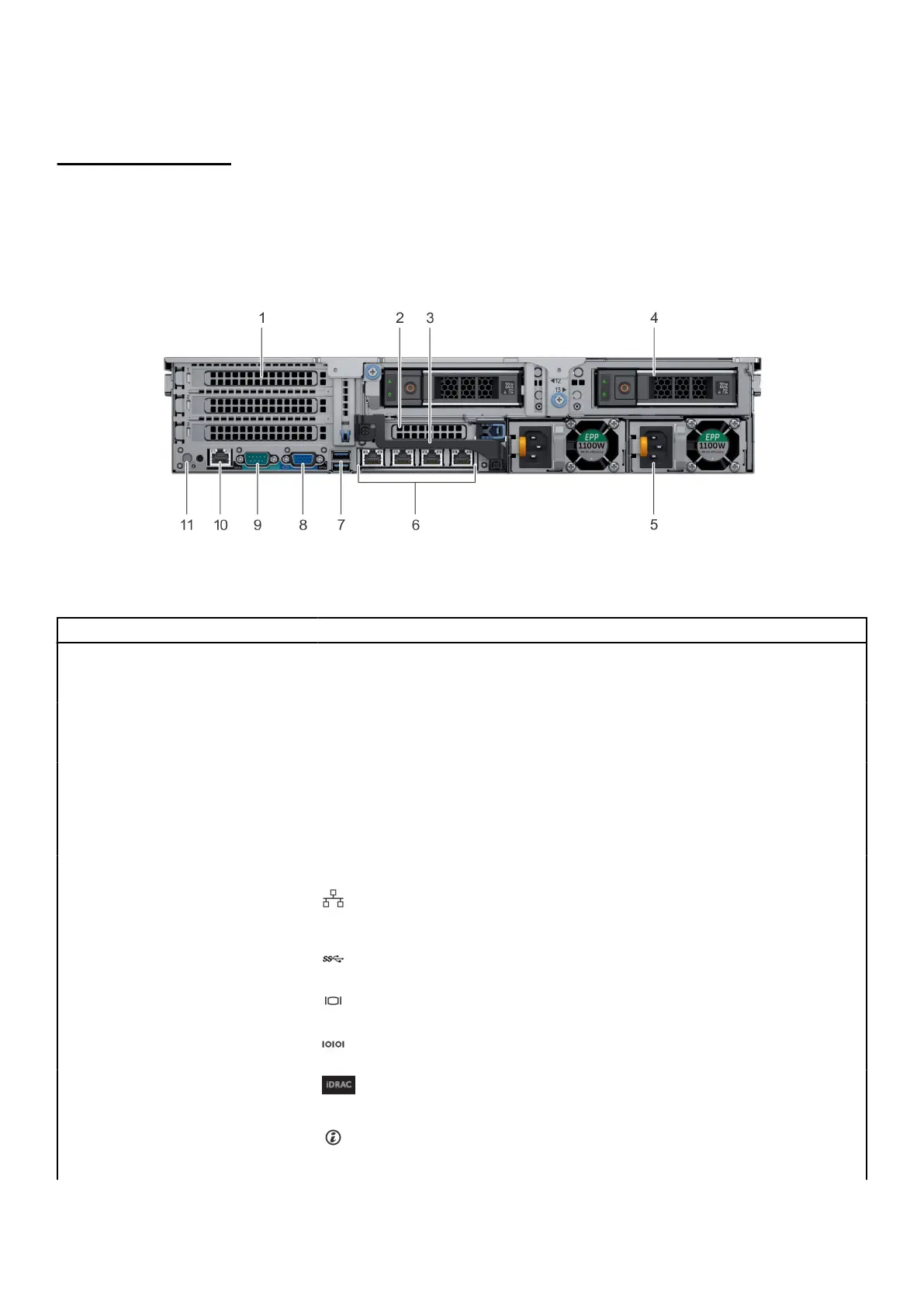
Back view of the appliance
The back view displays the features available on the back of the appliance.
Figure 9. Back view of VxRail S570 2 – x 3.5 inch drive appliance
Table 15. Features available on the back view
Item Panels, ports and slots Icon Description
1 Full-height PCIe
expansion card slot (3)
N/A The PCIe expansion card slot (riser 1) connects up to three
full-height PCIe expansion cards to the appliance. For more
information, see Expansion card installation guidelines.
2 Half-height PCIe
expansion card slot
N/A The PCIe expansion card slot (riser 2) connects one half-height
PCIe expansion cards to the appliance. For more information, see
Expansion card installation guidelines.
3 Rear handle N/A
The rear handle can be removed to enable any external cabling of
PCIe cards that are installed in the PCIe expansion card slot 6.
4 Drives N/A Enable you to install drives that are supported on your appliance.
For more information about drives, see Technical specifications.
5 Power supply unit (2) N/A For more information, see Technical specifications.
6 NIC ports The NIC ports that are integrated on the network daughter card
(NDC) provide network connectivity. For more information about
the supported configurations, see Technical specifications.
7 USB port (2) The USB ports are 9-pin and 3.0-compliant. These ports enable you
to connect USB devices to the appliance.
8 VGA port Enables you to connect a display device to the appliance. For more
information, see Technical specifications.
9 Serial port Enables you to connect a serial device to the appliance. For more
information, see Technical specifications.
10 iDRAC9 dedicated port
Enables you to remotely access iDRAC. For more information, see
the iDRAC User’s Guide at Dell.com/idracmanuals.
11 appliance identification
button
The appliance Identification (ID) button is available on the front and
back of the appliances. Press the button to identify an appliance in
a rack by turning on the appliance ID button. You can also use the
Overview 17



 To Next Page