16 Setting Up Your Computer
FILE LOCATION: C:\00_Windchill\systems\Heelys\QRG\A00\DAO_BCC\A00\EN\setting.fm
DELL CONFIDENTIAL – PRELIMINARY 2/14/08 - FOR PROOF ONLY
10
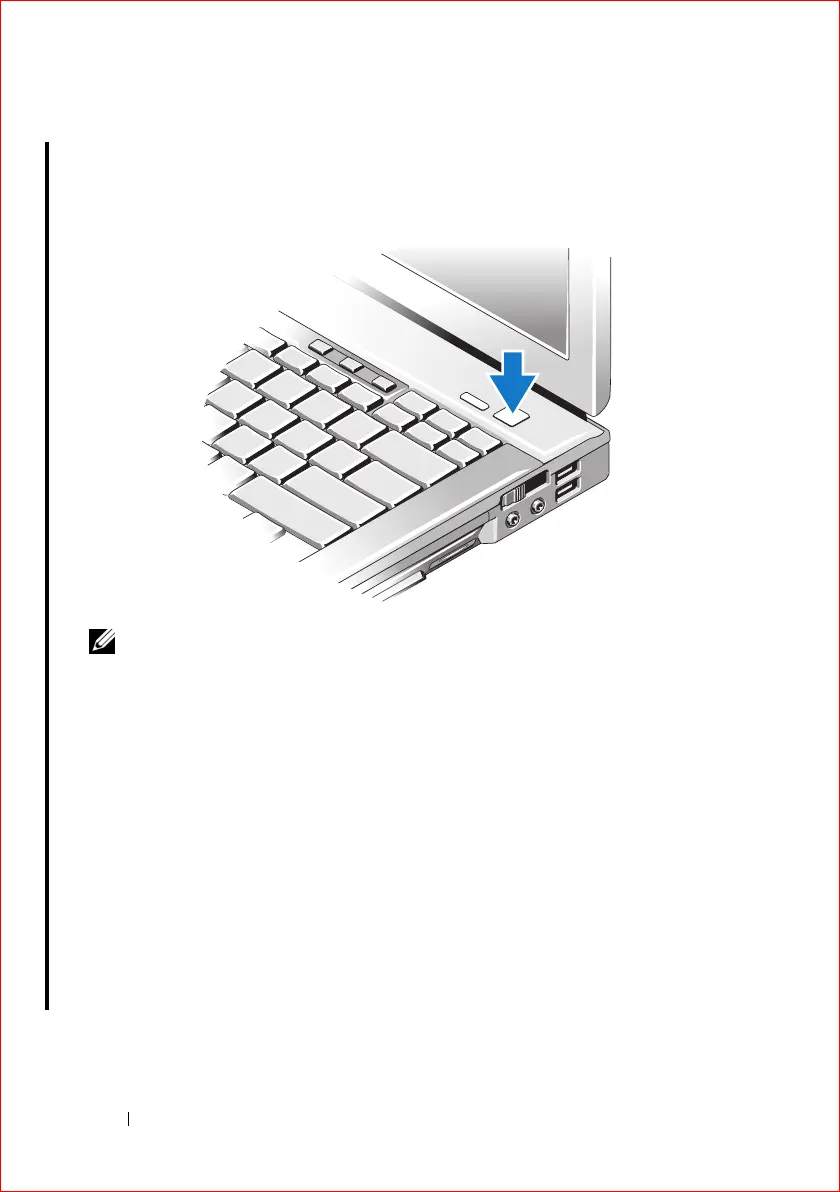
Open the computer display and press the power button to turn on the
computer.
NOTE: It is recommended that you turn on and shut down your computer at least
once before you install any cards or connect the computer to a docking device or
other external device, such as a printer.
11
(Optional). If your computer is equipped with a backlit keyboard, turn it
on by pressing the <Fn> and left-arrow key combination.
12
(Optional). The ambient light sensor (ALS) is located on the bottom of
the computer display panel. The ALS senses the light levels in the area and
automatically adjusts the screen brightness to match. Only the internal
display is adjusted, not any monitor or projector that may be connected to
the system. If the sensor window is blocked, it does not work correctly. You
can enable or disable the ambient light sensor by pressing the <Fn> and
left-arrow key combination.
13
(Optional). Using the Dell™ ControlPoint (DCP). Activate DCP by
pressing the DCP button just left of the power button. The Dell
ControlPoint icon appears on the taskbar. Click the icon to access Dell







 To Next Page