EasyManua.ls Logo

Dell S3222HG - User Manual

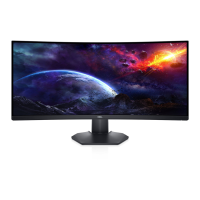
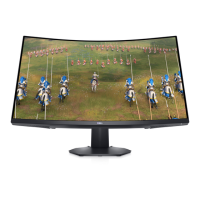
Dell S3222HG
60 pages
Print Icon
To Next Page IconTo Next Page
Loading...
Monitor Model: S3222HG
Regulatory Model: S3222HGc
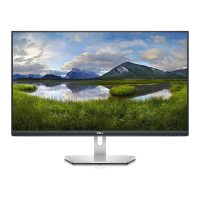
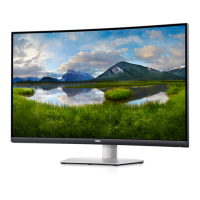
Dell S3222HG Monitor
User’s Guide

Questions and Answers

  • S
    Scott RiveraAug 18, 2025
    How to resolve brightness problems on a Dell S3222HG Monitor?
    • B
      Benjamin KruegerAug 18, 2025
      If you are experiencing brightness problems with your Dell Monitor, reset the monitor to factory defaults. You can also adjust the brightness and contrast controls via the OSD.
  • W
    williamgainesAug 21, 2025
    How to troubleshoot intermittent problems with a Dell S3222HG?
    • K
      Kathleen HurstAug 21, 2025
      If you are experiencing intermittent problems with your Dell Monitor, ensure the video cable connecting the monitor to the computer is properly connected and secure. Reset the monitor to factory defaults. Perform a monitor self-test feature check to determine if the intermittent problem occurs in self-test mode.
  • H
    hcameronAug 23, 2025
    How to fix a Dell Monitor with no video and the power LED off?
    • C
      Chris TuckerAug 25, 2025
      If your Dell Monitor displays no video and the power LED is off, ensure the video cable connecting the monitor and computer is properly connected and secure. Also, verify the power outlet is working by testing it with another device. Make sure the power button is pressed and the correct input source is selected via the Input Source menu.
  • L
    Larry WilliamsAug 26, 2025
    What to do if my Dell S3222HG Monitor has no video but the power LED is on?
    • A
      Abigail DeanAug 26, 2025
      If your Dell Monitor has no video but the power LED is on, try the following: Increase the brightness and contrast controls using the On-Screen Display (OSD). Perform a monitor self-test. Check the video cable connector for bent or broken pins. Run the built-in diagnostics. Also, ensure the correct input source is selected via the Input Source menu.
  • J
    jenniferharmonAug 28, 2025
    How to fix horizontal or vertical lines on a Dell Monitor?
    • C
      Courtney MunozAug 28, 2025
      If your Dell Monitor displays horizontal or vertical lines, try resetting the monitor to factory defaults. Perform a monitor self-test to see if the lines appear in self-test mode as well. Inspect the video cable connector for bent or broken pins. You can also run the built-in diagnostics.
  • C
    Crystal JohnsonAug 30, 2025
    How to improve poor focus on a Dell Monitor?
    • H
      Harry RodriguezAug 30, 2025
      If your Dell Monitor has poor focus, eliminate any video extension cables. Reset the monitor to factory defaults. Also, change the video resolution to the correct aspect ratio.
  • K
    Keith DanielSep 1, 2025
    How to troubleshoot synchronization problems on a Dell Monitor?
    • C
      Charles WaltersSep 1, 2025
      If you are having synchronization problems with your Dell Monitor, reset the monitor to factory defaults. Perform a monitor self-test to determine if the scrambled screen appears in self-test mode. Check for bent or broken pins in the video cable connector. You can also try restarting the computer in safe mode.
  • B
    barbara37Sep 4, 2025
    What to do if my Dell S3222HG is missing color?
    • C
      Christopher WestSep 4, 2025
      If your Dell Monitor is missing color, perform a monitor self-test. Ensure that the video cable connecting the monitor to the computer is properly connected and secure. Also, check the video cable connector for bent or broken pins.
  • J
    Jill JonesSep 6, 2025
    How to correct wrong colors on a Dell S3222HG Monitor?
    • E
      ellen17Sep 6, 2025
      If your Dell Monitor is displaying the wrong color, try different Preset Modes in the Color settings OSD. Adjust the R/G/B values in Custom Color in the Color settings OSD. Change the Input Color Format to RGB or YCbCr in the Color settings OSD. You can also run the built-in diagnostics.
  • J
    Jesse HowellSep 8, 2025
    How to fix geometric distortion on a Dell S3222HG Monitor?
    • D
      Denise SmithSep 8, 2025
      If your Dell Monitor is showing geometric distortion, reset the monitor to factory defaults. You can also adjust the horizontal and vertical controls via the OSD.

Summary

Safety Instructions

About Your Monitor

Product Features

Details the technical capabilities and functionalities of the monitor.

Monitor Specifications

Setting Up the Monitor

Connecting the Stand

Step-by-step guide for attaching the monitor stand.

Connecting Cables and Power

Instructions for connecting video cables and power cord to the monitor and computer.

Operating Your Monitor

Powering On and Joystick Control

Explains how to turn the monitor on and navigate menus using the joystick.

Control Button Functions

Describes the function of each physical button on the monitor.

On-Screen Display (OSD) Menu Usage

Details access and navigation of OSD menus for settings like Game, Display, Audio.

Troubleshooting

Self-Test and Built-in Diagnostics

Explains how to run diagnostic tools to identify monitor issues.

Common and Product-Specific Problems

Lists common issues and their corresponding troubleshooting steps.

Dell S3222HG Specifications

General IconGeneral
Screen Size31.5 inches
Resolution2560 x 1440 (QHD)
Panel TypeVA
Refresh Rate165 Hz
Aspect Ratio16:9
Contrast Ratio3000:1
Curvature1800R
Adaptive SyncAMD FreeSync Premium
VESA Mount100 x 100 mm
Color Support16.7 million colors
Color Gamut99% sRGB
Response Time4 ms (GtG)
Ports2 x HDMI 2.0, 1 x Audio Line Out
Viewing Angle178° (horizontal), 178° (vertical)
ConnectivityHDMI, DisplayPort
Brightness300 cd/m² (typical)

Related product manuals