EasyManua.ls Logo

Dell S3221QS - User Manual

Dell S3221QS
70 pages
Print Icon
To Next Page IconTo Next Page
Loading...
Monitor Model: S3221QS
Regulatory Model: S3221QSc
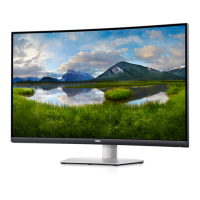
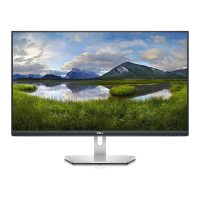
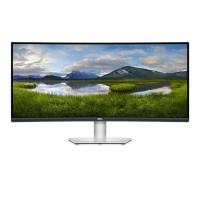
Dell S3221QS Monitor
User’s Guide

Other manuals for Dell S3221QS

Questions and Answers

  • E
    Erin HaneyAug 21, 2025
    Why is color missing on my Dell Monitor?
    • R
      richard70Aug 21, 2025
      If your Dell monitor is displaying missing color, try these solutions: * Perform the monitor self-test feature check. * Ensure that the video cable connecting the monitor to the computer is properly connected and secure. * Check the video cable connector for bent or broken pins.
  • N
    nancysmithAug 25, 2025
    How to resolve synchronization problems on a Dell S3221QS Monitor?
    • P
      Patricia ComptonAug 25, 2025
      To resolve synchronization problems on your Dell monitor: 1. Reset the monitor to Factory Settings (Factory Reset). 2. Perform the monitor self-test feature check to see if the scrambled screen appears in self-test mode. 3. Check the video cable connector for bent or broken pins. 4. Restart the computer in safe mode.
  • L
    leelauraAug 26, 2025
    How do I fix horizontal or vertical lines on my Dell S3221QS?
    • W
      William HillAug 26, 2025
      To address horizontal or vertical lines on your Dell monitor: 1. Reset the monitor to Factory Settings (Factory Reset). 2. Perform a monitor self-test feature check to determine if the lines appear in self-test mode as well. 3. Check the video cable connector for bent or broken pins. 4. Run the built-in diagnostics.
  • M
    Michelle TuckerAug 28, 2025
    How to correct wrong color display on a Dell S3221QS Monitor?
    • K
      Kara HansenAug 28, 2025
      To correct wrong color display issues on your Dell monitor: * Change the Color Setting Mode in the Color Settings OSD to Graphics or Video depending on the application. * Try different Preset Modes in Color settings OSD. * Adjust R/G/B value in Custom Color in Color settings OSD. * Change the Input Color Format to RGB or YPbPr in the Color settings OSD. * Run the built-in diagnostics.
  • L
    Lisa VaughnAug 30, 2025
    How to improve poor focus on a Dell Monitor?
    • V
      Veronica MarshallAug 30, 2025
      If your Dell monitor has poor focus, try these steps: * Eliminate video extension cables. * Reset the monitor to Factory Settings (Factory Reset). * Change the video resolution to the correct aspect ratio.
  • F
    fisherelizabethSep 1, 2025
    How to troubleshoot brightness problems on a Dell S3221QS?
    • H
      Hayley HortonSep 1, 2025
      To troubleshoot brightness issues on your Dell monitor: * Reset the monitor to Factory Settings (Factory Reset). * Adjust brightness & contrast controls via the OSD.
  • S
    Stephanie DiazSep 3, 2025
    Why is my Dell S3221QS Monitor video shaky or jittery?
    • J
      John ScottSep 3, 2025
      If your Dell monitor's video is shaky or jittery: * Reset the monitor to Factory Settings (Factory Reset). * Check environmental factors that may be causing interference. * Relocate the monitor and test it in another room.
  • C
    Christopher SmithSep 5, 2025
    How to fix a Dell S3221QS Monitor with no video and the power LED off?
    • J
      Jordan BraunSep 5, 2025
      If your Dell monitor isn't displaying video and the power LED is off, try these steps: * Ensure the video cable connecting the monitor and computer is properly connected and secure. * Verify the power outlet is functioning correctly by testing it with other electrical equipment. * Make sure the power button is pressed. * Check that the correct input source is selected via the Input Source menu.
  • S
    Sarah LopezSep 7, 2025
    What causes intermittent problems on a Dell S3221QS Monitor?
    • K
      Kenneth MullinsSep 8, 2025
      For intermittent problems with your Dell monitor: * Ensure the video cable connecting the monitor to the computer is properly connected and secure. * Reset the monitor to Factory Settings (Factory Reset). * Perform the monitor self-test feature check to see if the issue occurs in self-test mode.
  • L
    Linda MitchellSep 9, 2025
    How to fix geometric distortion on a Dell S3221QS Monitor?
    • S
      Sean MooreSep 10, 2025
      To correct geometric distortion on your Dell monitor: * Reset the monitor to Factory Settings (Factory Reset). * Adjust horizontal & vertical controls via the OSD.

Summary

Safety Instructions

About Your Monitor

Package Contents

Lists the components included with the monitor.

Product Features

Details the key specifications and capabilities of the monitor.

Identifying Parts and Controls

Front View Controls

Identifies and describes the front panel controls and buttons.

Back View Ports

Identifies and describes the rear panel components and ports.

Side and Bottom Views

Shows and describes the side and bottom panel features and ports.

Monitor Specifications

Speaker Specifications

Details the audio specifications of the monitor's built-in speakers.

Resolution Specifications

Preset Display Modes

HDMI Preset Display Modes

Lists display modes supported via HDMI with technical parameters.

DisplayPort Preset Display Modes

Lists display modes supported via DisplayPort with technical parameters.

PIP;PBP Preset Display Modes

Lists display modes for Picture-in-Picture and Picture-by-Picture.

Electrical Specifications

Physical Characteristics

Environmental Characteristics

Power Management Modes

Plug and Play Capability

LCD Monitor Quality and Pixel Policy

Ergonomics

Handling and Moving Your Display

Maintenance Guidelines

Cleaning Your Monitor

Instructions on how to properly clean the monitor screen and body.

Setting Up the Monitor

Connecting the Stand

Step-by-step guide to attach the monitor stand.

Connecting Your Monitor

Instructions for connecting the monitor to a computer and power.

Organizing Cables

Instructions on how to manage and route cables using the cable management slot.

Securing Your Monitor

How to use a Kensington lock to secure the monitor.

Removing the Stand

Instructions on how to detach the monitor stand.

Wall Mounting (Optional)

Instructions for mounting the monitor on a wall.

Operating Your Monitor

Power On and Control Buttons

How to turn on the monitor and use its physical control buttons.

Control Button Descriptions

Detailed description of each control button's function.

OSD Controls and Menu Navigation

How to use buttons to navigate and control the On-Screen Display (OSD) menu.

Brightness and Contrast Adjustment

How to adjust the monitor's brightness and contrast settings.

Input Source and Color Settings

How to select video input and adjust color settings like format, hue, and saturation.

Preset Modes

Explanation of various preset color modes available on the monitor.

Display Settings

Settings related to image display like aspect ratio, sharpness, and response time.

PIP;PBP and Audio Settings

How to use Picture-in-Picture/Picture-by-Picture modes and manage audio sources.

Menu Settings and Personalization

How to adjust OSD language, timer, lock, and personalize shortcut keys.

Factory Reset

How to perform a full factory reset of the monitor's settings.

Menu and Power Button Lock

How to lock/unlock OSD menu and power button functions.

OSD Warning Messages

Explains common warning messages displayed on the monitor.

Setting the Maximum Resolution

Tilt and Vertical Extension

Tilt Extension

Information on the monitor's tilt adjustment capabilities.

Vertical Extension

Information on the monitor's vertical height adjustment.

Troubleshooting

Self-Test and Built-in Diagnostics

How to run self-test and built-in diagnostic tools to identify issues.

Common Problems

Lists common monitor issues and their potential solutions.

Product-Specific Problems

Lists specific problems and their solutions.

Appendix

Outline Dimensions

Dell S3221QS Specifications

General IconGeneral
Panel typeVA
Pixel pitch0.18159 x 0.18159 mm
Pixel density139 ppi
Backlight typeLED
Display diagonal32 \
Display technologyLCD
Native aspect ratio16:9
Vertical scan range40 - 60 Hz
Maximum refresh rate60 Hz
Response time (fast)5 ms
Horizontal scan range29 - 170 kHz
Supported video modes480i, 480p, 576i, 576p, 720p, 1080i, 1080p, 3840p
Viewable size, vertical392.3 mm
sRGB coverage (typical)99 %
Contrast ratio (typical)3000:1
Display number of colors1.073 billion colors
Viewable size, horizontal697.3 mm
Display brightness (typical)300 cd/m²
Supported graphics resolutions3840 x 2160
Sustainability certificatesRoHS
USB hub version2.0 / 3.2 Gen 1 (3.1 Gen 1)
Built-in USB hubYes
DisplayPort version1.2
Number of upstream ports3
Tilt angle range-5 - 21 °
Cable lock slot typeKensington
Panel mounting interface100 x 100 mm
Feet colorGold
Product colorBlack, Grey
Front bezel colorBlack
Heavy metals freeHg (mercury)
Market positioningHome
NVIDIA G-SYNC-
RMS rated power10 W
Cables includedAC, HDMI, USB
Input current1.6 A
AC input voltage100 - 230 V
AC input frequency50 - 60 Hz
Energy efficiency scaleA to G
Power consumption (max)91 W
Annual energy consumption57 kWh
Power consumption (standby)0.2 W
Power consumption (typical)38.5 W
Package depth939.8 mm
Package width525.02 mm
Package height171.96 mm
Package weight15200 g
Operating altitude0 - 5000 m
Non-operating altitude0 - 12192 m
Storage temperature (T-T)-20 - 60 °C
Operating temperature (T-T)0 - 40 °C
Storage relative humidity (H-H)10 - 90 %
Operating relative humidity (H-H)10 - 80 %
Weight and Dimensions IconWeight and Dimensions
Bezel width (top)8.1 mm
Bezel width (side)8.2 mm
Depth (with stand)207 mm
Width (with stand)709.2 mm
Height (with stand)448.1 mm
Weight (with stand)- g
Bezel width (bottom)24.4 mm
Depth (without stand)64 mm
Height (without stand)424.8 mm
Weight (without stand)7400 g

Related product manuals