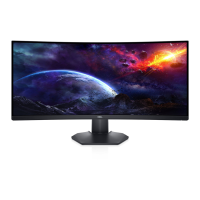
EasyManua.ls Logo

Dell S3422DW - User Manual

Dell S3422DW
63 pages
Print Icon
To Next Page IconTo Next Page
Loading...
Monitor Model: S3422DW
Regulatory Model: S3422DWc
Dell S3422DW
User’s Guide

Other manuals for Dell S3422DW

Questions and Answers

  • E
    ebradleySep 10, 2025
    What to do if my Dell Monitor has missing pixels?
    • C
      Christopher FoleySep 10, 2025
      If your Dell monitor has missing pixels, try cycling the power On and Off. Note that a pixel that is permanently off is a natural defect that can occur in LCD technology.
  • K
    Kathleen BeardAug 22, 2025
    What to do if my Dell Monitor has no video but the power LED is on?
    • J
      Jill PerezAug 23, 2025
      If your Dell monitor shows no video but the power LED is on, try the following: increase the brightness and contrast controls using the On-Screen Display (OSD). You can also perform a monitor self-test feature check and check the video cable connector for bent or broken pins. Try running the built-in diagnostics. Finally, ensure that the correct input source is selected via the Input Source menu.
  • J
    John GibsonAug 25, 2025
    Why is my Dell S3422DW Monitor shaky or jittery?
    • K
      Kevin GonzalezAug 25, 2025
      If your Dell monitor's video is shaky or jittery, try resetting the monitor to its Factory Settings. Also, check for any environmental factors that might be causing interference. If the problem persists, relocate the monitor and test it in another room.
  • A
    Alex GomezAug 26, 2025
    How to fix brightness problems on Dell S3422DW Monitor?
    • M
      Mr. Benjamin NelsonAug 26, 2025
      To resolve brightness problems on your Dell monitor, first, reset the monitor to its Factory Settings. If the issue persists, adjust the brightness and contrast controls via the On-Screen Display (OSD).
  • J
    James DeanAug 27, 2025
    How to fix Horizontal or Vertical Lines on Dell S3422DW Monitor?
    • R
      Richard FloresAug 27, 2025
      To fix horizontal or vertical lines on your Dell monitor, reset the monitor to its Factory Settings. Then, perform a monitor self-test feature check to determine if these lines are also present in self-test mode. Also, inspect the video cable connector for any bent or broken pins. You can also run the built-in diagnostics.
  • A
    Ashley DavisAug 29, 2025
    How to resolve synchronization problems on Dell Monitor?
    • M
      Melissa MendozaAug 29, 2025
      To resolve synchronization problems on your Dell monitor, reset the monitor to Factory Settings. Perform a monitor self-test to see if the scrambled screen appears in self-test mode. Check the video cable connector for bent or broken pins. As a further step, restart the computer in safe mode.
  • A
    Amanda BeckerSep 18, 2025
    What to do if my Dell S3422DW shows 'No Input Signal'?
    • D
      Dr. Dale Evans Jr.Sep 18, 2025
      If your Dell monitor displays 'No Input Signal', check the signal source. Ensure the computer is not in standby or sleep mode by moving the mouse or pressing any key on the keyboard.
  • Q
    qkennedySep 12, 2025
    What to do if my Dell S3422DW has stuck-on pixels?
    • R
      Robert AndersonSep 12, 2025
      If your Dell monitor has stuck-on pixels, try cycling the power On and Off. Note that a pixel that is permanently off is a natural defect that can occur in LCD technology.
  • J
    jason43Sep 8, 2025
    Why does my Dell S3422DW Monitor have intermittent problems?
    • M
      Misty BakerSep 8, 2025
      If your Dell monitor is experiencing intermittent problems, ensure that the video cable connecting the monitor to the computer is properly connected and secure. Also, try resetting the monitor to its Factory Settings. Additionally, perform a monitor self-test feature check to see if the issue occurs in self-test mode.
  • D
    David HodgeSep 5, 2025
    How to fix poor focus on Dell Monitor?
    • L
      Laura CooperSep 5, 2025
      If your Dell monitor has poor focus, eliminate any video extension cables you might be using. If that doesn't help, reset the monitor to its Factory Settings. Also, ensure that the video resolution is set to the correct aspect ratio.

Summary

Safety Instructions

About your monitor

Package contents

Details components included with the monitor for setup.

Product features

Lists key technical specifications and capabilities of the monitor.

Identifying parts and controls

Front view controls

Identifies buttons and indicators on the front of the monitor.

Rear view ports and labels

Details connection ports and labels on the back of the monitor.

Side and bottom views

Illustrates ports and features on the sides and bottom of the monitor.

Monitor specifications

Resolution specifications

Specifies native resolution and refresh rates for optimal display performance.

Electrical specifications

Details electrical requirements, power consumption, and input signals.

Physical characteristics

Provides dimensions, weight, and finish details of the monitor.

Environmental characteristics

Lists operating conditions like temperature, humidity, and altitude.

Plug and play capability

LCD monitor quality and pixel policy

Ergonomics

Handling and moving your display

Maintenance guidelines

Cleaning your monitor

Provides instructions for safely cleaning the monitor screen and body.

Setting up the monitor

Connecting the stand

Step-by-step guide for attaching the monitor stand to the display.

Connecting cables

Instructions for connecting video and USB cables to your computer.

Cable management and security

Guidance on organizing cables and securing the monitor with a lock.

Stand removal and wall mounting

Procedures for detaching the stand and optional wall mounting.

Operating your monitor

Power and Control Buttons

Instructions for powering the monitor on/off and using its physical control buttons.

On-Screen Display (OSD) Menu

Detailed guide on how to access and navigate the monitor's On-Screen Display (OSD) settings.

Brightness and Contrast Settings

How to modify brightness and contrast settings via the OSD menu.

Input Source and Color Settings

Information on selecting input sources and adjusting color display modes.

Menu and Power button lock

OSD warning messages

Display Resolution Setup

Setting the maximum resolution

Instructions for configuring the monitor to its highest supported resolution.

Tilt and Vertical Extension

Guidance on adjusting the monitor's tilt angle and vertical height.

Troubleshooting

Monitor Self-Test

Steps to perform a monitor self-test to diagnose display issues.

Built-in Diagnostics

How to run the monitor's built-in diagnostic tool for screen abnormality checks.

Common Problems and Solutions

A guide to common monitor issues and their potential solutions.

Appendix

Regulatory and Safety Information

Includes FCC notices, general safety instructions, and regulatory compliance details.

Contacting Dell Support

Information on how to get online support and contact Dell for assistance.

Stability Hazard Warnings

Important warnings and precautions to prevent product tip-over and injury.

Dell S3422DW Specifications

General IconGeneral
Panel typeVA
Color gamut89.2 %
Pixel pitch0.23175 x 0.23175 mm
Pixel density109 ppi
Backlight typeLED
Display diagonal34 \
Anti-glare screenYes
Display technologyLCD
Native aspect ratio21:9
Vertical scan range48 - 100 Hz
Horizontal scan range30 - 160 kHz
Supported video modes480i, 480p, 576p, 720p, 1080i, 1080p
Viewable size diagonal864.2 mm
Viewable size, vertical333.7 mm
sRGB coverage (typical)99.7 %
Display number of colors16.7 million colors
Display diagonal (metric)86.42 cm
Viewable size, horizontal797.2 mm
Display brightness (typical)300 cd/m²
Tilt angle range-5 - 21 °
Panel mounting interface100 x 100 mm
HDMI version2.2
Headphone out-
USB hub version2.0 / 3.2 Gen 1 (3.1 Gen 1)
DisplayPort version1.2
USB upstream port typeUSB Type-B
VGA (D-Sub) ports quantity0
AC input voltage100 - 240 V
Power supply typeInternal
AC input frequency50 - 60 Hz
Power consumption (max)92 W
Power consumption (off)0.3 W
Power consumption (typical)32 W
Package depth949.96 mm
Package width468.12 mm
Package height225.04 mm
Package weight14950 g
Doesn't containPVC/BFR
Sustainability certificatesRoHS
Product colorSilver
Front bezel colorBlack
Heavy metals freeHg (mercury)
Market positioningBusiness
Operating altitude0 - 5000 m
Non-operating altitude0 - 12192 m
Storage temperature (T-T)-20 - 60 °C
Operating temperature (T-T)0 - 40 °C
Storage relative humidity (H-H)10 - 90 %
Operating relative humidity (H-H)10 - 80 %
RMS rated power10 W
Cables includedAC, HDMI, USB
Harmonized System (HS) code85285210
Weight and Dimensions IconWeight and Dimensions
Bezel width (top)8.64 mm
Bezel width (side)8.65 mm
Depth (with stand)210 mm
Width (with stand)808.16 mm
Height (with stand)489.36 mm
Weight (with stand)9800 g
Bezel width (bottom)22.14 mm
Depth (without stand)64.01 mm
Height (without stand)364.5 mm
Weight (without stand)6700 g

Related product manuals