EasyManua.ls Logo

Dell S3222HN - User Manual

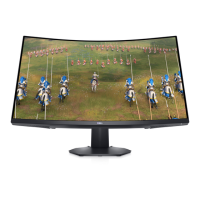
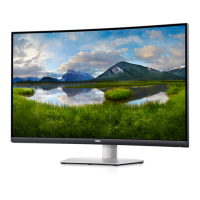
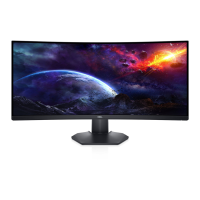
Dell S3222HN
58 pages
Print Icon
To Next Page IconTo Next Page
Loading...
Monitor Model: S3222HN
Regulatory Model: S3222HNc
Dell S3222HN Monitor
User’s Guide

Other manuals for Dell S3222HN

Questions and Answers

  • C
    charleshallAug 19, 2025
    What to do if my Dell S3222HN has no video but the power LED is on?
    • R
      Regina GambleSep 12, 2025
      If your Dell Monitor isn't displaying video but the power LED is on, try increasing the brightness and contrast using the OSD. Perform a monitor self-test. Check the video cable connector for bent or broken pins. Run the built-in diagnostics. Also, make sure the correct input source is selected via the Input Source menu.
  • P
    Penny McclureAug 21, 2025
    What causes intermittent problems on a Dell S3222HN Monitor?
    • B
      Brandon RoweAug 21, 2025
      If you are experiencing intermittent problems with your Dell Monitor, ensure the video cable connecting the monitor to the computer is properly connected and secure. Reset the monitor to Factory Settings. Perform a monitor self-test to see if the issue persists in self-test mode.
  • Q
    qsmithAug 23, 2025
    How to fix brightness problems on a Dell S3222HN Monitor?
    • P
      paigeherreraAug 23, 2025
      If you are experiencing brightness problems with your Dell Monitor, reset the monitor to Factory Settings. Adjust the brightness and contrast controls via the OSD.
  • T
    Timothy BakerAug 26, 2025
    How to resolve synchronization problems on a Dell S3222HN Monitor?
    • L
      Lisa GambleAug 26, 2025
      If you are experiencing synchronization problems with your Dell Monitor, reset the monitor to Factory Settings. Perform a monitor self-test to see if the scrambled screen appears in self-test mode. Check for bent or broken pins in the video cable connector. As a last resort, restart the computer in safe mode.
  • S
    Scott MortonAug 27, 2025
    Why is the video on my Dell Monitor shaky or jittery?
    • G
      Gary FaulknerAug 27, 2025
      If your Dell Monitor video is shaky or jittery, reset the monitor to Factory Settings. Check for any environmental factors causing interference. Relocate the monitor and test it in another room.
  • M
    Monica EllisAug 29, 2025
    How to fix a Dell S3222HN with no video and the power LED off?
    • G
      George SimonAug 29, 2025
      If your Dell Monitor isn't displaying video and the power LED is off, make sure the video cable is properly connected and secure. Also, verify the power outlet is working with another device. Ensure the power button is pressed and that the correct input source is selected via the Input Source menu.
  • V
    Victor OwensSep 1, 2025
    Why is my Dell S3222HN missing color?
    • S
      Scott BestSep 1, 2025
      If your Dell Monitor is missing color, perform a monitor self-test. Ensure that the video cable connecting the monitor to the computer is properly connected and secure. Check the video cable connector for bent or broken pins.
  • R
    Ralph BurkeSep 3, 2025
    How do I fix horizontal or vertical lines on my Dell S3222HN Monitor?
    • M
      Melinda FischerSep 3, 2025
      If your Dell Monitor is showing horizontal or vertical lines, reset the monitor to Factory Settings. Perform a monitor self-test to determine if the lines are also present in self-test mode. Check the video cable connector for bent or broken pins. You can also run the built-in diagnostics.
  • K
    Kimberly RussellSep 5, 2025
    Why does my Dell Monitor show the wrong color?
    • S
      Sarah YoderSep 5, 2025
      If your Dell Monitor is displaying the wrong color, try different Preset Modes in the Color settings OSD. Adjust the R/G/B value in Custom Color in the Color settings OSD. Change the Input Color Format to RGB or YCbCr in the Color settings OSD. You can also run the built-in diagnostics.
  • W
    Wendy PhamSep 7, 2025
    How do I correct poor focus on my Dell Monitor?
    • D
      david85Sep 7, 2025
      If your Dell Monitor has poor focus, eliminate any video extension cables. Reset the monitor to Factory Settings. Change the video resolution to the correct aspect ratio.

Summary

Introduction and Safety Information

Safety Instructions

Guidelines to protect your monitor from damage and ensure personal safety.

About your monitor

Overview of the monitor and its included components.

Package contents

Lists all components included with the monitor.

Product features

Details the technical capabilities and features of the Dell S3222HN monitor.

Monitor Details and Specifications

Identifying parts and controls

Identifies and explains the various parts and controls of the monitor.

Front view

Details the front panel buttons and indicators.

Control buttons

Explains the function of each control button on the monitor.

Back view

Details rear panel connections, labels, and mounting points.

Side view

Shows the side profile of the monitor and its stand.

Bottom view

Details bottom panel ports and connectors.

Monitor specifications

Technical specifications for the monitor's performance and capabilities.

Resolution specifications

Technical details on screen resolution and scan ranges.

Supported video modes

Lists all video modes supported by the monitor.

Preset display modes

Details various display presets and their parameters.

Electrical specifications

Power requirements and consumption details.

Physical characteristics

Dimensions and weight of the monitor.

Environmental characteristics

Operating temperature, humidity, and altitude limits.

Plug and play capability

Explains automatic monitor configuration with Plug and Play systems.

LCD monitor quality and pixel policy

Information on the monitor's pixel quality and warranty policy.

Setup and Operation

Setting up the monitor

Step-by-step instructions for setting up the monitor.

Connecting the stand

Step-by-step guide to attaching the monitor stand.

Connecting your monitor

Instructions for connecting cables to the monitor.

Organizing cables

Tips for managing cables connected to the monitor.

Securing your monitor using Kensington lock (optional)

How to use a security lock to secure the monitor.

Removing the stand

Procedure for detaching the monitor stand.

Wall mounting (optional)

Instructions for mounting the monitor on a wall.

Operating your monitor

Instructions for powering on, using controls, and navigating menus.

Power on the monitor

How to turn the monitor on and off.

Using the control buttons

Overview of the monitor's physical control buttons.

OSD controls

Explains how to use the On-Screen Display controls.

Using the On-Screen Display (OSD) menu

Guide to navigating and using the OSD menu.

Menu and Power button lock

How to lock/unlock OSD menu and power buttons.

OSD warning messages

Explains common OSD warning notifications.

Setting the maximum resolution

Steps to set the display resolution in Windows.

Using the tilt extension

Adjusting the monitor's tilt angle.

Ergonomics, Maintenance, and Troubleshooting

Ergonomics

Guidelines for comfortable and safe workstation setup.

Handling and moving your display

Safe practices for moving the monitor.

Maintenance guidelines

Instructions for cleaning and maintaining the monitor.

Cleaning your monitor

Specific steps for cleaning the monitor screen and body.

Troubleshooting

Guidance for diagnosing and resolving common monitor problems.

Self-Test

How to run the monitor's self-test feature.

Built-in diagnostics

Steps to run built-in diagnostic tests.

Common problems

Solutions for frequent monitor issues.

Product-specific problems

Troubleshooting specific issues related to the product.

Appendix

FCC notices (U.S. Only) and other regulatory information

Regulatory compliance information and FCC notices.

Contacting Dell

Information on how to contact Dell support.

Dell S3222HN Specifications

General IconGeneral
Screen Size31.5 inches
Resolution1920 x 1080 (Full HD)
Panel TypeVA
Refresh Rate75 Hz
Aspect Ratio16:9
Brightness300 cd/m²
Contrast Ratio3000:1
Curvature1800R
AMD FreeSyncYes
Response Time4 ms (GtG)
Ports2 x HDMI 1.4
Viewing Angle178° (horizontal), 178° (vertical)
Built-in SpeakersYes (2 x 5W)
Color Support16.7 million colors
VESA Mount100 x 100 mm

Related product manuals