46 │ Operating your monitor
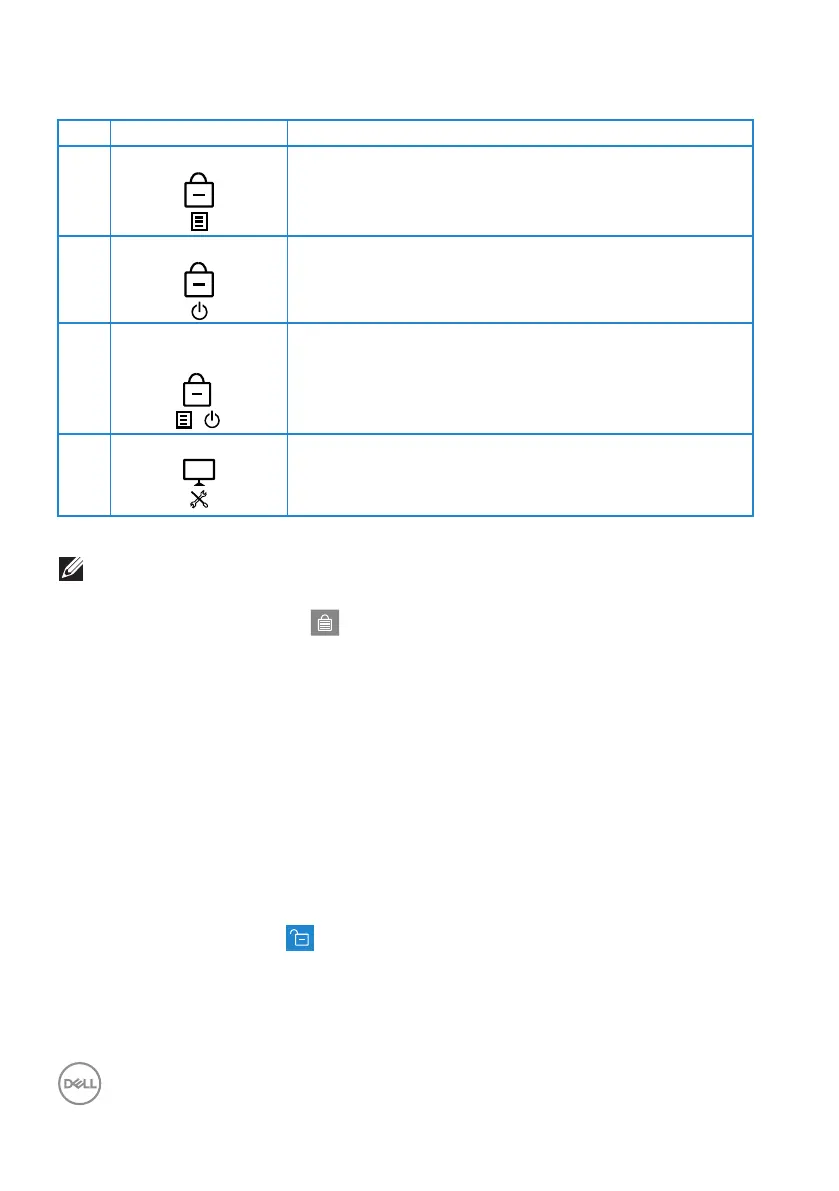
There are three lock options.
Menu Description
1 Menu Buttons When Menu Buttons is selected, the OSD menu
settings cannot be changed. All buttons are locked
except Power button.
2 Power Button When Power Button is selected, the display cannot
be turned off using the Power button.
3 Menu + Power
Buttons
+
When Menu + Power Buttons is selected, the OSD
menu settings cannot be changed and the Power
button is locked.
4 Built-in Diagnostics See Built-in diagnostics for more information.
NOTE: To access the Lock or Unlock menu – Press and hold the Exit
button (button 4) for four seconds.
In the following scenarios, the icon appears at the center of the display:
• When Up button (button 1), Down button (button 2), Menu button (button 3),
or Exit button (button 4) are pressed. This indicates the OSD menu buttons
are in lock state.
• When the Power button (button 5) is pressed. This indicates the Power
button is in lock state.
• When any one of the five buttons are pressed. This indicates OSD menu
buttons and the Power button is in lock state.
Unlocking the OSD menu and Power buttons:
1. Press and hold the Exit button (button 4) for four seconds. The unlock menu
appears.
2. Select the unlock icon to unlock the buttons on the display.


 To Next Page