EasyManua.ls Logo

Dell SE2219H - User Manual

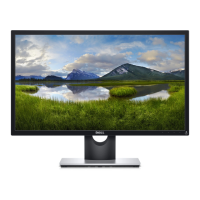
Dell SE2219H
51 pages
Print Icon
To Next Page IconTo Next Page
Loading...
Monitor Model: SE2219H/SE2219HX
Regulatory model: SE2219Hf
Dell SE2219H/SE2219HX
User’s Guide

Other manuals for Dell SE2219H

Questions and Answers

  • G
    Gina RoseSep 10, 2025
    How to fix geometric distortion on a Dell SE2219H Monitor?
    • K
      Kendra ThompsonSep 10, 2025
      If your Dell Monitor is showing geometric distortion: * Reset the monitor to its factory settings. * Adjust the horizontal and vertical controls via the OSD (On-Screen Display).
  • J
    jeffrey38Aug 22, 2025
    How to fix brightness problems on a Dell SE2219H Monitor?
    • C
      colleencrawfordAug 23, 2025
      If you're having brightness problems with your Dell Monitor: * Reset the monitor to its factory settings. * Adjust the brightness and contrast controls using the OSD (On-Screen Display) menu.
  • O
    Olivia JacksonAug 25, 2025
    How to fix a Dell SE2219H with no video and the power LED off?
    • J
      johnboyerAug 25, 2025
      If your Dell Monitor's power LED is off and there's no video, ensure the video cable is properly connected and secure. Also, verify the power outlet is functioning with other devices. Make sure the power button is pressed and the correct input source is selected via the Input Source menu.
  • B
    Brittany SimsAug 26, 2025
    What to do if I cannot adjust my Dell Monitor with the buttons?
    • J
      Jacqueline JohnsonAug 27, 2025
      If you cannot adjust your Dell monitor using the buttons on the bottom, turn off the monitor, unplug the power cord, plug it back in, and then turn it on. Check the signal source, ensuring the computer is not in standby or sleep mode by moving the mouse or pressing a key. Verify the video cable is properly plugged in; disconnect and reconnect if necessary. Reset the computer or video player. Due to different video formats of DVDs, the monitor may display in full screen. Run the built-in diagnostics.
  • G
    Gabrielle BrownAug 27, 2025
    How do I fix a Dell Monitor with poor focus?
    • A
      Alyssa SpencerAug 27, 2025
      To improve poor focus on your Dell Monitor, eliminate any video extension cables. Reset the monitor to Factory Settings. Change the video resolution to the correct aspect ratio.
  • M
    Megan JohnsonAug 29, 2025
    How to correct geometric distortion on a Dell SE2219H?
    • C
      Catherine LopezAug 29, 2025
      To correct geometric distortion on your Dell Monitor, reset the monitor to Factory Settings. Adjust the horizontal and vertical controls using the OSD.
  • A
    April RamirezSep 18, 2025
    What to do for missing pixels on a Dell SE2219H?
    • A
      Anthony WallaceSep 18, 2025
      If your Dell Monitor has missing pixels: * Try cycling the power on and off. * Keep in mind that a pixel that is permanently off is a natural defect that can occur in LCD technology.
  • R
    riosbrittanySep 12, 2025
    Why is the video on my Dell Monitor shaky or jittery?
    • C
      Cristina CisnerosSep 12, 2025
      If the video on your Dell Monitor is shaky or jittery, consider these steps: * Reset the monitor to its factory settings. * Check for any environmental factors that might be causing interference. * Relocate the monitor and test it in another room.
  • D
    deanna29Sep 8, 2025
    How to improve poor focus on a Dell Monitor?
    • D
      Dorothy SmithSep 8, 2025
      If your Dell Monitor has poor focus, try the following: * Eliminate any video extension cables. * Reset the monitor to its factory settings. * Change the video resolution to the correct aspect ratio.
  • J
    janetramirezSep 4, 2025
    What to do if my Dell Monitor has intermittent problems?
    • J
      James GomezSep 5, 2025
      If your Dell Monitor is experiencing intermittent issues, try these solutions: * Ensure the video cable connecting the monitor to the computer is properly connected and secure. * Reset the monitor to its factory settings. * Perform a monitor self-test to see if the problem occurs in self-test mode.

Summary

Notes, Cautions, and Warnings

About Your Monitor

Package Contents

Lists all components included in the monitor package.

Product Features

Details the key features and technological aspects of the Dell SE2219H/SE2219HX monitor.

Identifying Monitor Components

Front, Back, and Side Views

Visual guide to the monitor's front, back, side, and bottom views, identifying controls and ports.

Monitor Specifications

Technical and Environmental Data

Comprehensive technical data including resolution, electrical, physical characteristics, and environmental operating conditions.

Setting Up Your Monitor

Stand Attachment and Removal

Step-by-step instructions for attaching the monitor stand and how to remove it safely.

Connecting Cables and Organizing

Guidance on connecting video cables (VGA/HDMI) and managing cables using the management slot.

Operating Your Monitor

Powering On and Front Panel Controls

Instructions on how to power on the monitor and use the physical control buttons.

Basic OSD Adjustments

Navigating the OSD menu and adjusting brightness, contrast, and auto-adjust settings.

Color and Input Source Settings

Selecting input sources, choosing color presets, and adjusting color format, hue, and saturation.

Advanced Display and System Settings

Fine-tuning display parameters, OSD menu settings, personalization, system info, DDC/CI, conditioning, and resets.

Troubleshooting

Self-Test and Diagnostics

Procedures to run self-tests and built-in diagnostics to identify screen abnormalities.

Common and Specific Problems

Solutions for common monitor issues like no video, poor focus, and specific problems like image size.

Appendix

Safety, Regulatory, and Contact Info

Important safety warnings, regulatory compliance information, and Dell contact details.

Connector Pin Assignments

Detailed pin assignments for the VGA D-Sub 15-pin and HDMI 19-pin connectors.

Dell SE2219H Specifications

General IconGeneral
Colorsilver
Screen Typeled
Tiltableyes
OS Compatibilitywindows
Screen Size21.5 inches
Panel Typeips
Aspect Ratio16:9
Resolution1920 x 1080
Native Resolution1920 x 1080
Refresh Rate60hz
Horizontal Viewing Angle178 degrees
Vertical Viewing Angle178 degrees
Response Time5 milliseconds
Brightness250 candela per square meter
Contrast Ratio8, 000, 000:1
Pixel Pitch102 pixels per inch
Horizontal Scan Rate83 kilohertz
VGA Ports1
Power Saving Mode0.5 watts
Power Consumption17 watts
Depth with Stand6.0 inches
Width with Stand19.2 inches
Depth without Stand6 inches
Height without Stand15.2 inches
Net Weight without Stand7.0 pounds

Related product manuals