EasyManua.ls Logo

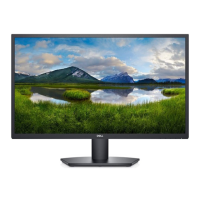
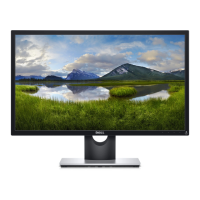
Dell SE2216H - User Manual

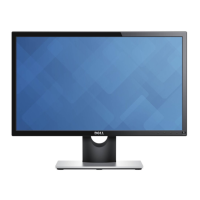
Dell SE2216H
62 pages
Print Icon
To Next Page IconTo Next Page
Loading...
Regulatory Model: SE2216Hf / SE2216HVf
User‘s Guide
Dell SE2216H
Dell SE2216HM
Dell SE2216HV

Other manuals for Dell SE2216H

Questions and Answers

  • L
    Lisa WeaverSep 9, 2025
    What to do if Dell Monitor has missing color?
    • D
      david07Sep 9, 2025
      If your Dell monitor is missing color: Perform a monitor self-test feature check. Ensure that the video cable connecting the monitor to the computer is connected properly and is secure. Check for bent or broken pins in the video cable connector.
  • A
    Anthony WoodardAug 23, 2025
    What to do if Dell SE2216H Monitor image is too small?
    • B
      Bruce LloydAug 23, 2025
      If the screen image on your Dell monitor is too small: Check the Aspect Ratio setting in the Display On-Screen Display (OSD). Reset the monitor to Factory Settings.
  • D
    Deanna LopezAug 25, 2025
    How to fix shaky or jittery video on Dell SE2216H?
    • M
      Martin RichAug 25, 2025
      To fix shaky or jittery video on your Dell monitor: Perform Auto Adjust via the On-Screen Display (OSD). Adjust the Phase and Pixel Clock controls via the OSD. Reset the monitor to Factory Settings. Check environmental factors. Relocate the monitor and test in another room.
  • J
    Johnny BooneAug 27, 2025
    How to fix wrong color on Dell SE2216H?
    • A
      alexander68Aug 27, 2025
      To correct the wrong color display on your Dell monitor: Change the Color Setting Mode in the Color Settings On-Screen Display (OSD) to Graphics or Video depending on the application. Try different Color Preset Settings in Color Settings OSD. Adjust R/G/B value in Color Settings OSD if the Color Management is turned off. Change the Input Color Format to PC RGB or YPbPr in the Advance Setting OSD.
  • M
    michelle99Aug 27, 2025
    Why does my Dell SE2216H have horizontal or vertical lines?
    • H
      heather65Aug 27, 2025
      If your Dell monitor displays horizontal or vertical lines: Reset the monitor to Factory Settings. Perform Auto Adjust via the On-Screen Display (OSD). Adjust Phase and Pixel Clock controls via the OSD. Perform a monitor self-test feature check to determine if these lines are also in self-test mode. Check for bent or broken pins in the video cable connector.
  • K
    Kelly JonesAug 29, 2025
    What to do if Dell SE2216H has no Input Signal when user controls are pressed?
    • A
      Alexander BurnsAug 29, 2025
      If your Dell monitor displays 'No Input Signal' when user controls are pressed: Check the signal source. Ensure that the computer is not in power saving mode by moving the mouse or pressing any key on the keyboard. Check whether the signal cable is plugged in properly. Re-plug the signal cable if necessary. Reset the computer or video player.
  • D
    Donna ChavezSep 17, 2025
    Why the picture does not fill the entire screen of my Dell SE2216H Monitor?
    • K
      Kristine RomeroSep 18, 2025
      If the picture does not fill the entire screen on your Dell monitor: Due to different video formats (aspect ratio) of DVDs, the monitor may not display in full screen. Run the built-in diagnostics.
  • S
    Susan RogersSep 18, 2025
    How to prevent image retention from a static image left on the Dell SE2216H for a long period of time?
    • J
      Jessica WilsonSep 19, 2025
      To prevent image retention on your Dell monitor: Set the screen to turn off after a few minutes of screen idle time. Alternatively, use a dynamically changing screensaver.
  • S
    Susan McdanielSep 7, 2025
    Why is my Dell SE2216H having synchronization problems?
    • L
      Linda MorganSep 8, 2025
      If your Dell monitor is experiencing synchronization problems: Reset the monitor to Factory Settings. Perform Auto Adjust via the On-Screen Display (OSD). Adjust Phase and Pixel Clock controls via the OSD. Perform a monitor self-test feature check to determine if the scrambled screen appears in self-test mode. Check for bent or broken pins in the video cable connector. Restart the computer in safe mode.
  • E
    evanstinaSep 4, 2025
    How to fix poor focus on Dell Monitor?
    • C
      Corey ShermanSep 4, 2025
      To correct poor focus on your Dell monitor: Perform Auto Adjust via the On-Screen Display (OSD). Adjust the Phase and Pixel Clock controls via the OSD. Eliminate video extension cables. Reset the monitor to Factory Settings. Change the video resolution to the correct aspect ratio (16:9).

Summary

About Your Monitor

Package Contents

Lists all components included with the monitor.

Product Features

Details the key capabilities and specifications of the monitor.

Identifying Parts and Controls

Explains the physical layout and functions of monitor buttons and ports.

Monitor Specifications

Provides detailed technical specifications and pin assignments for monitor connectors.

Plug and Play Capability

Explains how the monitor interfaces with Plug and Play compatible systems.

LCD Monitor Quality & Pixel Policy

Addresses issues related to pixel defects and quality standards in LCD monitors.

Maintenance Guidelines

Offers instructions for cleaning and caring for the monitor to ensure longevity.

Setting Up the Monitor

Attaching the Stand

Step-by-step guide on how to assemble and attach the monitor stand.

Connecting Your Monitor

Instructions for connecting the monitor to a computer using VGA or HDMI cables.

Organizing Your Cables

Guidance on neat cable management for a tidy setup.

Removing the Monitor Stand

Procedures for detaching the monitor stand from the display.

Operating the Monitor

Power On the Monitor

Basic steps to turn the monitor on and off.

Using the Front-Panel Controls

Explanation of monitor buttons and their functions for adjustments.

Using the On-Screen Display (OSD) Menu

Detailed guide on navigating and using the monitor's OSD menu for settings.

Setting the Maximum Resolution

Steps to configure the monitor to its optimal display resolution in Windows.

Using the Tilt

Instructions on how to adjust the monitor's tilt for optimal viewing angle.

Troubleshooting

Self-Test

Procedure for running a monitor self-test to diagnose display issues.

Built-in Diagnostics

Guide to using the monitor's built-in tool for screen abnormality diagnosis.

Common Problems

Table of common monitor issues and their possible solutions.

Product-Specific Problems

Troubleshooting specific issues related to the monitor's features and controls.

Appendix

Safety Instructions

Important safety warnings and precautions for using the monitor.

FCC Notices (U.S. Only) and Other Regulatory Information

Regulatory compliance information, including FCC notices.

Contact Dell

Information on how to contact Dell support for assistance and services.

EU product database for energy label and product information sheet

Link to EU product database for energy and information sheets.

Dell SE2216H Specifications

General IconGeneral
3DNo
Pixel pitch0.248 x 0.248 mm
Aspect ratio16:9
Response time12 ms
Display surfaceMatt
Display diagonal21.5 \
Display technologyLED
Viewable size, vertical267.79 mm
Contrast ratio (dynamic)8000000:1
Contrast ratio (typical)3000:1
Display number of colors16.78 million colors
Viewable size, horizontal476.06 mm
Display brightness (typical)250 cd/m²
Supported graphics resolutions1920 x 1080 (HD 1080)
On/off switchYes
HDCP-
USB Type-A downstream ports quantity0
CertificationTCO, RoHS
Product colorBlack
Market positioningBusiness
Input current1 A
AC input voltage100 - 240 V
AC input frequency50 - 60 Hz
Power consumption (max)24 W
Power consumption (off)0.2 W
Annual energy consumption26 kWh
Power consumption (standby)0.3 W
Power consumption (typical)15.5 W
Power consumption (PowerSave)15.1 W
Operating altitude0 - 5000 m
Non-operating altitude0 - 12192 m
Storage temperature (T-T)-20 - 60 °C
Operating temperature (T-T)0 - 40 °C
Storage relative humidity (H-H)5 - 90 %
Operating relative humidity (H-H)10 - 80 %
Sustainability certificatesEPEAT Silver, ENERGY STAR
Package weight4800 g
Weight and Dimensions IconWeight and Dimensions
Depth (with stand)179.9 mm
Height (with stand)395.7 mm
Depth (without stand)54.7 mm
Width (without stand)506.2 mm
Height (without stand)302.7 mm

Related product manuals