EasyManua.ls Logo

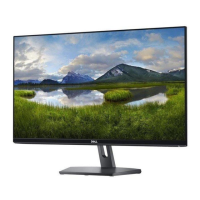
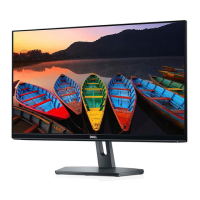
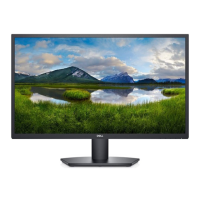
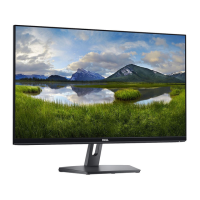
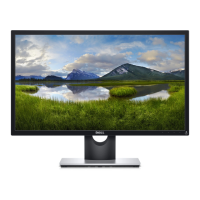
Dell SE2216H - User Manual

Dell SE2216H
62 pages
Print Icon
To Next Page IconTo Next Page
Loading...
Regulatory Model: SE2216Hf / SE2216HVf
User‘s Guide
Dell SE2216H
Dell SE2216HM
Dell SE2216HV

Other manuals for Dell SE2216H

Questions and Answers

  • D
    Damon PattersonAug 21, 2025
    How to fix brightness problems on Dell Monitor?
    • M
      mendezjosephAug 21, 2025
      To resolve brightness problems on your Dell monitor: Reset the monitor to Factory Settings. Auto Adjust via the On-Screen Display (OSD). Adjust brightness and contrast controls using the OSD.
  • M
    Maria LutzSep 3, 2025
    How to resolve intermittent problems with Dell SE2216H Monitor?
    • A
      Adam GeorgeSep 3, 2025
      To troubleshoot intermittent problems with your Dell monitor: Ensure that the video cable connecting the monitor to the computer is connected properly and is secure. Reset the monitor to Factory Settings. Perform the monitor self-test feature check to determine if the intermittent problem occurs in self-test mode.
  • M
    Michael NealSep 1, 2025
    What to do if there is no video but the power LED is on for Dell SE2216H Monitor?
    • C
      charlotte74Sep 1, 2025
      If your Dell monitor has no video but the power LED is on, try the following: increase the brightness and contrast controls via the On-Screen Display (OSD). Perform the monitor self-test feature check. Check for bent or broken pins in the video cable connector. Ensure the correct Input Source is selected using the Input Source Select menu. Run the built-in diagnostics.
  • R
    Rachel MunozAug 30, 2025
    Why is there no video and the power LED is off on my Dell SE2216H Monitor?
    • H
      Heather Ingram DDSAug 30, 2025
      If your Dell monitor displays no video and the power LED is off, ensure the video cable connecting the monitor and computer is properly connected and secure. Verify the power outlet is functioning with other electrical equipment. Make sure the power button is fully depressed. Ensure the correct Input Source is selected using the Input Source Select button. Check the “Power LED Button” option under Energy in the On-Screen Display (OSD) Menu.
  • K
    Kelly JonesAug 29, 2025
    What to do if Dell SE2216H has no Input Signal when user controls are pressed?
    • A
      Alexander BurnsAug 29, 2025
      If your Dell monitor displays 'No Input Signal' when user controls are pressed: Check the signal source. Ensure that the computer is not in power saving mode by moving the mouse or pressing any key on the keyboard. Check whether the signal cable is plugged in properly. Re-plug the signal cable if necessary. Reset the computer or video player.
  • M
    michelle99Aug 27, 2025
    Why does my Dell SE2216H have horizontal or vertical lines?
    • H
      heather65Aug 27, 2025
      If your Dell monitor displays horizontal or vertical lines: Reset the monitor to Factory Settings. Perform Auto Adjust via the On-Screen Display (OSD). Adjust Phase and Pixel Clock controls via the OSD. Perform a monitor self-test feature check to determine if these lines are also in self-test mode. Check for bent or broken pins in the video cable connector.
  • J
    Johnny BooneAug 27, 2025
    How to fix wrong color on Dell SE2216H?
    • A
      alexander68Aug 27, 2025
      To correct the wrong color display on your Dell monitor: Change the Color Setting Mode in the Color Settings On-Screen Display (OSD) to Graphics or Video depending on the application. Try different Color Preset Settings in Color Settings OSD. Adjust R/G/B value in Color Settings OSD if the Color Management is turned off. Change the Input Color Format to PC RGB or YPbPr in the Advance Setting OSD.
  • D
    Deanna LopezAug 25, 2025
    How to fix shaky or jittery video on Dell SE2216H?
    • M
      Martin RichAug 25, 2025
      To fix shaky or jittery video on your Dell monitor: Perform Auto Adjust via the On-Screen Display (OSD). Adjust the Phase and Pixel Clock controls via the OSD. Reset the monitor to Factory Settings. Check environmental factors. Relocate the monitor and test in another room.
  • A
    Anthony WoodardAug 23, 2025
    What to do if Dell SE2216H Monitor image is too small?
    • B
      Bruce LloydAug 23, 2025
      If the screen image on your Dell monitor is too small: Check the Aspect Ratio setting in the Display On-Screen Display (OSD). Reset the monitor to Factory Settings.

Summary

About Your Monitor

Package Contents

Lists all components included with the monitor.

Product Features

Details the key capabilities and specifications of the monitor.

Identifying Parts and Controls

Explains the physical layout and functions of monitor buttons and ports.

Monitor Specifications

Provides detailed technical specifications and pin assignments for monitor connectors.

Plug and Play Capability

Explains how the monitor interfaces with Plug and Play compatible systems.

LCD Monitor Quality & Pixel Policy

Addresses issues related to pixel defects and quality standards in LCD monitors.

Maintenance Guidelines

Offers instructions for cleaning and caring for the monitor to ensure longevity.

Setting Up the Monitor

Attaching the Stand

Step-by-step guide on how to assemble and attach the monitor stand.

Connecting Your Monitor

Instructions for connecting the monitor to a computer using VGA or HDMI cables.

Organizing Your Cables

Guidance on neat cable management for a tidy setup.

Removing the Monitor Stand

Procedures for detaching the monitor stand from the display.

Operating the Monitor

Power On the Monitor

Basic steps to turn the monitor on and off.

Using the Front-Panel Controls

Explanation of monitor buttons and their functions for adjustments.

Using the On-Screen Display (OSD) Menu

Detailed guide on navigating and using the monitor's OSD menu for settings.

Setting the Maximum Resolution

Steps to configure the monitor to its optimal display resolution in Windows.

Using the Tilt

Instructions on how to adjust the monitor's tilt for optimal viewing angle.

Troubleshooting

Self-Test

Procedure for running a monitor self-test to diagnose display issues.

Built-in Diagnostics

Guide to using the monitor's built-in tool for screen abnormality diagnosis.

Common Problems

Table of common monitor issues and their possible solutions.

Product-Specific Problems

Troubleshooting specific issues related to the monitor's features and controls.

Appendix

Safety Instructions

Important safety warnings and precautions for using the monitor.

FCC Notices (U.S. Only) and Other Regulatory Information

Regulatory compliance information, including FCC notices.

Contact Dell

Information on how to contact Dell support for assistance and services.

EU product database for energy label and product information sheet

Link to EU product database for energy and information sheets.

Dell SE2216H Specifications

General IconGeneral
3DNo
Pixel pitch0.248 x 0.248 mm
Aspect ratio16:9
Response time12 ms
Display surfaceMatt
Display diagonal21.5 \
Display technologyLED
Viewable size, vertical267.79 mm
Contrast ratio (dynamic)8000000:1
Contrast ratio (typical)3000:1
Display number of colors16.78 million colors
Viewable size, horizontal476.06 mm
Display brightness (typical)250 cd/m²
Supported graphics resolutions1920 x 1080 (HD 1080)
On/off switchYes
HDCP-
USB Type-A downstream ports quantity0
CertificationTCO, RoHS
Product colorBlack
Market positioningBusiness
Input current1 A
AC input voltage100 - 240 V
AC input frequency50 - 60 Hz
Power consumption (max)24 W
Power consumption (off)0.2 W
Annual energy consumption26 kWh
Power consumption (standby)0.3 W
Power consumption (typical)15.5 W
Power consumption (PowerSave)15.1 W
Operating altitude0 - 5000 m
Non-operating altitude0 - 12192 m
Storage temperature (T-T)-20 - 60 °C
Operating temperature (T-T)0 - 40 °C
Storage relative humidity (H-H)5 - 90 %
Operating relative humidity (H-H)10 - 80 %
Sustainability certificatesEPEAT Silver, ENERGY STAR
Package weight4800 g
Weight and Dimensions IconWeight and Dimensions
Depth (with stand)179.9 mm
Height (with stand)395.7 mm
Depth (without stand)54.7 mm
Width (without stand)506.2 mm
Height (without stand)302.7 mm

Related product manuals