116 Protecting Your Dell Streak 7 Tablet
To disable or change PIN
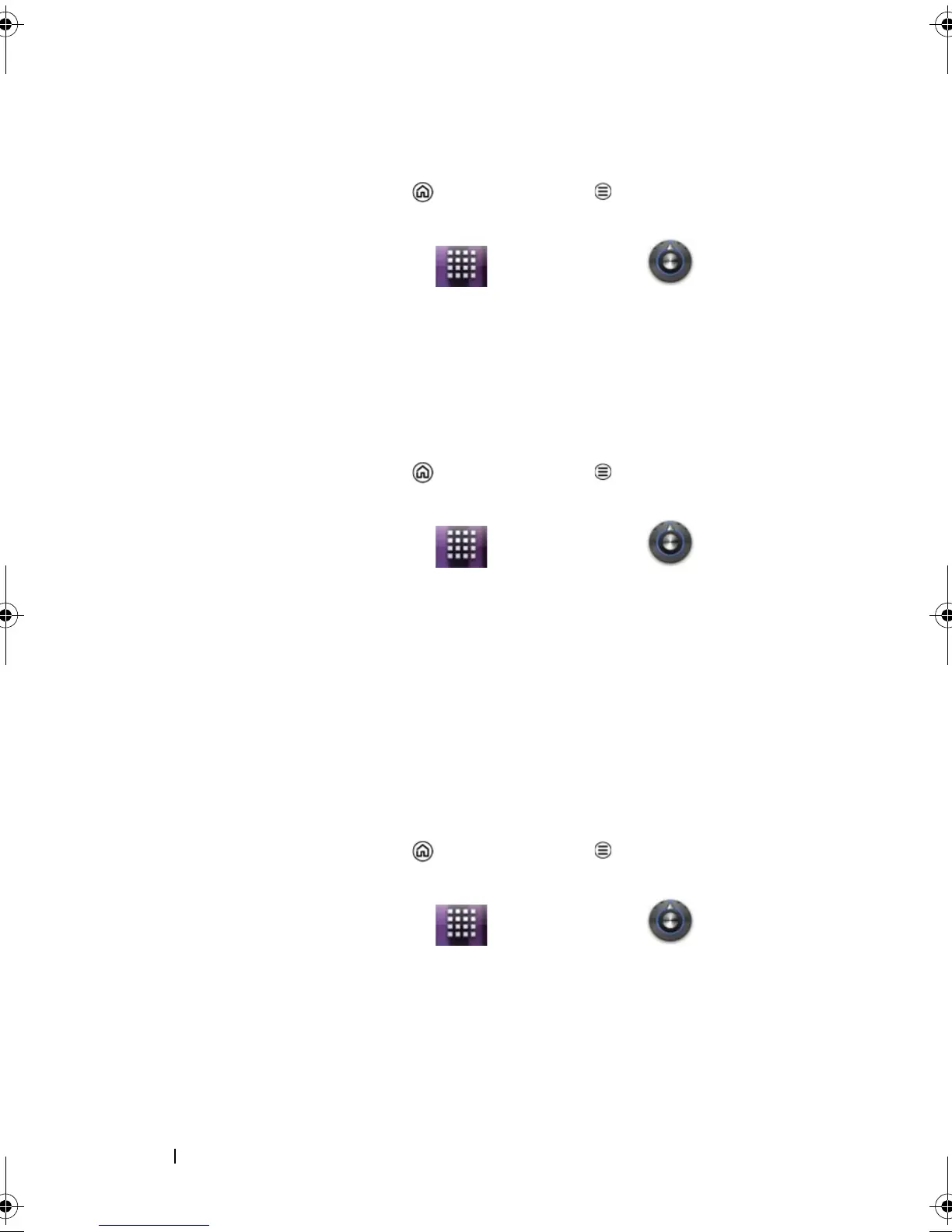
1 Touch the Home button Menu button Settings
Location & security Change screen lock, or
touch the Launcher button Settings icon
Location & security Change screen lock.
2 Enter the PIN you have enabled.
3 Select None to disable the PIN; select PIN to change PIN.
Protect Your Device Data With a Password
1 Touch the Home button Menu button Settings
Location & security Set up screen lock Password, or
touch the Launcher button Settings icon
Location & security Set up screen lock Password.
2 On the Choose your password page that appears, enter a
password in the text box. A valid password consists of at least 4
characters and contains at least one letter.
3 Touch OK to proceed.
4 Enter the password again to confirm.
5 Touch OK.
To disable or change the password
1 Touch the Home button Menu button Settings
Location & security Change screen lock, or
touch the Launcher button Settings icon
Location & security Change screen lock.
2 Enter the password you have enabled.
3 Select None to disable the PIN; select Password to change the
password.
LG7_bk0.book Page 116 Thursday, January 27, 2011 2:16 PM


 To Next Page