27DeLorme inReach User Manual | Using the inReach with an iOS Mobile Device
Messages
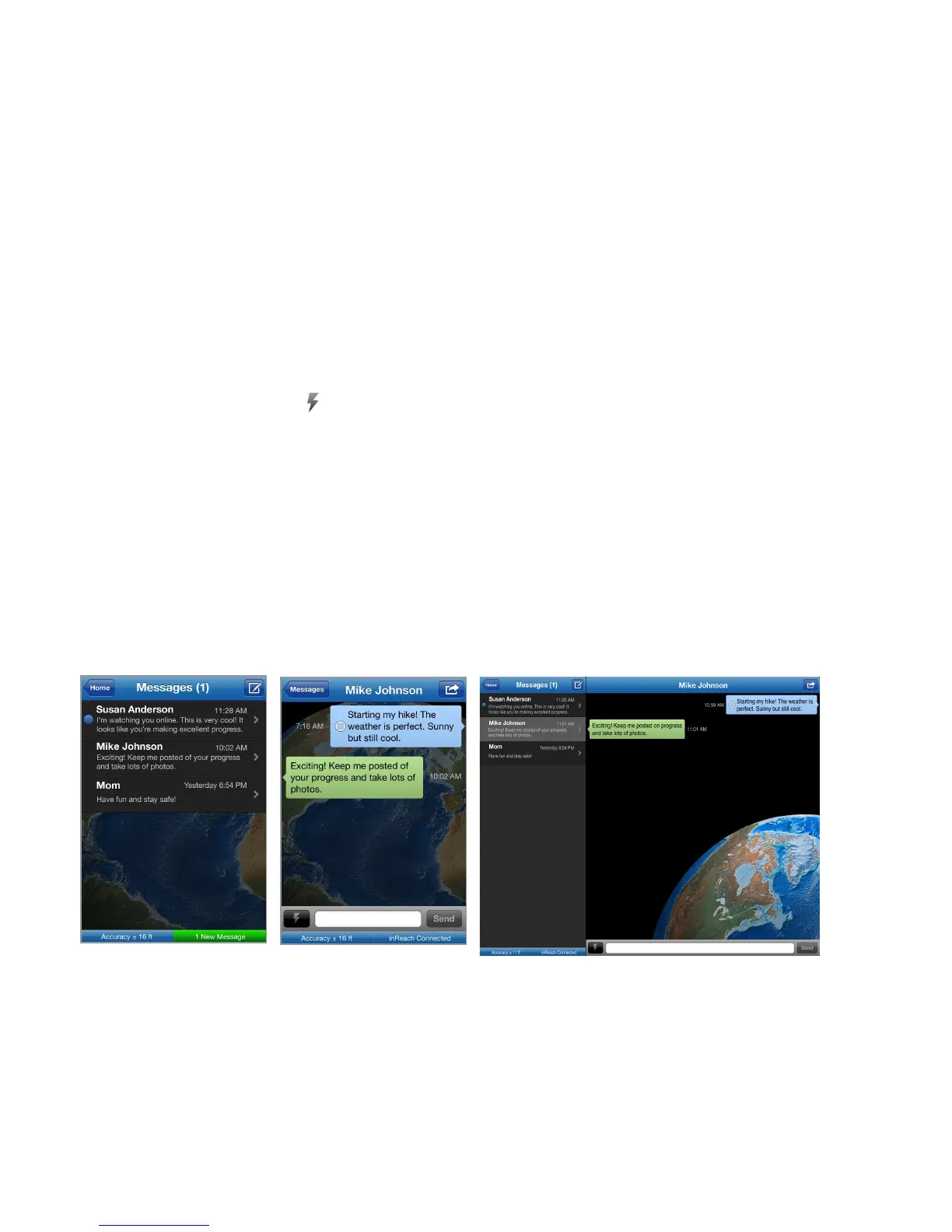
Tap Messages to view a list of conversations. The number of unread messages is indicated in the page header and
the conversations with unread messages are indicated by a blue dot.
All sent and received messages are available to view at explore.delorme.com. Messages that you send and receive
while your mobile device is connected to the inReach are displayed on the map. Messages that are sent and received
while the inReach is not connected are queued and downloaded to the Earthmate app after you connect the devices.
You can also view messages in History. See page 31 for more information.
Create Messages
Create messages (up to 160 characters) and send them to your contacts or to addresses in the eld.
Tip Add contacts to your address book on explore.delorme.com and sync them to your mobile device. Contacts
synced from explore.delorme.com reduce the 160-character message limit by only two characters. If you manually
enter an address, the number of characters in the address counts against your 160-character limit.
• The predened Quick Text messages you set up at explore.delorme.com and synced to your phone are available
by tapping the Quick Text icon next to the text box or you can create a new message. Quick Text messages
synced from explore.delorme.com to the Earthmate app use a short code rather than the 160-character limit.
• Post to Facebook and Twitter. Link your accounts at explore.delorme.com—Facebook and Twitter will appear
under your contact information and each has its own conversation thread. You can post to your own Facebook wall
or Twitter account; you will not receive comments or replies in the Earthmate app.
• Post messages to update your MapShare page. You must rst set up MapShare on explore.delorme.com; see the
Help at explore.delorme.com for more information. MapShare will appear under your contact information and has
its own conversation thread.
• Create messages on your phone when you aren’t connected to your inReach. When you are connected within
15 minutes, the message will be sent automatically; you can tap the message to send it if you connect after 15
minutes.
To send a new message
1. From the Home page, tap the Compose buttton in the navigation bar.
2. Start typing a name in the text box and select a contact.
OR
Tap the Add button to select a name from your contacts, and then select a contact.
OR
Type a new contact address (mobile phone or email).
3. Type a message in the text box.


 To Next Page