This document is a user manual for the DELTACO GAMING DK220 Running RGB Gaming Keyboard, model number GAM-021-RGB-DE.
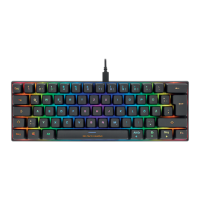
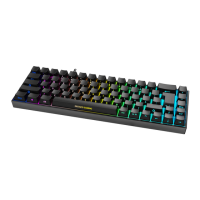
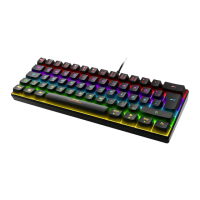
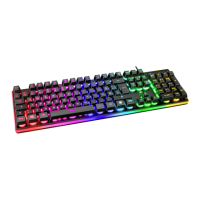
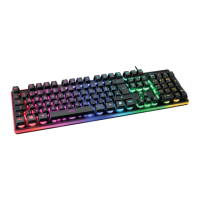
The DELTACO GAMING DK220 is a full-sized gaming keyboard featuring customizable RGB backlighting. It is designed for gamers and offers a range of multimedia and lighting control functions accessible via FN key combinations. The keyboard layout appears to be a standard QWERTZ layout, common in German-speaking regions, given the "DEU Benutzerhandbuchl" and key labels like "Ü", "Ö", "Ä", and "Strg".
Key Features and Functions:
The keyboard integrates various functions through combinations of the "FN" key and the F1-F12 function keys, as well as other dedicated keys. These combinations provide quick access to multimedia controls, system functions, and backlight adjustments.
- FN + F1: Opens the default media player.
- FN + F2: Decreases the volume.
- FN + F3: Increases the volume.
- FN + F4: Toggles mute/unmute for sound.
- FN + F5: Stops media playback.
- FN + F6: Skips to the previous track.
- FN + F7: Plays or pauses media.
- FN + F8: Skips to the next track.
- FN + F9: Opens the default email program.
- FN + F10: Opens the default web browser.
- FN + F11: This combination is intentionally left blank, suggesting it might be reserved for future functionality or user-defined macros in some software.
- FN + F12: Opens the calculator application.
- FN + Windows key: Locks or unlocks the Windows key, preventing accidental presses during gaming that could minimize the game.
Backlight Modes and Customization:
The DK220 keyboard boasts extensive RGB backlighting features, allowing users to personalize their gaming setup.
- FN + Pg Dn (Page Down): Toggles the backlight on or off.
- FN + ENDE (End): Activates backlight breathing mode, which has two sub-modes. The first press displays a single color breathing effect, while the second press cycles through different colors in the breathing effect.
- FN + Entf (Delete): Activates two distinct RGB light modes. The first mode is a "Running RGB light," likely a dynamic, flowing light effect. The second mode is a "Tetris RGB mode," which could involve lighting patterns reminiscent of the Tetris game.
- FN + Pg Up (Page Up): Enters a configurable LED mode, allowing for user-defined lighting patterns.
- FN + POS1 (Home): Offers seven static LED modes and one rainbow-colored mode, providing a variety of preset lighting options.
- FN + Einfg (Insert): Changes the current LED mode, cycling through the available preset modes.
- FN + Arrow Left: Increases the backlight speed for dynamic effects.
- FN + Arrow Right: Decreases the backlight speed for dynamic effects.
- FN + Arrow Up: Increases the overall backlight brightness.
- FN + Arrow Down: Decreases the overall backlight brightness.
Customization of LED Groups:
The keyboard supports advanced customization where users can define specific lighting for groups of keys.
To enter customization mode:
- Press FN + Page Up. The keyboard's LEDs will flash to indicate it's in customization mode.
- Hold FN and then press numbers 1-6. Each number corresponds to a specific group of keyboard keys. Users can continue pressing these numbers to achieve their desired key grouping and lighting combination.
- Once the desired combination is set, press FN + Page Up again to confirm and save the customization.
Technical Specifications (Inferred):
While explicit technical specifications like switch type, polling rate, or materials are not detailed in the provided pages, the "Running RGB Gaming Keyboard" designation implies:
- RGB Backlighting: Full spectrum RGB lighting with multiple dynamic and static effects.
- Gaming-oriented design: Features like Windows key lock, anti-ghosting, and N-key rollover are typically expected in gaming keyboards, although not explicitly mentioned.
- Wired Connectivity: The image shows a wired connection, likely USB.
- Durability: Gaming keyboards are generally built for durability to withstand intensive use.
Usage and Maintenance:
The manual primarily focuses on the functional usage of the keyboard's features, particularly the FN key combinations for multimedia and backlight control. It also details the process for customizing LED groups.
- Plug and Play: As a standard USB keyboard, it is likely plug-and-play compatible with most operating systems, requiring no specific driver installation for basic functionality.
- Software: The manual does not mention any accompanying software for advanced customization or macro programming, suggesting that all customization is done directly on the keyboard using FN key combinations.
- Cleaning: While not explicitly stated, general keyboard maintenance would involve regular cleaning to remove dust and debris from between the keycaps and the keyboard surface.
For further product information, users are directed to www.deltaco.eu. Customer support can be reached via email at help@deltaco.eu. Contact numbers are also provided for specific regions:
- Sweden: help@deltaco.se (0200-877771)
- Finland: info@deltaco.fi (020 712 0390)
- Denmark: help@deltaco.dk
- Norway: help@deltaco.no
The keyboard is distributed by SweDeltaco, located at Glasfibergatan 8, 125 45 Älvsjö, Sweden.
In summary, the DELTACO GAMING DK220 is a feature-rich gaming keyboard with a strong emphasis on customizable RGB lighting and convenient multimedia controls, all accessible through on-board key combinations without the apparent need for external software. Its design caters to gamers looking for a personalized and functional input device.

 Need help?
 General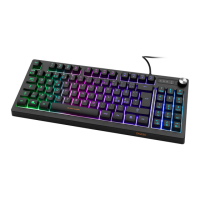


 To Next Page