Top Gray Action Bar
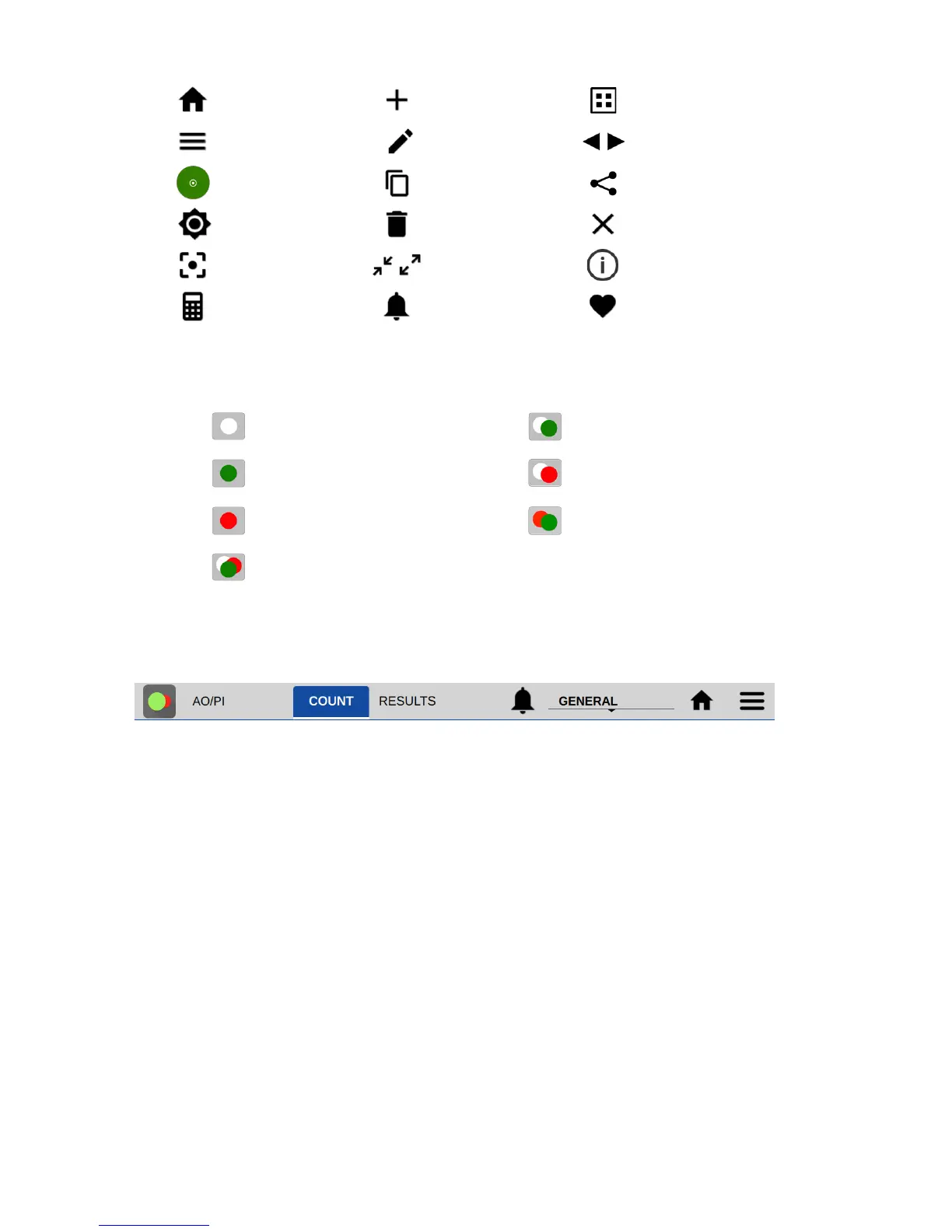
• Count Tab: This screen is used to preview cell populations, optimize image settings, define
dilution guidance parameters and initiate cell counts.
• Results Tab: This tab enables the user to review the data for all samples measured in the current
measurement session.
• Alerts: System alerts including Timer finished alert and low count alerts as set in the Count Codes
app (Pay-As-You-Go-Models).
• Account: The current account in use is displayed on the top action bar. Tap the account name to
display a list of available accounts. Changing an account will automatically use the protocol
indicated as the default option selected in the Accounts app accessed from the Home screen.
• Home Icon: Tapping the Home icon will navigate back to the Home screen and close the app.
• Overflow: The Overflow icon is used to access a drop down menu of screen specific options as
described below:
o Screen Capture: Screen shots may be taken of most but not all views. Refer to the Export and
Print Options chapter for more information.
o Count Code Log (PAYG models only): Displays a log of count code use.
o About: The About feature brings up an information box displaying the current app version
number.


 To Next Page