22
6.3.1. ENROLLING A NEW FINGERPRINT (LEARN)
If you want to enroll a new fingerprint to the reader, follow the steps below:
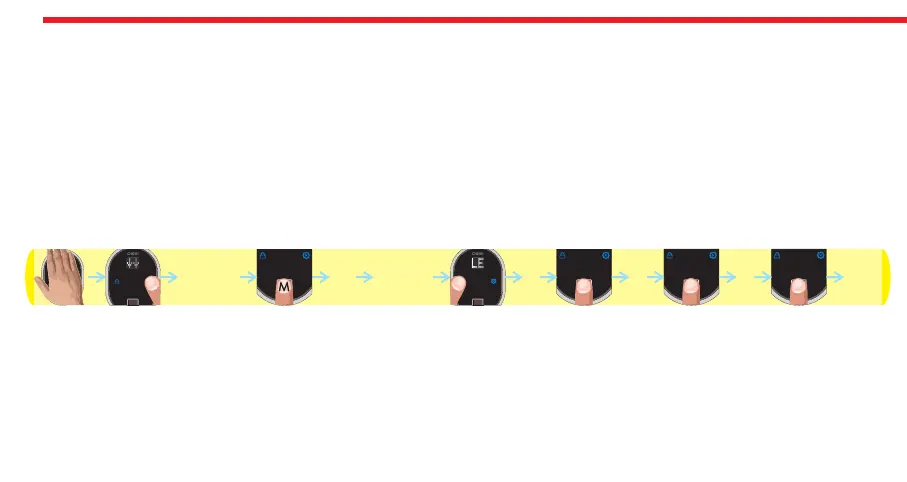
- Touch to device with your palm to wake it up. Two arrows will appear on display. Touch “Button #2”. ADMIN will be shown.
- Put one of the master fingers onto the reader. First “OK” and then “LEARN” will be shown.
- Touch “Button #1” when “LEARN” is on display. “L3” will be shown.
- Put the finger to the reader till you see “OK” and remove. “L2" will be displayed.
- Put the same finger again till you see “OK” and remove. . “L1" will be displayed.
- Put the same finger again till you see “OK”.
In this way, the new finperprint will be enrolled to the device. Schematic representation of operation is as follows:
NOTE 1: System assigns an id to fingers and this id is shown when finger is read.
NOTE 2: During enrollment, device reads the finger 2 times. If 2 reads don’t match, “EE” code will be displayed and reader
turns back to “L3" step. In this case, enrolling need to be repeated. Try to put your finger to the sensor in a similar way
during both read steps of enrollment
DESi
OK LEARN L3
L2 L1 OK
ADMIN



 To Next Page