23
6.3.2.DELETING ENROLLED FINGERPRINTS ONE-BY-ONE (DELETE)
If you want to delete an enrolled fingerprint which you know the id number, follow the steps below:
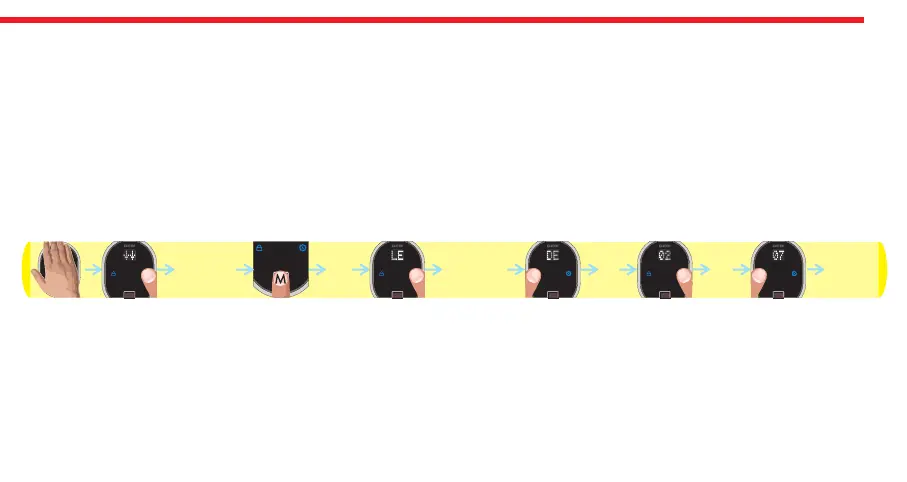
- Touch to device with your palm to wake it up. Two arrows will appear on display. Touch “Button #2”. ADMIN will be shown.
- Put one of the master fingers onto the reader. First “OK” and then “LEARN” will be shown.
- Touch “Button #2" till “DELETE” appears and touch “Button #1" when “DELETE” is on display. ”02" will be shown.
- Touch “Button #2" till you see the fingerprint id you want to delete and touch “Button #1" when related id is on display.
- “OK” will be shown.
In this way, the related finperprint will be deleted. Schematic representation of deleting a fingerprint (e.g. id is “07") is as
follows:
NOTE 1: System assigns an id to fingers and this id is shown when finger is read. By mistake, if you pass the id of fingerprint
you want to delete, wait a few seconds till display goes off and restart the procedure.
NOTE 2: First master fingerprint cannot be deleted in this way.
DESi
OK
02 07 OK
ADMIN DELETE


 To Next Page