27
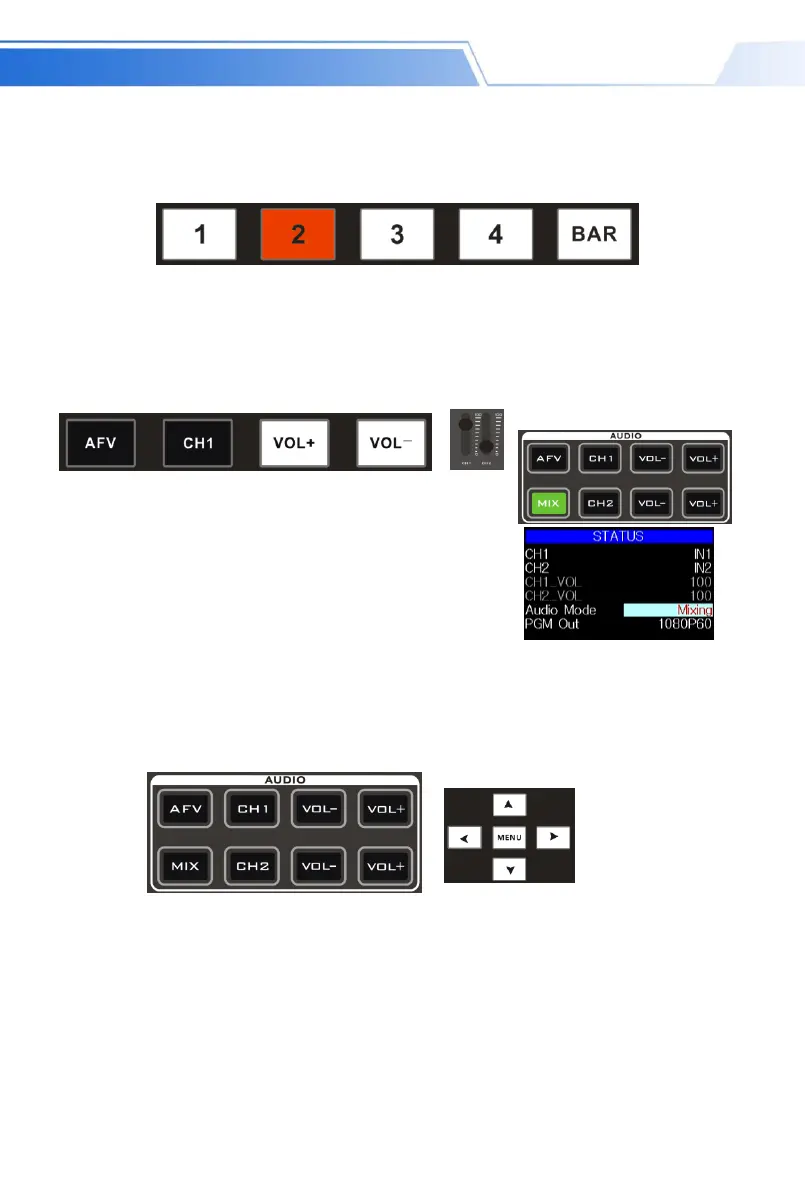
2. The channels of the audio follow mode are IN1、IN2、IN3、IN4 , and the corresponding operation panel
keys .(the button panel 2 lights up at this time, indicating that Operate the IN2-HDMI2 signal source as shown
below.)
3. The volume adjustment of the audio follow mode is controlled by the keys on the operation panel. Pressing the
AFV button in the follow mode (green light is displayed) will follow the audio of the PGM live channel by
default. At this time, you need to increase or decrease the volume. Next to VOL + (increase volume) and VOL-
(decrease volume) to adjust.
Keep clicking the VOL + and VOL- buttons, the corresponding menu section can also display the current
volume value.
1、Press the MIX button on the operation panel.
Lights up green as shown on the right.
How to use mix assignment:
The menu corresponding to the multiview will also display the
current audio status. The Audio Mode in the menu displays
Mixing, which indicates that the audio is in the mixing assignment
mode, as shown in the right figure.
2. The mixing assigned channels are IN1、IN2、IN3、IN4、PHONE_IN、MIC_IN1、MIC_IN2. Under the mixing
assignment mode, there are two more audio embedding functions; PHONE _IN means 3.5mm stereo audio
interface, MIC_IN means 3.5mm microphone audio interface; PGM live output can mix two audio
channels at any time, and the volume of the two audio channels can also be adjusted separately.
3. Audio channel adjustment for mixing assignment: It is adjusted through the buttons on the panel, including
audio control area and menu control area. As shown below.
You can also press MIX (showing green light) in the key panel, then press the "up and down" buttons of the menu button to
enter the audio channel selection, press the "down" button to enter the CH1 channel, click "MENU" to enter the audio source
selection, audio The source can be selected fromIN1、IN2、IN3、IN4、PHONE_IN、MIC_IN1、MIC_IN, after confirming the
selection, press "MENU" to exit; as shown in the right figure, the audio source of the first channel is from IN1-HDMI1
becomes IN4-HDMI4.
The second audio selection operation is the same. As shown in the right figure, the audio source of the second channel has
changed from IN2-HDMI2 to MIC_IN1.
Note: When there is a white bar displayed in the menu, you can only exit by pressing the "up" button on the key panel, and
you can only operate the operating system menu after exiting.
1. Press the AFV button on the operation panel, the button will light green at this time, and the corresponding
multiview menu will also display the current audio status. The Audio Mode in the menu shows Follow, which
indicates that the audio is in follow mode; as shown in the figure on the right.
(Note: the color of the keys displayed in the picture is different from the actual effect picture.)


 To Next Page