Connect your board wireless to your computer
Start the DGT BoardTester which can be found in the start menu under (All Programs) "DGT projects" if the
default folders are accepted in the setup.
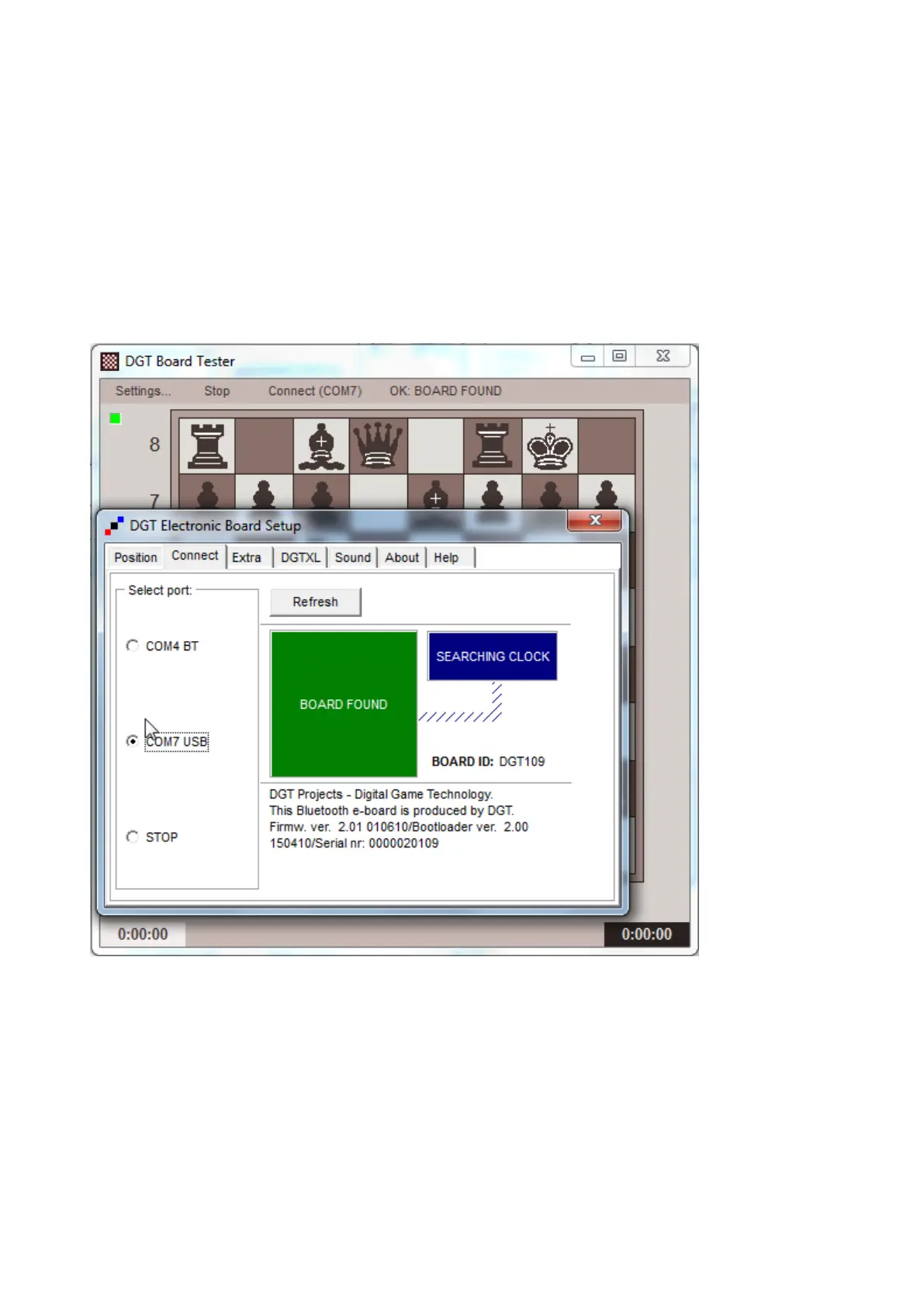
Click "Settings" in the menu and then select the "Connect" Tab in the driver window.
Click on the option button that is in front of the COM port number that previously assigned as "OUTGOING
COM PORT" during the Bluetooth setup. See Picture 12 for more details.
Be sure not to choose the other one that was identified as "INCOMING COM PORT" as this might freeze
your application. You can ignore this line if you had removed the incoming port as in Picture 14
The COM ports will only be shown if the connection is established. This is also the case when using the USB
connection, so you may see in both the USB COM port, and the Bluetooth ports this window.
When both connections are active you can to connect the e-board by USB or Bluetooth by selecting the
corresponding COM port number. You will recognize the ports by the suffix as "USB" or "BT"
Picture 17 The Board setup window
If you have a DGT XL clock connected to the board, this window will show whether the connection is correct.
The "DGT Electronic Board Setup" window will also appear in other applications that can communicate with
the DGT board when you choose this board as an input device. Please consult the manual of these specific
programs how to choose a DGT board as input device.


 To Next Page