Page 22
4. Setup
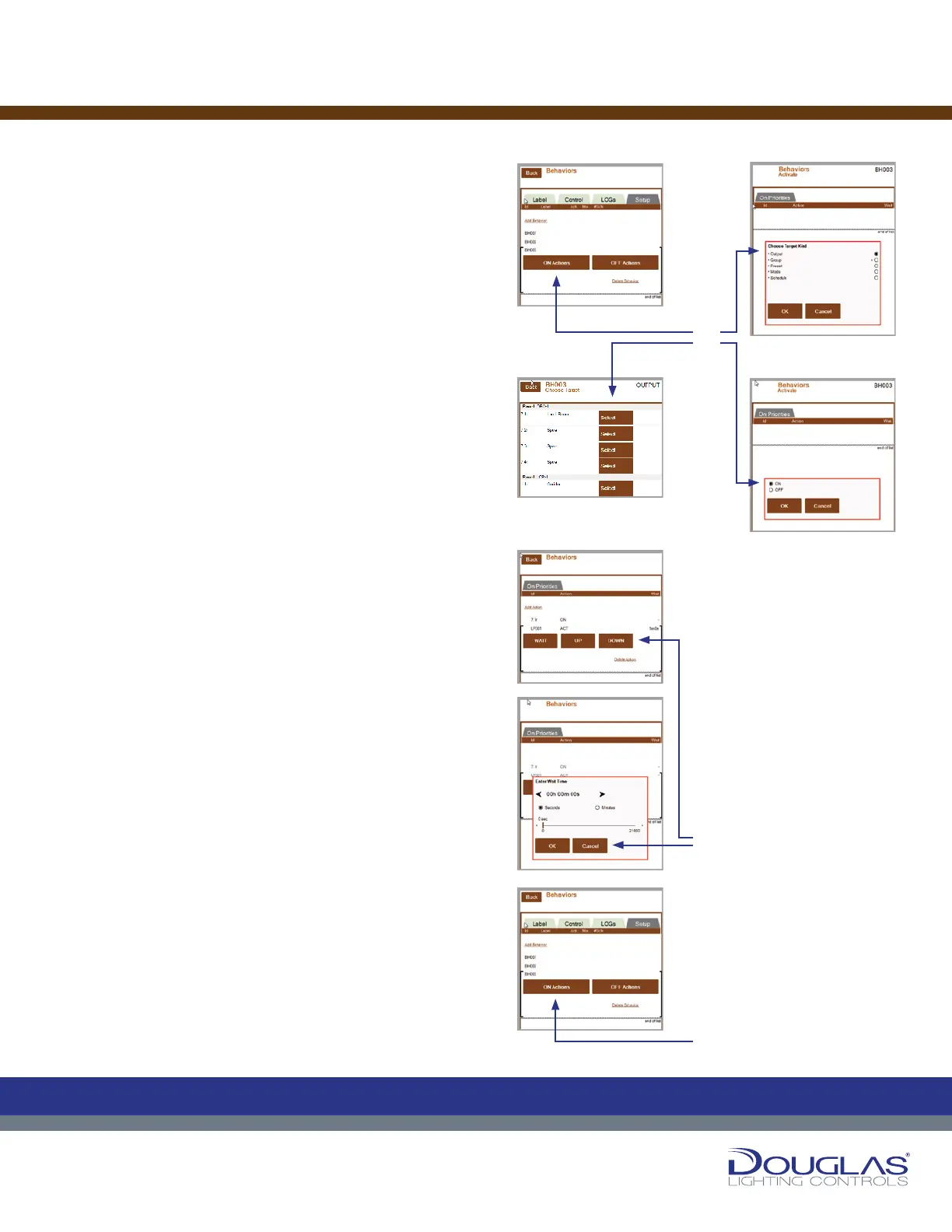
To congure a behavior:
a) Select the behavior from the list and select the ON ACTIONS
button. Select the Add Action link, select the element type
(output, group, preset, mode, or schedule), and select the
OK button. Next, select the target and specify if it is on or off.
b) When an ON ACTION is specied, use the UP and DOWN
buttons to set the order of the actions once the behavior is
activated. Select WAIT to delay the action, once the behavior
is active, for a specied amount of time. Use the slider to
adjust the time and select the OK button.
c) Select the behavior from the list and select the OFF ACTIONS
button. Select the Add Action link and select the element
type (output, group, preset, mode, or schedule), and select
the OK button. Next, select the target and specify if it is on
or off.
Behaviors
21
Dialog® Lighting Control System
4. Setup
a) Select the behavior from the list and select the ON
ACTIONS button. Select the Add Action link, select the
element type (output, group, preset, mode, or schedule),
and select the OK button. Next, select the target and
specify if it is on or o.
b) When an ON ACTION is specied, use the UP and
DOWN buttons to set the order of the actions once the
behavior is activated. Select WAIT to delay the action,
once the behavior is active, for a specied amount of
time. Use the slider to adjust the time and select the OK
button.
c) Select the behavior from the list and select the OFF
ACTIONS button. Select the Add Action link and
select the element type (output, group, preset, mode, or
schedule), and select the OK button. Next, select the `
target and specify if it is on or o.
Behaviors
C
M
Y
CM
MY
CY
CMY
K
21
Dialog® Lighting Control System
4. Setup
a) Select the behavior from the list and select the ON
ACTIONS button. Select the Add Action link, select the
element type (output, group, preset, mode, or schedule),
and select the OK button. Next, select the target and
specify if it is on or o.
b) When an ON ACTION is specied, use the UP and
DOWN buttons to set the order of the actions once the
behavior is activated. Select WAIT to delay the action,
once the behavior is active, for a specied amount of
time. Use the slider to adjust the time and select the OK
button.
c) Select the behavior from the list and select the OFF
ACTIONS button. Select the Add Action link and
select the element type (output, group, preset, mode, or
schedule), and select the OK button. Next, select the `
target and specify if it is on or o.
Behaviors
C
M
Y
CM
MY
CY
CMY
K
21
Dialog® Lighting Control System
4. Setup
a) Select the behavior from the list and select the ON
ACTIONS button. Select the Add Action link, select the
element type (output, group, preset, mode, or schedule),
and select the OK button. Next, select the target and
specify if it is on or o.
b) When an ON ACTION is specied, use the UP and
DOWN buttons to set the order of the actions once the
behavior is activated. Select WAIT to delay the action,
once the behavior is active, for a specied amount of
time. Use the slider to adjust the time and select the OK
button.
c) Select the behavior from the list and select the OFF
ACTIONS button. Select the Add Action link and
select the element type (output, group, preset, mode, or
schedule), and select the OK button. Next, select the `
target and specify if it is on or o.
Behaviors
C
M
Y
CM
MY
CY
CMY
K
21
Dialog® Lighting Control System
4. Setup
a) Select the behavior from the list and select the ON
ACTIONS button. Select the Add Action link, select the
element type (output, group, preset, mode, or schedule),
and select the OK button. Next, select the target and
specify if it is on or o.
b) When an ON ACTION is specied, use the UP and
DOWN buttons to set the order of the actions once the
behavior is activated. Select WAIT to delay the action,
once the behavior is active, for a specied amount of
time. Use the slider to adjust the time and select the OK
button.
c) Select the behavior from the list and select the OFF
ACTIONS button. Select the Add Action link and
select the element type (output, group, preset, mode, or
schedule), and select the OK button. Next, select the `
target and specify if it is on or o.
Behaviors
C
M
Y
CM
MY
CY
CMY
K
21
Dialog® Lighting Control System
4. Setup
a) Select the behavior from the list and select the ON
ACTIONS button. Select the Add Action link, select the
element type (output, group, preset, mode, or schedule),
and select the OK button. Next, select the target and
specify if it is on or o.
b) When an ON ACTION is specied, use the UP and
DOWN buttons to set the order of the actions once the
behavior is activated. Select WAIT to delay the action,
once the behavior is active, for a specied amount of
time. Use the slider to adjust the time and select the OK
button.
c) Select the behavior from the list and select the OFF
ACTIONS button. Select the Add Action link and
select the element type (output, group, preset, mode, or
schedule), and select the OK button. Next, select the `
target and specify if it is on or o.
Behaviors
C
M
Y
CM
MY
CY
CMY
K
21
Dialog® Lighting Control System
4. Setup
a) Select the behavior from the list and select the ON
ACTIONS button. Select the Add Action link, select the
element type (output, group, preset, mode, or schedule),
and select the OK button. Next, select the target and
specify if it is on or o.
b) When an ON ACTION is specied, use the UP and
DOWN buttons to set the order of the actions once the
behavior is activated. Select WAIT to delay the action,
once the behavior is active, for a specied amount of
time. Use the slider to adjust the time and select the OK
button.
c) Select the behavior from the list and select the OFF
ACTIONS button. Select the Add Action link and
select the element type (output, group, preset, mode, or
schedule), and select the OK button. Next, select the `
target and specify if it is on or o.
Behaviors
C
M
Y
CM
MY
CY
CMY
K
21
Dialog® Lighting Control System
4. Setup
a) Select the behavior from the list and select the ON
ACTIONS button. Select the Add Action link, select the
element type (output, group, preset, mode, or schedule),
and select the OK button. Next, select the target and
specify if it is on or o.
b) When an ON ACTION is specied, use the UP and
DOWN buttons to set the order of the actions once the
behavior is activated. Select WAIT to delay the action,
once the behavior is active, for a specied amount of
time. Use the slider to adjust the time and select the OK
button.
c) Select the behavior from the list and select the OFF
ACTIONS button. Select the Add Action link and
select the element type (output, group, preset, mode, or
schedule), and select the OK button. Next, select the `
target and specify if it is on or o.
Behaviors
C
M
Y
CM
MY
CY
CMY
K
Setup:
a)
b)
c)


 To Next Page
 Loading...